Arch Linux
Mostly for personal reference how to quickly set up Arch Linux according to personal tastes. Refer to Arch Wiki for more comprehensive guidance.
- Getting Started
- Partitioning
- Understanding Linux file systems
- Singular file system
- Singular file system (LUKS, encrypted)
- Encrypt non-root devices (LUKS)
- LVM + dm-cache (unencrypted)
- LVM on LUKS (encrypted, Laptop)
- LUKS on LVM (encrypted, cached, Desktop)
- Installation
- Base System
- Time Zone & Locale
- Network
- Root Password
- sudo
- zsh
- Add User
- AUR Helper
- zram
- Boot Loader
- initramfs
- Secure Boot
- Hardware
- Graphics Cards
- Sound
- Bluetooth
- Printing
- Trusted Platform Module
- Universial 2nd Factor (U2F)
- Fingerpint Reader
- Desktop Environemt
- Software
- Spell checking
- Fonts
- Polkit
- Firefox
- Google Chrome
- Discord
- Blu-ray
- Node.js (nvm)
- Kernel‑based Virtual Machine (KVM)
- Folding@Home
- Timeshift
- GNOME Flatpaks
- Games
- Wine
- Steam
- DOSBox
- ScummVM
- OpenRCT2
- OpenTTD
- CorsixTH
- ioquake3
- DXX-Rebirth
- Minecraft
- SimCity 3000 Unlimited
- UT2004 (Atari DVD Release Version)
- Customization & Tweaks
- DBus
- KDE Plasma Themes
- Additional Packages
- zsh configuration
- Plymouth
- Reinstall preparation
- Qt Wayland
- Removing unused packages (orphans)
- Troubleshooting
Getting Started
Quick and easy(tm)
Preparations
INFO: This is a shortened version of the Arch Wiki installation guide.
Download an ISO from the Arch Linux download page, either via Torrent or HTTP from a mirror nearest to you.
Preparing install media
After you downloaded the image you need to flash it to physical media to boot your machine from it, i.e. a USB flash drive.
WARNING: All data on the USB flash drive will be lost!
Windows
On Windows you can use Balena etcher to flash ISOs to USB. Connect your USB to your computer, load the ISO you just downloaded in etcher, select the USB as target and start the flashing process. A pop-up might appear asking you to confirm to overwrite the USB flash drive.
macOS
Connect your USB flash drive to your Mac. Launch Terminal.app and determine the path of the USB flash drive:
diskutil list
This will list all drives connected to your Mac:
/dev/disk0 (internal, physical):
#: TYPE NAME SIZE IDENTIFIER
0: GUID_partition_scheme *1.0 TB disk0
1: EFI EFI 314.6 MB disk0s1
2: Apple_APFS Container disk1 1.0 TB disk0s2
/dev/disk1 (synthesized):
#: TYPE NAME SIZE IDENTIFIER
0: APFS Container Scheme - +1.0 TB disk1
Physical Store disk0s2
1: APFS Volume Macintosh HD - Daten 697.5 GB disk1s1
2: APFS Volume Preboot 1.8 GB disk1s2
3: APFS Volume Recovery 1.1 GB disk1s3
4: APFS Volume VM 5.4 GB disk1s4
5: APFS Volume Macintosh HD 8.8 GB disk1s5
6: APFS Snapshot com.apple.os.update-... 8.8 GB disk1s5s1
/dev/disk2 (external, physical):
#: TYPE NAME SIZE IDENTIFIER
0: FDisk_partition_scheme *15.4 GB disk2
1: 0xEF 10.4 MB disk2s2
Look for the device with the line external. In this example it's /dev/disk2 (external, physical) with a capacity of ~16 GB.
macOS might auto-mount the drive when you connect it. Make sure to unmount it before flashing:
diskutil unmountDisk /dev/disk2
Use dd to flash the ISO image directly to your USB flash drive (adjust according to the output of diskutil list):
HINT: Note the 'r' before 'disk', which uses the raw device, which makes the transfer much faster.
ATTENTION: This command will run silently.
WARNING: This will delete all data on the device. Make sure to supply the correct target or severe data loss may occur!
sudo dd if=path/to/archlinux.iso of=/dev/rdisk2 bs=1m
After flashing is done, macOS might complain it can't read the drive. This is expected, the drive will still be bootable.
Linux
Connect your USB flash drive to your computer.
GNOME Disk Utility
If you're on GNOME you can open the ISO image by right-clicking it and opening it with GNOME Disk Utility. Then select the inserted USB flash drive as target and click Restore.
Command line
Determine your USB flash drive's device path with lsblk:
NAME FSTYPE LABEL UUID MOUNTPOINT
sda
├─sda1 vfat C4DA-2C4D /boot
├─sda2 swap 5b1564b2-2e2c-452c-bcfa-d1f572ae99f2 [SWAP]
└─sda3 ext4 56adc99b-a61e-46af-aab7-a6d07e504652 /
sdb
└─sdb1 vfat USB 2C4D-C4DA /run/user/1000/usb
Flash the ISO image to the USB flash drive with dd:
sudo dd if=path/to/archlinux.iso of=/dev/sdb bs=4M conv=fsync oflag=direct status=progress
Booting the installation medium
ATTENTION: The Arch Linux installation medium does not support Secure Boot. You will have to disable it to start the installation.
Point your system's current boot device to the USB flash drive plugged into one of the USB ports on your computer. This usually involves pressing a key during POST; F8, F12, TAB, etc. Refer to on screen instructions after turning on your computer or its manual for the exact key to press.
Once the GRUB boot manager comes up select the Arch installer medium option to be presented with the installation environment. You'll be logged in as root at a Zsh prompt.
Setting the correct keyboard layout
The default keyboard layout is US. To list all available keyboard layouts:
NOTE: You can filter the output by "piping" it to grep, i.e. localectl list-keymaps | grep your search string.
localectl list-keymaps
To change the keyboard layout pass its name to loadkeys. For example to set a German keyboard layout:
loadkeys de-latin1
Verify boot mode
To verify the current boot mode, check the bitness of the UEFI in sysfs:
cat /sys/firmware/efi/fw_platform_size
Ideally, this should return 64, indicating UEFI 64-bit mode. If it returns 32 the system was booted in UEFI 32-bit mode; while this shouldn't be an issue, it limits the choice of compatible boot loaders later on. However, if the file does not exist, this indicates the system was not booted in UEFI mode, but in BIOS or CSM mode (Compatibility Support Module, UEFI emulating an old BIOS).
The preferred mode of operation is 64-bit UEFI. Consult your PC's or mainboard's manual on how to disable CSM if BIOS compatibility is not a requirement.
NOTE: UEFI has seen mainstream adoption since the introduction of Windows 8 in 2012 and is a base requirement for certification from Microsoft, so PCs sold after that date are sure to support 64-bit UEFI.
Establish a network connection
To verify network devices are actually available list them with ip:
ip link
It should produce a list of network interfaces with IDs like enp39s0, eth0, wlan0, etc.
Ethernet
To connect to a network simply connect the LAN cable for a wired network connection.
Wi-Fi
NOTE: wlan0 is used as the example device in this section. If your device is named differently, adjust accordingly.
For Wi-Fi connections use iwctl.
| Command | Description |
|---|---|
iwctl device list |
List available Wi-Fi devices |
iwctl station wlan0 scan |
Use device wlan0 to scan for nearby Wi-Fi networks |
iwctl station wlan0 get-networks |
Use device wlan0 to list available Wi-Fi networks |
iwctl station wlan0 connect HomeWiFiNetworkName |
Use device wlan0 to connect to Wi-Fi network HomeWiFiNetworkName |
Mobile broadband
See Arch Wiki for how to set up ModemManager.
Testing connection
To verify you're online ping a server on the internet of your choice, e.g.:
ping archlinux.org
Update the system clock
On current Arch ISO live environments, time synchronization with NTP and the system clock should already be enabled. To verify this is the case, call timedatectl without any paramenters.
Local time: Sun 2025-01-19 15:51:04 UTC
Universal time: Sun 2025-01-19 15:51:04 UTC
RTC time: Sun 2025-01-19 15:51:04
Time zone: UTC (UTC, +0000)
System clock synchronized: yes
NTP service: active
RTC in local TZ: no
If it says NTP service: active, you're good. Otherwise, enable the NTP service with:
timedatectl set-ntp true
By default, the time zone is set to UTC. You should change that to the region you reside in for correct timestamps. Set the appropriate time zone (autocomplete with Tab key), e.g. for Germany:
timedatectl set-timezone Europe/Berlin
Your system's local time offset should now be set. Check again with timedatectl:
Local time: Sun 2025-01-19 16:54:57 CET
Universal time: Sun 2025-01-19 15:54:57 UTC
RTC time: Sun 2025-01-19 15:54:56
Time zone: Europe/Berlin (CET, +0100)
System clock synchronized: yes
NTP service: active
RTC in local TZ: no
Extra: Installing via SSH
WARNING: Only do this in a trustworthy network environment, e.g. at home, to prevent the possibility of tampering from outside sources! The system will not notify you if someone else logs into the installation environment alongside yourself!
If you want to install Arch Linux via SSH set a password for the root user of the installation environment with passwd. This doesn't have to be a sophisticated password, as it will only be valid for the runtime of the installation environment and won't carry over to the installed system.
Installing via SSH will allow you to use your already installed system's terminal to copy-paste commands quickly.
NOTE: Native OpenSSH clients are available on Linux, macOS and Windows (starting with Windows 10 1809).
After you've set a password connect to the installation environment:
ssh -o PreferredAuthentications=password root@archiso
Partitioning
Different partioning schemes and their setup
Understanding Linux file systems
Linux supports a number of different file systems with different sets of features and intended use-cases.
Ext4: The All-rounder
Ext4 is the latest iteration of the "Extended file system" and is the default choice for most major Linux distributions. As the direct descendant of Ext2 and Ext3, it represents decades of battle-tested development, making it one of the most mature, reliable, and stable file systems for Linux.
Ext4 keeps a dedicated log (or journal) of files that are about to be written to the disk. Once the data is safely committed, it is removed from the journal. This improves file system integrity and prevents data corruption in the event of an unexpected power loss or system crash.
Instead of writing data to the drive immediately, Ext4 buffers the data in system memory and allocates the physical disk blocks just before writing them to storage. This feature improves overall write performance and helps maximize the lifespan of flash-based storage devices, like SSDs.
Ext4 actively optimizes how files are scattered across the drive to prevent file fragmentation, which benefits slower storage devices like HDDs by minimizing seek times of the drive head.
Since Ext4 is mature and battle-tested, tooling around it is as reliable as it gets. There exist a myriad of data recovery tools in the case something does go wrong. The file system is also very flexible in that it can be expanded or shrunk as needed.
When you want it: You just need a reliable, "set-it-and-forget-it" file system that works well without any manual tuning. Even with its old heritage, it's still a good choice for everyday desktop users, gamers, older computers, and external backup drives. Choose Ext4 if you need low system overhead and want the flexibility to safely shrink your partition later if your storage needs change.
When you don't want it: You need advanced, modern storage features. If you want to create instant system-wide snapshots before updating your software, pool multiple different-sized hard drives together, or use transparent data compression to save space on an SSD.
Btrfs: The new kid on the block
Btrfs is a new type of Linux file system that is designed differently from Ext4 in some respects. Where Ext4 is built around simplicity, btrfs shines with modern storage features.
Btrfs is a copy-on-write (CoW for short) file system, which means that copies of files are only "virtual" and do not occupy any additional storage space, and a copy only becomes "real" once it has been changed. Writes do not overwrite data in place; instead, a modified copy of the block is written to a new location, and metadata is updated to point at the new location.
Btrfs organizes its data in subvolumes, which can be mounted like partitions. Unlike partitions, subvolumes do not have a fixed size. Instead, subvolumes are merely an organizational unit on the same Btrfs partition, the size of which depends on the contents stored in them. Any number of subvolumes can be created for different mount points, e.g. / and /home. This allows, amongst other things, for multiple operating systems to be installed to the same disk on the same computer without interfering with each other.
Another feature of Btrfs is its ability to create snapshots of the file system. The state of a subvolume can be recorded in a snapshot, e.g. before a critical system update, in order to revert to a previous state of the file system if necessary. Thanks to CoW, snapshots require very little storage space compared to full-fledged backups (although they are no replacement for them!) and can be mounted and booted from like regular subvolumes. This makes it possible to "rewind" the state of the file system with comparatively little effort. Tools such as snapper or timeshift can simplify and automate the process of creating snapshots during system updates and restoring from snapshots from the commandline.
Btrfs also implements transparent compression of data blocks. Written data is automatically stored in compressed form if the appropriate mount options are set. There are a number of different compression algorithms to choose from, including lz4, gzip and Zstandard. This can also increase the life span of flash based storage devices, as less data is written to the disk and not as much wear-leveling is taking place.
Btrfs comes with RAID management for RAID 0, 1 and 10 built into the file system itself and makes an additional software or firmware RAID superfluous for these configurations. In addition, the integrated RAID functionality offers the advantage that it is aware of used and free data blocks in mirrored setups, which can considerably speed up the reconstruction of a RAID, as only the used blocks are reconstructed. Using the built-in RAID functionality in Btrfs also allows for more storage devices to be added to the RAID later on.
When you want it: You love to tinker with your system, run rolling-release Linux distributions (like Arch or openSUSE Tumbleweed), or want bulletproof peace of mind. Its instant snapshotting turns a system-breaking update into a ten-second rollback. It is also ideal if you want to squeeze more space out of your SSD via built-in compression or don't want to agonize over the correct partition sizes for your / and /home partitions and instead share storage dynamically between them.
When you don't want it: Your daily workflow involves heavy database management (like MySQL or PostgreSQL) or hosting several virtual machine images. Because of its Copy-on-Write mechanics, frequently modified files inside VMs and databases will heavily fragment the drive, dragging down performance. You should also avoid it if you plan on using RAID 5 or RAID 6 storage arrays, as the Btrfs implementation for those specific modes remains notoriously unstable.
XFS: The Enterprise Heavyweight
Originally developed by Silicon Graphics (SGI) in 1993 for their high-end IRIX operating system, XFS is a mature, 64-bit, high-performance file system. It was specifically engineered to handle massive media workstations and massive datasets long before modern storage sizes became common. Today, it is highly revered for its industrial-grade reliability and serves as the default file system for enterprise distributions like Red Hat Enterprise Linux (RHEL) and Fedora Server.
The most notable feature of XFS is its Allocation Group architecture. It divides the storage volume into discrete, independent regions. Each allocation group manages its own free space and inodes, allowing multiple CPU cores and application processes to perform read and write operations simultaneously without locking each other out. This results in exceptional parallel I/O performance.
Like Ext4, XFS protects data integrity using a metadata journal, ensuring rapid recovery after a sudden power loss. Its on-disk structure (advanced B+ trees) allows it to track block of free space to write files efficiently into contiguous blocks, preventing file fragmentation and keeping throughput high.
When you want it: You are building an enterprise-grade server, a database host, or a media production workstation. XFS shines brightest when handling massive files—like multi-gigabyte raw video footage, massive machine learning datasets, or monolithic backups. It is the go-to choice if you have a powerful multi-core CPU and multiple applications demanding high-speed, parallel access to the disk at the exact same time.
When you don't want it: You are setting up a standard consumer laptop or desktop where partition flexibility matters. Because XFS cannot be shrunk under any circumstances, it is a terrible choice if you ever plan to resize your partitions later or dual-boot with another operating system. It is also less efficient than Ext4 on smaller drives that are filled with millions of tiny text or code files rather than giant media blocks.
Swap: When RAM just isn't enough
A special type of file system on Linux is the Swap file system. As the name implies, it is used for "swapping" out data in RAM onto a storage device, like an SSD or HDD, to make room for actively used data the system needs to work with. It prevents the system from running out of RAM when lots of things are going on at the same time which your physical RAM can't hold.
Swap can either be its own partition or a file. Which one you choose comes down to what your use-case is and the administrative effort you're willing to put up with.
A Swap partition carves out a rigid portion of your drive just for swapped out memory pages. If you want to use hibernation on a laptop, a swap partition typically saves you a couple headaches in setting it up correctly—just point the system at the swap partition and you're done (resume="PARTLABEL=swap"). If you upgrade your RAM, however, you will also have to resize your swap partition to be at least as big as the amount of RAM in your system to continue using hibernation. This can entail its own set of administrative headaches, because resizing the swap partition usually means other partitions have to be shrunk (something that's impossible if you went with XFS for example).
A Swap file on the other hand is very flexible and can be created in seconds while the system is running. In case you need more swap space, you can simply create another swap file, turn it on, and delete it again after you're done. The downside with this approach with regards to hibernation is that you will have to tell the system the exact physical file offset of the swap file on disk (resume="PARTLABEL=root" resume_offset=38912) and need to update this value in case you re-create the swap file. You also won't be able to span multiple swap files for hibernation, as all contents in RAM must fit into a single file. There's also special considerations to take into account when using a swap file in conjunction with btrfs, since its CoW capabilities can cause considerable performance hits and file system fragmentation, unless CoW is specifically disabled for the swap file (chattr +C).
If you don't need hibernation and want the flexibility of easily expanding swap space, a swap file offers exactly what you need.
If you have a more complex storage setup (e.g. ZFS or btrfs RAID), or you're not bothered by its inflexibility, a swap partition is the more sensible choice.
Singular file system
The simplest, most basic partitioning scheme in any Linux operating system consists of 3 partitions:
| Type | File System | Description |
|---|---|---|
| EFI System Partition | vfat | Stores boot loaders and bootable OS images in .efi format |
| Root File System | ext4, btrfs, XFS, or other | Stores the Linux OS files (kernel, system libraries, applications, user data) |
| Swap | Swap partition or file | Stores swapped memory pages from RAM during high memory pressure |
This guide assumes the following:
- There is only 1 disk that needs partitioning
/dev/nvme0n1is the primary disk
Preparing the disk
Determine the disks that are installed on your system. This can easily be done with fdisk:
fdisk -l
It outputs a list of disk devices with one or more entries similar to this:
Disk /dev/nvme0n1: 232.89 GiB, 250059350016 bytes, 488397168 sectors
Disk model: Samsung SSD 840
Units: sectors of 1 * 512 = 512 bytes
Sector size (logical/physical): 512 bytes / 512 bytes
I/O size (minimum/optimal): 512 bytes / 512 bytes
Disklabel type: gpt
Disk identifier: XXXXXXXX-XXXX-XXXX-XXXX-XXXXXXXXXXXX
The line starting the device file with /dev/ is the relevant one. Start partitioning the disk with cfdisk:
WARNING: Make sure you are modifying the correct device, else you will lose data!
cfdisk /dev/nvme0n1
If the disk has no partition table yet, cfdisk will ask you to specify one. The default partition table format for UEFI systems is gpt. Create a layout with at least 3 partitions:
| Size | FS Type |
|---|---|
| 1G | EFI System |
| (RAM size) | Linux Swap |
| (remaining) | Linux root (x86-64) |
NOTE: Specifying the correct file system type allows some software to automatically detect and assign appropriate mount points to partitions. See Discoverable Partitions Specification for more details.
You can verfiy that the partitions have been created by running fdisk -l again:
Disk /dev/nvme0n1: 232.89 GiB, 250059350016 bytes, 488397168 sectors
Disk model: Samsung SSD 840
Units: sectors of 1 * 512 = 512 bytes
Sector size (logical/physical): 512 bytes / 512 bytes
I/O size (minimum/optimal): 512 bytes / 512 bytes
Disklabel type: gpt
Disk identifier: XXXXXXXX-XXXX-XXXX-XXXX-XXXXXXXXXXXX
Device Start End Sectors Size Type
/dev/nvme0n1p1 2048 2099199 2097152 1G EFI System
/dev/nvme0n1p2 2099200 35653631 33554432 16G Linux swap
/dev/nvme0n1p3 35653632 488396799 452743168 215.9G Linux root (x86-64)
This time fdisk will also list the partitions present on the disk.
NOTE: You might notice a pattern with how Linux structures its block devices. Partitions also count as "devices" which you can interact with. Each partition has an incrementing counter attached to its name to specify its order in the partition layout.
Formatting partitions
Format the partition with the appropriate mkfs subcommand for the file system you want to use, e.g. ext4:
mkfs.ext4 /dev/nvme0n1p3 # ext4 root file system
mkfs.fat -F 32 /dev/nvme0n1p1 # EFI System Partition
mkswap /dev/nvme0n1p2 # Swap space
Next mount the file systems:
ATTENTION: Depending on which file system you chose earlier for your root file system, additional mount parameters might be beneficial or necessary, e.g. btrfs requires specifying the subvolume you want to mount using the option subvol=NAME. Refer to the file system's manual to determine relevant mount parameters.
mount /dev/nvme0n1p3 -o noatime /mnt
mount /dev/nvme0n1p1 --mkdir /mnt/efi
swapon /dev/nvme0n1p2
Singular file system (LUKS, encrypted)
LUKS (Linux Unified Key Setup) is the standard for Linux hard disk encryption. By providing a standard on-disk-format, it does not only facilitate compatibility among distributions, but also provides secure management of multiple user passwords. LUKS stores all necessary setup information in the partition header, enabling to transport or migrate data seamlessly.
Management of LUKS encrypted devices is done via the cryptsetup utility.
NOTE: Why should you encrypt your data? Encryption ensures that no one but the rightful owner has access to the data. Encryption is therefore not only used to hide sensitive data from prying eyes, it also serves to protect your privacy. Encryption should be considered especially for portable devices such as laptops. In the event of loss or theft, encryption ensures that personal data and secrets (passwords, key files, etc.) do not fall into the wrong hands and are less likely and not as easily be abused.
The simplest, most basic encrypted partitioning scheme in a Linux operating system consists of 3 partitions:
| Type | File System | Description |
|---|---|---|
| EFI System Partition | vfat | Stores boot loaders and bootable OS images in .efi format |
| Swap | LUKS2 | Stores swapped memory pages from RAM during high memory pressure |
| Root File System | LUKS2 | Stores the Linux OS files (kernel, system libraries, applications, user data) |
This guide assumes the following:
- There is only 1 disk that needs partitioning
/dev/nvme0n1is the primary disk
Preparing the disk
Determine the disks that are installed on your system. This can easily be done with fdisk:
fdisk -l
It outputs a list of disk devices with one or more entries similar to this:
Disk /dev/nvme0n1: 232.89 GiB, 250059350016 bytes, 488397168 sectors
Disk model: Samsung SSD 840
Units: sectors of 1 * 512 = 512 bytes
Sector size (logical/physical): 512 bytes / 512 bytes
I/O size (minimum/optimal): 512 bytes / 512 bytes
Disklabel type: gpt
Disk identifier: XXXXXXXX-XXXX-XXXX-XXXX-XXXXXXXXXXXX
The line starting the device file with /dev/ is the relevant one. Start partitioning the disk with cfdisk:
WARNING: Make sure you are modifying the correct device, else you will lose data!
cfdisk /dev/nvme0n1
If the disk has no partition table yet, cfdisk will ask you to specify one. The default partition table format for UEFI systems is gpt. Create a layout with at least 3 partitions:
| Size | FS Type |
|---|---|
| 1G | EFI System |
| (RAM size) | Linux Swap |
| (remaining) | Linux root (x86-64) |
NOTE: Specifying the correct file system type allows some software to automatically detect and assign appropriate mount points to partitions. See Discoverable Partitions Specification for more details.
You can verfiy that the partitions have been created by running fdisk -l again:
Disk /dev/nvme0n1: 232.89 GiB, 250059350016 bytes, 488397168 sectors
Disk model: Samsung SSD 840
Units: sectors of 1 * 512 = 512 bytes
Sector size (logical/physical): 512 bytes / 512 bytes
I/O size (minimum/optimal): 512 bytes / 512 bytes
Disklabel type: gpt
Disk identifier: XXXXXXXX-XXXX-XXXX-XXXX-XXXXXXXXXXXX
Device Start End Sectors Size Type
/dev/nvme0n1p1 2048 2099199 2097152 1G EFI System
/dev/nvme0n1p2 2099200 35653631 33554432 16G Linux swap
/dev/nvme0n1p3 35653632 488396799 452743168 215.9G Linux root (x86-64)
This time fdisk will also list the partitions present on the disk.
NOTE: You might notice a pattern with how Linux structures its block devices. Partitions also count as "devices" which you can interact with. Each partition has an incrementing counter attached to its name to specify its order in the partition layout.
Encrypting partitions
Before writing a file system to the disk a LUKS container needs to be created with the cryptsetup utility:
WARNING: Do NOT forget your passphrase! In case of loss you won't be able to access the data inside the container anymore!
NOTE: Assigning labels to partitions creates unique nodes in /dev/disk/by-label/, thereby making them uniquely addressable and easy to discern.
cryptsetup luksFormat --label cryptswap /dev/nvme0n1p2
cryptsetup luksFormat --label cryptroot /dev/nvme0n1p3
Open the newly created LUKS container and supply the passphrase you just set:
NOTE: root is used as an example here. It is the "mapper name" under which the opened LUKS container will be available at for the runtime of the system, in this example: /dev/mapper/root. You may use whatever name you like.
cryptsetup open /dev/disk/by-label/cryptswap swap
cryptsetup open /dev/disk/by-label/cryptroot root
You can also pass additional parameters, e.g. for allowing TRIM on LUKS partitions (often referred to as "discards" in the general context of Linux filesystems):
WARNING: Allowing TRIM on encrypted partitions has security implications. By allowing TRIM, it becomes possible to derive information about the disk's utilization from freed areas. If you need absolute confidentiality, do not enable TRIM!
cryptsetup open /dev/disk/by-label/cryptswap swap --allow-discards
cryptsetup open /dev/disk/by-label/cryptroot root --allow-discards
To save the flags permanently, use the --persistent option. This eliminates the need to specify options manually or in configuration files, since they are stored in the header section of the LUKS container and applied automatically.
You can always update already opened LUKS containers' flags with cryptsetup refresh:
cryptsetup refresh swap --allow-discards --persistent
cryptsetup refresh root --allow-discards --persistent
Formatting and mounting partitions
Create file systems for the ESP and the root file system:
mkfs.fat -F32 -n ESP /dev/nvme0n1p1
mkfs.btrfs --label root /dev/mapper/root
mkswap --label swap /dev/mapper/swap
Create btrfs subvolumes:
mount /dev/mapper/root /mnt
btrfs subvolume create /mnt/@
btrfs subvolume create /mnt/@home
Mark the root subvolume @ as the default. This eliminates having to set it later as a kernel rootflags option.
Query the subvolumes, to get the subvolid:
btrfs subvolume list /mnt/
This lists all subvolumes on the partition with their IDs:
ID 256 gen 4839 top level 5 path @
ID 257 gen 4839 top level 5 path @home
The root subvolume @ in this scenario has ID 256:
btrfs subvolume set-default 256 /mnt/
umount -R /mnt
Mount the file systems:
mount /dev/mapper/root -o noatime,compress=zstd,subvol=@ /mnt
mount --mkdir /dev/mapper/root -o noatime,compress=zstd,subvol=@home /mnt/home
mount --mkdir /dev/disk/by-label/ESP /mnt/efi
swapon /dev/mapper/swap
Encrypt non-root devices (LUKS)
If you have more than one hard disk that you need to encrypt (e.g. SSD as main disk, HDD as data disk) there are a few things to keep in mind to ensure continued smooth operation without any loss of convenience.
The layout is as follows:
| Type | File System | Description |
|---|---|---|
| Home File System | LUKS2 | Stores user home directories and personal files |
Preparing the disk
Determine the disks that are installed on your system. This can easily be done with fdisk:
fdisk -l
Start partitioning the disk with cfdisk:
WARNING: Make sure you are modifying the correct device, else you will lose data!
cfdisk /dev/sda
If the disk has no partition table yet, cfdisk will ask you to specify one. The default partition table format for UEFI systems is gpt. Create a layout to your liking, e.g.:
| Size | FS Type |
|---|---|
| (disk size) | Linux home |
Formatting partitions
Before writing a file system to the disk a LUKS container needs to be created with the cryptsetup utility:
WARNING: Do NOT forget your passphrase! In case of loss you won't be able to access the data inside the container anymore!
NOTE: Using /dev/sda as an example of a SATA HDD that is intended to be mounted at /home.
cryptsetup luksFormat --label crypthome /dev/sda1
Open the newly created LUKS container and supply the passphrase you just set:
NOTE: If you want to enable TRIM support you can use cryptsetup open --allow-discards <device> <mappername>; this comes at a slight security/confidentiality penalty, as it allows insights into file system structures by monitoring which parts were deleted. Additionally passing --persistent will add it to the flags section of the LUKS metadata and apply the flag automatically on every cryptsetup operation.
cryptsetup open /dev/disk/by-label/crypthome home
Create a file system for the home file system:
mkfs.ext4 -L home /dev/mapper/home
Mount the file systems:
mount --mkdir /dev/mapper/home -o noatime /mnt/home
LVM + dm-cache (unencrypted)
LVM dm-cache is a feature of the Linux device mapper, which uses a fast storage device to boost data read/write speeds of a slower one. It achieves this by transparently copying blocks of frequently accessed data to the faster storage device in the background. On subsequent reads/writes the faster storage device is queried first. If the requested data blocks are not on there, it automatically falls back on the slower source storage device.
This makes it possible to combine the benefits of SSD speeds with the low cost and high storage capacity of HDDs, when comparable pure SSD-based storage with the same capacity is too expensive or otherwise unavailable.
NOTE: This partition scheme is tailored towards a desktop computer setup with enough RAM and no SWAP (and therefore no hibernate/suspend-to-disk support).
CAUTION: This setup does NOT utilize LUKS disk encryption.
This guide assumes the following:
-
/dev/nvme0n1is the primary disk (cache device) -
/dev/sdais the secondary disk (origin device)
Nomenclature
| Term | Description |
|---|---|
| Physical Volume (PV) | On-disk partitioning format to be combined in a VG to a common storage pool |
| Volume Group (VG) | Grouping of one or more PVs to provide a combined storage pool from which storage can be requested in the form of LVs. |
| Logical Volume (LV) | Logical partition format which can be accessed like a block device to hold file systems and data. |
Preparing the cache device
First the available disks need to be determined. This can easily be achieved with fdisk:
fdisk -l
To start the actual partitioning process start cfdisk and point it to the disk you wish to partition:
WARNING: Make sure to select your actually desired device!
cfdisk /dev/nvme0n1
Partition the disk in the following way:
| FS Type | Size | Mount Point | Comment |
|---|---|---|---|
| vfat | 1G | /boot | EFI System |
| LVM | (remaining) | Linux LVM |
Preparing the origin device
Partition the disk by starting cfdisk and pointing it to the disk for the origin device:
WARNING: Make sure to select your actually desired device!
cfdisk /dev/sda
Partition the disk in the following way:
| FS Type | Size | Mount Point | Comment |
|---|---|---|---|
| LVM | (all) | Linux LVM |
Creating physical volumes, volume group and logical volumes
To create physical volumes as the basis for the LVM setup, use pvcreate and point it to the partitions you created in the two previous steps:
pvcreate /dev/nvme0n1p2 # SSD
pvcreate /dev/sda1 # HDD
Continue by creating a volume group with vgcreate that spans both physical volumes you just created:
NOTE: vg0 is used as an example here. Use whatever you like.
vgcreate vg0 /dev/nvme0n1p2 /dev/sda1
Next, create logical volumes inside the volume group with lvcreate, using 100% of the available space on the HDD and specifying the cache pool on the SSD:
lvcreate -l 100%FREE -n lv_root vg0 /dev/sda1
lvcreate --type cache-pool -n lv_cache -l 100%FREE vg0 /dev/nvme0n1p2
Finally, link the cache pool to the origin device with lvconvert:
lvconvert --type cache --cachepool vg0/lv_cache vg0/lv_root
Formatting devices
Format the partitions with the appropriate mkfs subcommand:
mkfs.fat -F 32 /dev/nvme0n1p1 # EFI System Partition
mkfs.btrfs /dev/mapper/vg0-lv_root # Btrfs root file system
Mount the root Btrfs file system:
mount /dev/mapper/vg0-lv_root /mnt
Next, create the subvolumes with the btrfs user space tools:
btrfs subvolume create /mnt/@
btrfs subvolume create /mnt/@home
Unmount the root file system again:
umount -R /mnt
Mount the @ subvolume at /mnt:
mount /dev/mapper/vg0-lv_root -o noatime,compress-force=zstd,space_cache=v2,subvol=@ /mnt
Create directories for subsequent mount points:
mkdir -p /mnt/{boot,home}
Mount the remaining file systems:
mount /dev/nvme0n1p1 /mnt/boot
mount /dev/mapper/vg0-lv_root -o noatime,compress-force=zstd,space_cache=v2,subvol=@home /mnt/home
LVM on LUKS (encrypted, Laptop)
LUKS (Linux Unified Key Setup) is the standard for Linux hard disk encryption. By providing a standard on-disk-format, it does not only facilitate compatibility among distributions, but also provides secure management of multiple user passwords. LUKS stores all necessary setup information in the partition header, enabling to transport or migrate data seamlessly.
Management of LUKS encrypted devices is done via the cryptsetup utility.
Nomenclature
| Term | Description |
|---|---|
| Physical Volume (PV) | On-disk partitioning format to be combined in a VG to a common storage pool |
| Volume Group (VG) | Grouping of one or more PVs to provide a combined storage pool from which storage can be requested in the form of LVs. |
| Logical Volume (LV) | Logical partition format which can be accessed like a block device to hold file systems and data. |
Partitioning Setup
NOTE: This partitioning scheme does NOT include an LVM cache device.
While it is technically possible to add an LVM cache device to this setup, it is not advised to do so, as this will leak plain text contents of the unlocked LUKS container into the cache, which can be read in a hex editor by opening the raw device file directly — entirely defeating the purpose of encrypting the disk!
A LUKS on LVM setup is recommended instead.
LVM on LUKS has the benefit of being able to encrypt an entire drive (useful for laptops with encrypted swap for resume) while only needing to provide a single passphrase to unlock it entirely for simplicity.
However, since the LVM container resides inside the LUKS container it cannot span multiple disks, as it is confined by the boundaries by the parent LUKS container.
This guide assumes the following:
- This is used on a laptop computer with resume capabilities (Swap partition)
- There is only one drive:
/dev/nvme0n1 - The root file system will be btrfs, with subvolumes for
/and/home - To tighten security, this setup assumes a unified kernel image and booting via EFISTUB, with the ESP mounted at
/efi. Extra steps will be necessary to make the machine bootable.
Preparing the drive
-
List available disks
fdisk -l -
Start partitionaing tool for primary disk (
cfdiskis a little easier to use as it has a nice TUI)WARNING: Make sure to select your actually desired device!
cfdisk /dev/nvme0n1 -
Partition with the following scheme
| FS Type | Size | Mount Point | Comment |
|---|---|---|---|
| vfat | 1G | /efi |
EFI System |
| LUKS | (remaining) | Linux file system |
Creating the LUKS container
-
Create the LUKS container and enter a passphrase
WARNING: Do NOT forget your passphrase! In case of loss you won't be able to access the data inside the container anymore!
cryptsetup luksFormat /dev/nvme0n1p2 -
Open the newly created LUKS container
NOTE:
cryptlvmis used as an example here. Use whatever you like.cryptsetup open /dev/nvme0n1p2 cryptlvm
Creating LVM inside the LUKS container
-
Create an LVM physical volume inside LUKS container
pvcreate /dev/mapper/cryptlvm -
Create the volume group:
vgcreate vg0 /dev/mapper/cryptlvm -
Create the logical volumes
NOTE: When using resume, make
lv_swapas large as RAM. In this example the machine has 16 GB of RAM.lvcreate -L 16G -n lv_swap vg0 # Swap as big as RAM (16 GB) lvcreate -l 100%FREE -n lv_root vg0 # Root file system
Formatting devices
- Create partitions
mkfs.fat -F 32 /dev/nvme0n1p1 # EFI System Partition mkfs.btrfs /dev/mapper/vg0-lv_root # Btrfs root volume mkswap /dev/mapper/vg0-lv_swap # Swap space - Create Btrfs subvolumes
# First, mount the root file system mount /dev/mapper/vg0-lv_root /mnt # Create subvolumes btrfs subvolume create /mnt/@ btrfs subvolume create /mnt/@home - Mount partitions
# Unmount the root file system umount -R /mnt # Mount the @ subvolume mount /dev/mapper/vg0-lv_root -o noatime,compress-force=zstd,space_cache=v2,subvol=@ /mnt # Create mountpoints mkdir -p /mnt/{efi,home} # Mount the remaining partitions/subvolumes mount /dev/nvme0n1p1 /mnt/efi mount /dev/mapper/vg0-lv_root -o noatime,compress-force=zstd,space_cache=v2,subvol=@home /mnt/home # Activate swap swapon /dev/mapper/vg0-lv_swap
LUKS on LVM (encrypted, cached, Desktop)
LUKS (Linux Unified Key Setup) is the standard for Linux hard disk encryption. By providing a standard on-disk-format, it does not only facilitate compatibility among distributions, but also provides secure management of multiple user passwords. LUKS stores all necessary setup information in the partition header, enabling to transport or migrate data seamlessly.
Management of LUKS encrypted devices is done via the cryptsetup utility.
Nomenclature
| Term | Description |
|---|---|
| Physical Volume (PV) | On-disk partitioning format to be combined in a VG to a common storage pool |
| Volume Group (VG) | Grouping of one or more PVs to provide a combined storage pool from which storage can be requested in the form of LVs. |
| Logical Volume (LV) | Logical partition format which can be accessed like a block device to hold file systems and data. |
| Cache device | Fast storage used for caching reads/writes to slow storage |
| Origin device | Slow primary storage holding the actual data |
Partitioning Setup
LUKS on LVM has the benefit of a LUKS container being able to span multiple disks, thanks to the machanisms of the underlying LVM. This, however, comes with the downside that if you want to have multiple volumes (e.g. for your root volume and a separate home volume or encrypted SWAP) you will have to take extra steps to unlock these volumes during the boot process.
NOTE: If you want to utilize LVM cache this is the desired partioning scheme to use, as the encrypted LUKS container will reside inside an LVM LV and the LVM caching mechanism will cache the LV instead of the unlocked LUKS container, thus not leaking any secrets into the cache.
This guide assumes the following:
- This is used on a desktop computer without the need to resume (no SWAP partition)
- There are multiple drives:
/dev/nvme0n1(SSD) and/dev/sda(HDD) - The HDD will be cached by the SSD
- The root file system will be btrfs, with subvolumes for
/and/home - To tighten security, this setup assumes a unified kernel image and booting via EFISTUB, with the ESP mounted at
/efi. Extra steps will be necessary to make the machine bootable.
Preparing partition layout
Start by listing available disks:
fdisk -l
Create a partition layout with cfdisk by pointing it to the first disk, e.g. /dev/nvme0n1:
ATTENTION: cfdisk expects a device file, not a partition.
cfdisk /dev/nvme0n1
If cfdisk asks you about the partition table scheme to use, select gpt.
Create the following partition layout:
| FS Type | Size | Mount Point | Comment |
|---|---|---|---|
| vfat | 1G | /efi | EFI System |
| LVM | (remaining) | Linux LVM |
Start cfdisk for the second disk, e.g. /dev/sda:
cfdisk /dev/sda
Create the following partition layout:
| FS Type | Size | Mount Point | Comment |
|---|---|---|---|
| LVM | (all) | Linux LVM |
Setting up LVM
Start by creating LVM PVs on the partitions we just laid out:
pvcreate /dev/nvme0n1p2 # SSD
pvcreate /dev/sda1 # HDD
Next, create a VG spanning both PVs:
NOTE: vg0 is used as an example here. Name your VG whatever you like.
vgcreate vg0 /dev/nvme0n1p2 /dev/sda1
Create an LV inside vg0, using 100% of the available space on the PV at /dev/sda1 and label it lv_root:
lvcreate -l 100%FREE -n lv_root vg0 /dev/sda1
Create an LV inside vg0, using 100% of the available space on the PV at /dev/nvme0n1p2 and label it lv_cache:
lvcreate -l 100%FREE -n lv_cache --type cache-pool vg0 /dev/nvme0n1p2
Finally, link both LVs together so that the LV on the HDD is being cached by the pool on the SSD:
lvconvert --type cache --cachepool vg0/lv_cache vg0/lv_root
Creating the LUKS container
Create the LUKS container inside the LV of the origin device:
WARNING: Do NOT forget your passphrase! In case of loss you won't be able to access the data inside the container anymore!
cryptsetup luksFormat /dev/mapper/vg0-lv_root
Open the newly created LUKS container and supply the passphrase you just set:
NOTE: cryptroot is used as an example here. Use whatever you like.
cryptsetup open /dev/mapper/vg0-lv_root cryptroot
Formatting and mounting partitions
Create file systems for the ESP and the root file system:
mkfs.fat -F 32 /dev/nvme0n1p1
mkfs.btrfs /dev/mapper/cryptroot
Mount the root btrfs file system and create the subvolumes:
mount /dev/mapper/cryptroot /mnt
btrfs subvolume create /mnt/@
btrfs subvolume create /mnt/@home
Unmount the root btrfs file system:
umount -R /mnt
Mount the @ subvolume:
mount /dev/mapper/cryptroot -o noatime,compress-force=zstd,space_cache=v2,subvol=@ /mnt
Create mount points for /efi and /home:
mkdir -p /mnt/{efi,home}
Mount the remaining partitions and subvolumes:
mount /dev/nvme0n1p1 /mnt/efi
mount /dev/mapper/cryptroot -o noatime,compress-force=zstd,space_cache=v2,subvol=@home /mnt/home
Installation
Laying the foundation
Base System
Setting up mirrors
The Arch installation environment comes with reflector, a tool that generates mirror lists for pacman. At boot time, reflector is executed once to include the most recently synced mirrors and sorts them by download rate. This file will be copied to the installation destination later on.
reflector allows for a few filtering options:
| Filter | Description |
|---|---|
--age n |
Only return mirrors that have synchronized in the last n hours. |
--country NAME |
Restrict mirrors to selected countries, e.g. France,Germany (check available with --list-countries) |
--fastest n |
Return the n fastest mirrors that meet the other criteria. Do not use without filters! |
--latest n |
Limit the list to the n most recently synchronized servers. |
--score n |
Limit the list to the n servers with the highest score. |
--number n |
Return at most n mirrors. |
--protocol PROTO |
Restrict protocol used by mirrors. Either https, http, ftp or a combination (comma-separated) |
To have reflector generate a list of mirrors from Germany, which synced in the past 12 hours and use HTTPS for transfer:
reflector --country Germany --age 12 --protocol https --save /etc/pacman.d/mirrorlist
Parallel downloads
By default, pacman downloads packages one-by-one. If you have a fast internet connection, you can configure pacman to download packages in parallel, which can speed up installation significantly.
Open /etc/pacman.conf, uncomment the line #ParallelDownloads = 5 and set it to a value of your preference:
...
# Misc options
#UseSyslog
#Color
#NoProgressBar
CheckSpace
#VerbosePkgLists
ParallelDownloads = 10
#DisableSandbox
...
Alternatively, replace the settings directly with sed (e.g. setting 10 parallel downloads at a time):
sed -i "/etc/pacman.conf" -e "s|^#ParallelDownloads.*|&\nParallelDownloads = 10|"
Installing base packages
The absolute minimum set of packages required to install Arch Linux onto a machine is as follows:
pacstrap /mnt base linux linux-firmware
However, this selection lacks the tooling required for file systems, RAID, LVM, special firmware for devices not included with linux-firmware, networking software, a text editor or packages necessary to access documentation. It also lacks CPU microcode packages with stability and security updates.
The following table contains additional packages you most likely want to append to the above pacstrap command:
| Package | Description |
|---|---|
base |
Absolute essentials (required) |
linux |
Vanilla Linux kernel and modules, with a few patches applied (required) |
linux-hardened |
A security-focused Linux kernel applying a set of hardening patches to mitigate kernel and userspace exploits |
linux-lts |
Long-term support (LTS) Linux kernel and modules |
linux-zen |
Result of a collaborative effort of kernel hackers to provide the best Linux kernel possible for everyday systems |
linux-firmware |
Device firmware files, e.g. WiFi (required) |
intel-ucode |
Intel CPU microcode (required, if on Intel) |
amd-ucode |
AMD CPU microcode (required, if on AMD) |
btrfs-progs |
Userspace tools to manage btrfs filesystems |
dosfstools |
Userspace tools to manage FAT filesystems |
exfatprogs |
Userspace tools to manage exFAT filesystems |
f2fs-tools |
Userspace tools to manage F2FS filesystems |
e2fsprogs |
Userspace tools to manage ext2/3/4 filesystems |
jfsutils |
Userspace tools to manage JFS filesystems |
nilfs-utils |
Userspace tools to manage NILFS2 filesystems |
ntfs-3g |
Userspace tools to manage NTFS filesystems |
udftools |
Userspace tools to manage UDF filesystems |
xfsprogs |
Userspace tools to manage XFS filesystems |
lvm2 |
Userspace tools for Logical Volume Management |
cryptsetup |
Userspace tools for encrypting storage devices (LUKS) |
networkmanager |
Comprehensive network management and configuration suite |
nano |
Console text editor |
man |
Read documentation (manuals) |
sudo |
Execute commands with elevated privileges |
CAUTION: If you have an AMD CPU, include the amd-ucode package. If you have an Intel CPU, include the intel-ucode package!
ATTENTION: Include the cryptsetup package if you've encrypted your disks!
A desireable selection of packages for a base system with an AMD CPU, btrfs filesystem, UEFI ESP, LUKS disk encryption, a basic text editor, a network manager and tools for system maintenance as regular user would look something like this:
pacstrap -K /mnt base linux linux-firmware amd-ucode btrfs-progs dosfstools cryptsetup nano networkmanager sudo
Generate the fstab containing information about which storage devices should be mounted at boot:
# Generate fstab referencing assigned labels of devices/partitions
genfstab -L /mnt >> /mnt/etc/fstab
Switch into the newly installed system with arch-chroot and continue setting it up:
arch-chroot /mnt
Time Zone & Locale
Time zone
Use timedatectl to check which time zone your system is currently set to:
Local time: Tue 2025-09-23 20:04:39 UTC
Universal time: Tue 2025-09-23 20:04:39 UTC
RTC time: Tue 2025-09-23 20:04:39
Time zone: UTC (UTC, +0000)
System clock synchronized: yes
NTP service: active
RTC in local TZ: no
If the time zone doesn't match with the one you live in (e.g. if it says UTC), use the set-timezone command to change it:
NOTE: To list all available time zones, use the list-timezones command. Search for town names with / (search is case-sensitive). Alternatively, there's a website to help you pick the correct one by country.
timedatectl set-timezone Europe/Berlin
Localization
Edit /etc/locale.gen and uncomment en_US.UTF-8 UTF-8 and other desired locales (prefer UTF-8):
nano /etc/locale.gen
NOTE: You can search in nano using CTRL + W.
Alternatively, uncomment the locales via sed in one command, e.g. German and US English:
sed -i -E 's/^# *(de_DE\.UTF-8|en_US\.UTF-8)/\1/' /etc/locale.gen
Generate the locales by running:
locale-gen
Set which locales and keyboard layout the system should use for messages and documentation (man pages):
echo "LANG=de_DE.UTF-8" > /etc/locale.conf
echo "KEYMAP=de-latin1" > /etc/vconsole.conf
Network
Set up the default host name of the machine as well as localhost:
NOTE: sebin-desktop is used as an example here. Set $HOSTNAME to whatever you like.
# Define an environment variable containing the desired hostname
export HOSTNAME='sebin-desktop'
# Set the hostname of the machine
echo "$HOSTNAME" > /etc/hostname
# Set localhost to resolve to the machine's loopback address
echo "127.0.0.1 localhost" >> /etc/hosts
echo "::1 localhost" >> /etc/hosts
Set wireless region
If your machine has Wi-Fi it is advisable to set the region for wireless radio waves to comply with local regulations. Not doing this will limit you to 2.4 GHz Wi-Fi, which will likely under-utilize the Wi-Fi bandwidth on your device.
Install wireless-regdb for utilities:
pacman -S wireless-regdb
To set your region temporarily, e.g. Germany:
iw reg set DE
To set it permanently, uncomment the line with your country in the file /etc/conf.d/wireless-regdom with nano or use a single sed command:
sed -i 's/^#WIRELESS_REGDOM="DE"/WIRELESS_REGDOM="DE"/' /etc/conf.d/wireless-regdom
The file will be picked up into the initramfs during rebuilds, to set the regulatory domain during boot. Remember to run mkinitcpio -P if you decide to change it after installation.
Network manager
Previously we installed NetworkManager as our default network mangaging software. GNOME and KDE have out of the box support for managing network connections in their settings dialogs in a graphical manner. Both rely on NetworkManager.
Enable NetworkManager to start at boot:
systemctl enable NetworkManager
Using iwd as the Wi-Fi backend (optional)
By default NetworkManager uses wpa_supplicant for managing Wi-Fi connections.
iwd (iNet wireless daemon) is a wireless daemon for Linux written by Intel. The core goal of the project is to optimize resource utilization by not depending on any external libraries and instead utilizing features provided by the Linux Kernel to the maximum extent possible.
To enable the experimental iwd backend, first install iwd and then create a configuration file:
pacman -S iwd
nano /etc/NetworkManager/conf.d/wifi_backend.conf
Set the following in the configuration file:
[device]
wifi.backend=iwd
When NetworkManager starts, it will now use iwd for managing wireless connections.
IPv6 Privacy Extensions
By default, Arch enables IPv6, but with the actual public IP address exposed. IPv6 includes the MAC address of the network interface. IPv6 Privacy Extensions mangle the public IP address in a way that prevents the actual address from being known publicly.
Enabling IPv6 Privacy Extensions can be done in different ways:
- via
sysctlparameters, setting it at the lowest level - via NetworkManager, either globally or per connection profile
If not set via the global NetworkManager config or a connection profile, NetworkManager uses sysfs to determine if IPv6 Privacy Extensions should be enabled.
sysctl
To enable IPv6 Privacy Extensions via sysfs during boot, sysctl parameters in a config file can be used.
There are 3 parameters which control behavior:
NOTE: The spelling for the parameter temp_prefered_lft is not a typo!
| Name | Value | Description |
|---|---|---|
use_tempaddr |
2 | 0 = disabled, 1 = enable, prefer real IP, 2 = enable, prefer temporary IP |
temp_prefered_lft |
86400 | Preferred life time of temporary IP in seconds (default = 1 day) |
temp_valid_lft |
604800 | Maximum life time of temporary IP in seconds (default = 7 days) |
These parameters can be applied to:
- set the parameter on
allconnections - set the parameter on the
defaultconnection - set the parameter on a specific network interface (
nic)
Create a config file such as /etc/sysctl.d/40-ipv6.conf and choose your parameter values for one of the three ways of setting up IPv6 Privacy extensions.
For all network interfaces:
# Enable IPv6 Privacy Extensions
net.ipv6.conf.all.use_tempaddr = 2
net.ipv6.conf.all.temp_prefered_lft = 86400
net.ipv6.conf.all.temp_valid_lft = 604800
For the default network interface:
# Enable IPv6 Privacy Extensions
net.ipv6.conf.default.use_tempaddr = 2
net.ipv6.conf.default.temp_prefered_lft = 86400
net.ipv6.conf.default.temp_valid_lft = 604800
For a specific network interface, e.g. the first Wi-Fi adapter called wlan0:
# Enable IPv6 Privacy Extensions
net.ipv6.conf.wlan0.use_tempaddr = 2
net.ipv6.conf.wlan0.temp_prefered_lft = 86400
net.ipv6.conf.wlan0.temp_valid_lft = 604800
NetworkManager
NOTE: If you set up IPv6 Privacy Extensions via sysctl config, NetworkManager will use it automatically.
NetworkManager can be set up to enable IPv6 Privacy Extensions. This can either be done globally or per connection profile.
To enable it globally create the config file /etc/NetworkManager/conf.d/ip6-privacy.conf with the following contents:
[connection]
ipv6.ip6-privacy=2
This will apply the setting across all current and future connections.
To enable it only for specific connections, open the connection profile, e.g. /etc/NetworkManager/system-connections/<connection name>.nmconnection, look for the [ipv6] section in the file and add the following:
...
[ipv6]
...
ip6-privacy=2
...
Connection profile files are named the same as their corresponding network, so Wired Connection 1.nmconnection or the name of any Wi-Fi network you ever connected to. When you connect to a new network, you will have to apply these settings again for the new connection.
systemd-resolved for DNS name resolution
systemd-resolved is a systemd service that provides network name resolution to local applications via a D-Bus interface, the resolve NSS service, and a local DNS stub listener on 127.0.0.53.
Benefits of using systemd-resolved include:
resolvectlas the primary single command for interfacing with the network name resolver service- A system-wide DNS cache for speeding up subsequent name resolution requests
- Split DNS when using VPNs, which can help in preventing DNS leaks when connecting to multiple VPNs (See Fedora Wiki for a detailed explenation why this is important)
- Integrated DNSSEC capabilities to verify the authenticity and integrity of name resolution requests, e.g. to prevent cache poisoning/DNS hijacking
- DNS over TLS for further securing name resolution requests by encrypting them, improving privacy (not to be confused with DNS over HTTPS)
To use systemd-resolved enable the respective unit:
systemctl enable systemd-resolved
To provide domain name resolution for software that reads /etc/resolv.conf directly, such as web browsers and GnuPG, systemd-resolved has four different modes for handling the file
- stub: a symlink to the
systemd-resolvedmanaged file/run/systemd/resolve/stub-resolv.confcontaining only the stub resolver and search domains - static: a symlink to the static
systemd-resolvedowned file/usr/lib/systemd/resolv.confcontaining only the stub resolver, but no search domains - uplink: a symlink to the
systemd-resolvedmanaged file/run/systemd/resolve/resolv.confcontaining all upstream DNS servers known tosystemd-resolved, effectively bypassing the stub resolver - foreign: an external tool managing system-wide DNS entries for
systemd-resolvedto derive its DNS configuration from
The recommended mode is stub.
ATTENTION: A few notes about setting this up:
- Failure to properly configure
/etc/resolv.confwill result in broken DNS resolution! - Attempting to symlink
/etc/resolv.confwhilst insidearch-chrootwill not be possible, since the file is bind-mounted from the archiso live system. In this case, create the symlink from outsidearch-chroot:ln -sf ../run/systemd/resolve/stub-resolv.conf /mnt/etc/resolv.conf - Some DHCP and VPN clients use the
resolvconfprogram to set name server and search domains (see this list). For these, you also need to install thesystemd-resolvconfpackage to provide a/usr/bin/resolvconfsymlink.
This propagates the systemd-resolved managed configuration to all clients. To use it, replace /etc/resolv.conf with a symbolic link to it:
ln -sf ../run/systemd/resolve/stub-resolv.conf /etc/resolv.conf
When set up this way, NetworkManager automatically picks up systemd-resolved for network name resolution.
Fallback DNS servers
If systemd-resolved does not receive DNS server addresses from the network manager and no DNS servers are configured manually, then systemd-resolved falls back to a hardcoded list of DNS servers.
The fallback order is:
- Cloudflare
- Quad9 (without filtering and without DNSSEC)
ATTENTION: Depending on your use-case, you might not want to route all your DNS traffic through the pre-determined fallback servers for privacy reasons. Do your own research on fallback DNS servers that you want to trust.
Fallback addresses can be manually set in a drop-in config file, e.g. /etc/systemd/resolved.conf.d/fallback_dns.conf:
[Resolve]
FallbackDNS=127.0.0.1 ::1
To disable the fallback DNS functionality set the FallbackDNS option without specifying any addresses:
[Resolve]
FallbackDNS=
DNSSEC
WARNING: DNSSEC support in systemd-resolved is considered experimental and incomplete.
DNSSEC is an extension to the DNS system that verifies DNS entries via authentification and data integrity checks to prevent DNS cache poisoning, but does not encrypt DNS queries. For actually encrypting your DNS traffic, see the section below.
systemd-resolved can be configured to use DNSSEC for validation of DNS requests. It can be configured in three modes:
| Setting | Description |
|---|---|
allow-downgrade |
Validate DNSSEC only if the upstream DNS server supports it |
true |
Always validate DNSSEC, breaking DNS resolution if the server does not support it |
false |
Disable DNSSEC validation entirely |
Set up DNSSEC in a drop-in config file, e.g. /etc/systemd/resolved.conf.d/dnssec.conf:
[Resolve]
DNSSEC=allow-downgrade
DNS over TLS
DNS over TLS (DoT) is a security protocol for encrypting DNS queries and responses via Transport Layer Security (TLS), thereby increasing privacy and security by preventing eavesdropping on DNS requests by internet service providers and malicious actors in man-in-the-middle attack scenarios.
DNS over TLS in systemd-resolved is disabled by default. To enable validation of your DNS provider's server certificate, include their hostname in the DNS setting in the format ip_address#hostname and set DNSOverTLS to one of three modes:
| Setting | Description |
|---|---|
opportunistic |
Attempt DNS over TLS when possible and fall back to unencrypted DNS if the server does not support it |
true |
Always use DNS over TLS, breaking resolution if the server does not support it |
false |
Disable DNS over TLS entirely |
ATTENTION: When setting DNSOverTLS=opportunistic systemd-resolved will try to use DNS over TLS and if the server does not support it fall back to regular DNS. Note, however, that this opens you to "downgrade" attacks, where an attacker might be able to trigger a downgrade to non-encrypted mode by synthesizinig a response that suggests DNS over TLS was not supported.
WARNING: If setting DNSOverTLS=yes and the server provided in DNS= does not support DNS over TLS all DNS requests will fail!
To enable DNS over TLS system-wide for all connections, add your DNS over TLS capable servers in a drop-in config file, e.g. /etc/systemd/resolved.conf.d/dns_over_tls.conf:
[Resolve]
DNS=9.9.9.9#dns.quad9.net 149.112.112.112#dns.quad9.net [2620:fe::fe]#dns.quad9.net [2620:fe::9]#dns.quad9.net
DNSOverTLS=yes
Alternatively, you can use drop-in configuration files for NetworkManager to instruct it to use DNS over TLS per connection. You can save this as a drop-in configuration file under /etc/NetworkManager/conf.d/dns_over_tls.conf to apply it to current and future connections or on a per-connection basis to an existing connection profile under /etc/NetworkManager/system-connections/*.nmconnection (as root).
There's three possible values:
- 2 = DNS over TLS always on (fail if DoT is unavailable)
- 1 = opportunistic DNS over TLS (downgrades to unencrypted DNS if DoT is unavailable)
- 0 = never use DNS over TLS
Add or modify
[connection]
connection.dns-over-tls=2
Multicast DNS
systemd-resolved is capable of working as a multicast DNS (mDNS) resolver and responder. The resolver provides hostname resolution using a "hostname.local" naming scheme.
mDNS support in systemd-resolved is enabled by default. For a given connection, mDNS will only be activated if both mDNS in systemd-resolved is enabled, and if the configuration for the currently active network manager enables mDNS for the connection.
The MulticastDNS setting in systemd-resolved can be set to one of the following:
| Setting | Description |
|---|---|
resolve |
Only enables resolution support, but responding is disabled |
true |
Enables full mDNS responder and resolver support |
false |
Disables both mDNS responder and resolver |
ATTENTION: If you plan on using systemd-resolved as mDNS resolver and responder consider the following:
- Some desktop environments have the
avahipackage as a dependency. To prevent conflicts,disableormaskbothavahi-daemon.serviceandavahi-daemon.socket - If you plan on using a firewall, make sure UDP port
5353is open
To enable mDNS for a connection managed by NetworkManager tell nmcli to modify an existing connection:
nmcli connection modify CONNECTION_NAME connection.mdns yes
TIP: The default for all NetworkManager connections can be set by creating a configuration file in /etc/NetworkManager/conf.d/ and setting connection.mdns=2 (equivalent to "yes") in the [connection] section.
[connection]
connection.mdns=2Avahi
Avahi implements zero-configuration networking (zeroconf), allowing for multicast DNS/DNS-SD service discovery. This enables programs to publish and discover services and hosts running on a local network, e.g. network file sharing servers, remote audio devices, network printers, etc.
Some packages pull in the avahi package as a dependency, e.g. cups. It enables desktop file managers to scan the network for services and make them easily accessible.
ATTENTION: If you plan on using avahi as mDNS resolver and responder consider the following:
- You need to disable mDNS in
systemd-resolved. You can do so in a drop-in config file, e.g./etc/systemd/resolved.conf.d/mdns.conf:[Resolve] MulticastDNS=false - If you plan on using a firewall, make sure UDP port
5353is open
Avahi provides local hostname resolution using a "hostname.local" naming scheme. To use it, install the avahi and nss-mdns package and enable Avahi:
pacman -S avahi nss-mdns
systemctl enable avahi-daemon
Then, edit the file /etc/nsswitch.conf and change the hosts line to include mdns_minimal [NOTFOUND=return] before resolve and dns:
hosts: mymachines mdns_minimal [NOTFOUND=return] resolve [!UNAVAIL=return] files myhostname dnsTo discover services running in your local network:
avahi-browse --all --ignore-local --resolve --terminate
To query a specific host for the services it advertises:
avahi-resolve-host-name hostname.local
Avahi also includes the avahi-discover graphical utility that lists the various services on your network.
Exposing services via mDNS
Avahi exposes services on the network via .service files. These are bascially just XML files describing the type and port on which the service is reachable.
The avahi package provides example files in /usr/share/doc/avahi/, e.g. for exposing SSH and SFTP services on the local network:
NOTE: See avahi.service(5) for more information on how to write your own service files.
WARNING: Exposing sensitive services on untrusted networks (i.e. public Wi-Fi) is a security risk. Your machine will broadcast its services to every computer on the same network, making it easier to identify how to attack it. Use of a filewall with zoning capabilities per connection (such as firewalld, see below) is strongly recommended if you want to use this!
<?xml version="1.0" standalone='no'?><!--*-nxml-*-->
<!DOCTYPE service-group SYSTEM "avahi-service.dtd">
<service-group>
<name replace-wildcards="yes">%h</name>
<service>
<type>_ssh._tcp</type>
<port>22</port>
</service>
</service-group>
Simply copy the example files from /usr/share/doc/avahi/ to /etc/avahi/services/:
cp /usr/share/doc/avahi/*.service /etc/avahi/services/
After that, restart Avahi (or reboot after finishing installation).
Firewall
firewalld provides a dynamically managed firewall with support for network "zones" to define the trust level of network connections or interfaces. It acts as a powerful frontend to nftables (the modern Linux kernel packet classification framework) and integrates seamlessly with NetworkManager.
Install firewalld from the Arch repos:
pacman -S firewalld
There is also a graphical configuration utility as well as an applet available as optional dependencies:
pacman -S --asdeps firewall-config firewall-applet
Enable firewalld to launch when the system boots:
systemctl enable firewalld
Configuration
To configure firewalld use the firewall-cmd command.
firewalld comes with pre-defined service configurations for many network services, for example for allowing incoming mDNS requests to pass through the firewall. These services are enabled per "zone". Different zones can be applied to different network interfaces and connection profiles. This allows for quickly switching out the set of allowed services for a connection based on its zone, e.g. "home" or "work" for trusted networks, "public" for untrusted networks in airports, cafés, etc.
To query the current default zone applied to new connections:
ATTENTION: If you're still setting up Arch, use firewall-offline-cmd instead. The command syntax is mostly identical.
firewall-cmd --get-default-zone
To list the zones currently applied to active network connections:
firewall-cmd --get-active-zones
To allow a service on a specific zone:
firewall-cmd --zone=home --add-service=mdns --permanent
You can also allow a specific port and protocol combination:
firewall-cmd --zone=work --add-port=8080/tcp --permanent
However, it's much more elegant to create a service profile to enable/disable a range of ports and protocols (using OpenTTD as an example, which is not included):
firewall-cmd --new-service=openttd --permanent
firewall-cmd --service=openttd --add-port={3979/tcp,3979/udp,3978/udp} --permanent
This creates a new service with the ID openttd and adds the set of specified port/protocol combinations. Changes are written to disk at /etc/firewalld/ but don't take effect immediately. A reload is necessary to load changes into memory:
firewall-cmd --reload
Now you can query info about the newly created service:
firewall-cmd --info-service=openttd
Which should get you:
openttd
ports: 3979/tcp 3979/udp 3978/udp
protocols:
source-ports:
modules:
destination:
includes:
helpers:
The newly created service can then be enabled for a zone like any other, as shown in the example above.
Root Password
Set the password for the root user:
passwd
This password schould differ from the regular user password for security reasons.
In the case of system recovery operations the root user comes into play, e.g. when the kernel fails to mount the root file system or system maintenance via chroot is needed.
sudo
sudo is the standard tool for gaining temporary system administrator privileges on Linux to perform administrative tasks. This eliminates the need to change the current user to root to perform these tasks.
To allow regular users to execute commands with elevated privileges, the configuration for sudo needs to be modified to allow this.
sudo supports configuration drop-in files in /etc/sudoers.d/. Using these makes it easy to modularize the configuration and remove offending files, if something goes wrong.
TIP: File names starting with . or ~ will get ignored. Use this to turn off certain configuration settings if you need to.
WARNING: Drop-in files are just as fragile as /etc/sudoers! It is therefore strongly advised to always use visudo when creating or editing sudo config files, as it will check for syntax errors. Failing to do so will risk rendering sudo inoperable!
Create a new drop-in file at:
EDITOR=nano visudo /etc/sudoers.d/01_wheel
The contents of the drop-in file are as follows:
## Allow members of group wheel to execute any command
%wheel ALL=(ALL:ALL) ALL
Save and exit.
Now every user who is in the wheel user group is allowed to run any command as root.
zsh
zsh is a modern shell with lots of customizability and features. Install the following packages:
pacman -S zsh zsh-autosuggestions zsh-completions zsh-history-substring-search zsh-syntax-highlighting
| Package | Description |
|---|---|
zsh-autosuggestions |
Suggests commands as you type based on history and completions |
zsh-completions |
Additional completion definitions for zsh |
zsh-history-substring-search |
Type any part of any command from history and cycle through matches |
zsh-syntax-highlighting |
Highlights commands whilst they are typed, helping in reviewing commands before running them |
Add User
It is advised to add a regular user account for day to day usage.
Add a new user, create a home directory, add them to the wheel group, set their default shell to zsh:
useradd -mG wheel -s /bin/zsh sebin
Set a password for the new user:
passwd sebin
AUR Helper
An AUR helper is a tool that automates the process of installing packages from the Arch User Repository.
It does this by automating the following tasks:
- search the AUR for published packages
- resolve dependencies for AUR packages
- retrieval and build of AUR packages
- show user comments
- submission of AUR packages
AUR packages are distributed in the form of PKGBUILDs that contain information on how the package needs to be built, what dependencies is needs and all the usual metadata associated with every other Arch Linux package.
Arch Wiki has a list of AUR helpers with comparison tables
WARNING: The AUR is entirely user-maintained with no formal security audit by the Arch Linux maintainers. If you install anything from the AUR, thoroughly inspect the PKGBUILD files and verify they contain no malicious instructions!
Installation
The installation procedure for any AUR helper is largely the same, as they are all published on the AUR itself.
Building packages from the AUR manually will at minimum require the base-devel and git packages:
pacman -S base-devel git
ATTENTION: If you'rere currently logged in as the root user, you need to switch to a regular user profile with su username, as makepkg will not allow you to run it as root.
Change to a temporary directory, clone the AUR helper of your choice with git, change into the newly created directory and call makepkg to build and install it, e.g. paru:
cd /tmp
git clone https://aur.archlinux.org/paru
cd paru
makepkg -si
makepkg -si will prompt you to install any missing dependencies for your chosen AUR helper and call pacman to install the helper for you after the build has finished.
Configuration
makepkg can be configured to make better use of available system resources, improving build times and efficiency.
One of these optimizations is instructing makepkg to pass specific options to compilers. You can either edit the main configuration file of makepkg at /etc/makepkg.conf or supply a drop-in config file in /etc/makepkg.conf.d/*.conf — the latter is recommended in case building starts to act strangely and you want to quickly be able to revert changes by deleting drop-in config files.
Optimizing builds
By default, makepkg is configured to produce generic builds of software packages. Since makepkg will mostly be used to build packages for your own personal machine, compiler options can be tweaked to produce optimized builds for the machine they're getting built on.
For example, create a drop-in config file /etc/makepkg.conf.d/cflags.conf with the following contents:
CFLAGS="-march=native -O2 -pipe -fno-plt -fexceptions \
-Wp,-D_FORTIFY_SOURCE=3 -Wformat -Werror=format-security \
-fstack-clash-protection -fcf-protection \
-fno-omit-frame-pointer -mno-omit-leaf-frame-pointer"
This will cause GCC to automatically detect and enable safe architecture-specific optimizations.
The same thing can be applied to the Rust compiler. There is already a drop-in config file at /etc/makepkg.conf.d/rust.conf that can be edited:
RUSTFLAGS="-C opt-level=2 -C target-cpu=native"
The opt-level parameter can be set to different values ranging in different levels of optimizations that will have an impact on build time. See the Rust docs for details.
Additionally, the make build system can also be optimized with the MAKEFLAGS variable. One such optimization is to increase the number of jobs that can run simultaneously.
Create a drop-in config file /etc/makepkg.conf.d/make.conf with the following contents:
MAKEFLAGS="--jobs=$(nproc)"
This will prompt make to utilize the maximum number of CPU cores to run build jobs.
ATTENTION: Some PKGBUILDs specifically override this with -j1, because of race conditions in certain versions or simply because it is not supported in the first place. If a package fails to build you should report this to the package maintainer.
Prevent build of -debug packages
By default, makepkg is configured to also generate debug symbol packages. This affects all AUR helpers. To turn this behavior off, modify the OPTIONS array with a drop-in config file /etc/makepkg.conf.d/options.conf and either remove the debug option entirely or disable it with a ! in front of it:
OPTIONS=(strip docs !libtool !staticlibs emptydirs zipman purge !debug lto)
Using the mold linker
mold is a drop-in replacement for ld/lld linkers, which claims to be significantly faster.
Install mold from the repositories:
pacman -S mold
To use mold, append -fuse-ld=mold to LDFLAGS in /etc/makepkg.conf.d/cflags.conf:
LDFLAGS="-Wl,-O1 -Wl,--sort-common -Wl,--as-needed -Wl,-z,relro -Wl,-z,now \
-Wl,-z,pack-relative-relocs -fuse-ld=mold"
This also needs to be passed to RUSTFLAGS:
RUSTFLAGS="-C opt-level=2 -C target-cpu=native -C link-arg=-fuse-ld=mold"
Compression options
By default, makepkg will compress built packages with zstd. This is controlled by the PKGEXT variable. The compression algorithm used is inferred from the archive extension. To speed up the packaging process, you might consider turning off the compression at the expense of increased storage usage in the package cache:
PKGEXT='.pkg.tar'
If you need to conserve space, consider keeping compression enabled, but increasing the number of utilized cores by telling zstd to count logical cores instead of physical ones with --auto-threads=logical:
COMPRESSZST=(zstd -c -T0 --auto-threads=logical -)
You can also increase the level of compression applied at the expense of longer packaging time, ranging from 1 (weakest) to 19 (strongest), default is 3:
COMPRESSZST=(zstd -c -T0 -19 --auto-threads=logical -)
Or use the LZ4 algorithm, which is optimized for speed:
PKGEXT='.pkg.tar.lz4'
Build entirely in RAM
You can pass makepkg a different directory for building packages. Since building causes a lot of rapid small file access, performance could be improved by moving this process to a tmpfs location that is held entirely in RAM. The variable BUILDDIR can be used to instruct makepkg to build packages in another location:
BUILDDIR=/tmp/makepkg
Since /tmp is such a tmpfs files in this directory are held in RAM. Building packages completely in RAM can therefore speed up data access and help preserve the durability of flash-based storage mediums like SSDs.
zram
The zram kernel module provides a compressed block device in RAM. If you use it as swap device, the RAM can hold much more information but uses more CPU. Still, it is much quicker than swapping to a hard drive. If a system often falls back to swap, this could improve responsiveness. Using zram is also a good way to reduce disk read/write cycles due to swap on SSDs.
Install the zram-generator package and copy the example configuration:
pacman -S zram-generator
cp /usr/share/doc/zram-generator/zram-generator.conf.example /etc/systemd/zram-generator.conf
Edit the copy of the example configuration to your liking. Comments explain what each setting does.
Example config
[zram0]
# Disable limit beyond which zram-generator will skip device creation
host-memory-limit = none
# Size of the zram device, half of total RAM
zram-size = ram / 2
# Compress memory pages with zstd right away
compression-algorithm = zstd
# Enable discard of freed blocks on zram device to keep it as small as possible
options = discard
Boot Loader
systemd-boot
systemd comes with systemd-boot already, so no additional packages need to be installed.
Install
NOTE: For Secure Boot setups, please see the Secure Boot page of this chapter on how to generate keys with systemd-ukify and enroll them into the firmware with systemd-boot.
ATTENTION: By default, systemd-boot will install itself to either of the well-known ESP locations, e.g. /efi, /boot, or (discouraged) /boot/efi. If your ESP is mounted somewhere else pass the localtion with the --esp-path parameter. $ESP refers to this location. Adjust paths accordingly!
WARNING: bootctl will not operate on UEFI variables which store boot entries when running in regular arch-chroot, which could leave your machine unbootable. Enter a chroot environement with arch-chroot -S instead.
Install systemd-boot by simply invoking bootctl with the install command:
bootctl install
This will do the following:
- Create the directory
$ESP/EFI/Linux - Copy
/usr/lib/systemd/boot/efi/systemd-bootx64.efito$ESP/EFI/systemd/systemd-bootx64.efi - Copy
/usr/lib/systemd/boot/efi/systemd-bootx64.efito$ESP/EFI/BOOT/BOOTX64.EFI - Create a 32 byte random seed file at
$ESP/loader/random-seed - Create an EFI boot entry named Linux Boot Manager at the top of firmware boot entries
NOTE: If a signed version of systemd-bootx64.efi exists as systemd-bootx64.efi.signed in the source directory (i.e. for Secure Boot), the signed file is copied instead.
NOTE: bootctl may complain about your ESP's mount point and the random seed file as being "world accessible". This is to let you know your ESP's current file system permissions are too lenient. To solve this, change the fmask and dmask mount options for your ESP in /etc/fstab from 0022 to 0077. Changes apply on next boot. See also: mount(8) $ Mount options for fat. If you plan on using systemd's GPT auto-mounting feature, it will set the appropriate file system permissions for you.
Configure
systemd-boot has two kinds of configs:
$ESP/loader/loader.conf: Configuration file for the boot loader itself$ESP/loader/entries/*.conf: Configuration files for individual boot entries
Boot loader config
NOTE: For a full list of options and their explanation refer to loader.conf(5) § OPTIONS
The most important options for the boot loader are as follows:
| Setting | Type | Description |
|---|---|---|
default |
string | The pre-selected default boot entry. Can be pre-determined value, file name or glob pattern |
timeout |
number | Time in seconds until the default entry is automatically booted |
console-mode |
number/string | Display resolution mode (0, 1, 2, auto, max, keep) |
auto-entries |
number/boolean | Show/hide other boot entries found by scanning the boot partition |
auto-firmware |
number/boolean | Show/hide "Reboot into firmware" entry |
An example loader configuration could look something like this:
ATTENTION: Only spaces are accepted as white-space characters for indentation, do not use tabs!
default arch # pre-selects entry from $ESP/loader/entries/arch.conf
timeout 3 # 3 seconds before the default entry is booted
auto-entries 1 # shows boot entries which were auto-detected
auto-firmware 1 # shows entry "Reboot into firmware"
console-mode max # picks the highest-numbered mode available
Boot entry config
SEE ALSO: The Boot Loader Specification for a comprehensive overview of what systemd-boot implements.
Available parameters in boot entry config files:
| Key | Value | Description |
|---|---|---|
title |
string | The name of the entry in the boot menu (optional) |
version |
string | Human readable version of the entry (optional) |
machine-id |
string | The unique machine ID of the computer (optional) |
sort-key |
string | Used for sorting entries (optional) |
linux |
path | Location of the Linux kernel (relative to ESP) |
initrd |
path | Location of the Linux initrd image (relative to ESP) |
efi |
path | Location of an EFI executable, hidden on non-EFI systems |
options |
string | Kernel command line parameters |
devicetree |
path | Binary device tree to use when executing the kernel (optional) |
devicetree-overlay |
paths | List of device tree overlays. If multiple, separate by space, applied in order |
architecture |
string | Architecture the entry is intended for (IA32, x64, ARM, AA64) |
Type 1 (text file based)
NOTE: As of mkinitramfs v38, the CPU microcode is embedded in the initramfs and it is no longer necessary to specify CPU microcode images on a separate initrd line before the actual initramfs.
Type 1 entries specify their parameters in *.conf files under §ESP/loader/entries/.
All paths in these configs are relative to the ESP, e.g. if the ESP is mounted at /boot a boot loader entry located at $ESP/loader/entries/arch.conf would look like this:
title Arch Linux
linux /vmlinuz-linux
initrd /initramfs-linux.img
options rd.luks.name=XXXXXXXX-XXXX-XXXX-XXXX-XXXXXXXXXXXX=cryptroot root=/dev/mapper/cryptroot rw
Type 2 (EFI executable)
When using a unified kernel image, any image ending with *.efi placed under $ESP/EFI/Linux/ will be automatically picked up by systemd-boot along with the metadata embedded in that image (e.g. title, version, etc.)
If your UKIs are stored somewhere else, you will need a loader entry *.conf file with an efi key pointing systemd-boot to the location of the *.efi file on the ESP:
title Arch Linux
efi /EFI/Arch/linux.efi
EFISTUB
EFISTUB is a method of booting the kernel directly as an EFI executable by the firmware without the need for a boot loader. This can be useful in cases where you want to reduce the attack surface a boot loader can introduce, or you intend to only ever boot one image. However, some UEFI firmware implementations can be flaky, so this isn't always practical.
Install
To be able to manipulate EFI boot variables install efibootmgr:
pacman -S efibootmgr
Configure
ATTENTION: efibootmgr cannot overwrite existing boot entries and will disregard the creation of a boot entry if one with the same label already exists. If you need to overwrite an existing entry you will need to delete it first. Call efibootmgr without any arguments to list all current boot entries:
efibootmgrTo delete an entry, note its 4-digit boot entry order and instruct efibootmgr to delete it:
efibootmgr -Bb XXXXTo create a new entry efibootmgr needs to know the disk and partition where the kernel image resides on the ESP.
In this example, the ESP is the first partition of the block device /dev/nvme0n1. Kernel parameters are part of the -u option. The partition that holds your root file system needs to be passed as a persistent block device name.
NOTE: If you use LVM or LUKS, you can skip this step and supply the device mapper name since that already is persistent.
You can get the persistent block device identifier of a file system with the blkid command, i.e. to get the UUID of the root file system. For example, if /dev/nvme0n1p2 is the root file system:
blkid -s UUID -o value /dev/nvme0n1p2
For ease of scriptability, save the values to environment variables:
export ROOT=$(blkid -s UUID -o value /dev/nvme0n1p2)
export CMDL="root=UUID=$ROOT rw add_efi_memmap initrd=\\\initramfs-linux.img"
Then create the boot entry using efibootmgr:
efibootmgr -c -L "Arch Linux" -d /dev/nvme0n1 -p 1 -l /vmlinuz-linux -u $CMDL -v
Unified kernel image
When using a unified kernel image you can instead just point to the UKI without needing to specify any kernel parameters via the -u option (as these will be part of the UKI already):
ATTENTION: If Secure Boot is enabled and the command line parameters are embedded in the UKI, the embedded command line parameters will always take precedence, even if you pass additional parameters with the -u option.
efibootmgr -c -L "Arch Linux" -d /dev/nvme0n1 -p 1 -l "EFI\Linux\archlinux-linux.efi" -v
initramfs
The initramfs contains all the necessary programs and config files needed to bring up the machine, mount the root file system and hand off the rest of the boot process to the installed system. It can be further customized with additional modules, binaries, files and hooks for special use cases and hardware.
Usage
Automated image generation
Every kernel in Arch Linux comes with its own .preset file stored in /etc/mkinitcpio.d/ with configuration presets for mkinitcpio. Pacman hooks build a new image after every kernel upgrade or installation of a new kernel.
Manual image generation
To manually generate a Linux kernel image issue the following command:
mkinitcpio -p linux
This will generate a new kernel image with the settings of the preset file /etc/mkinitcpio.d/linux.preset.
To generate kernel images with every preset available, pass the -P argument:
mkinitcpio -P
Configuration
To customize your initramfs, place drop-in configuration files into /etc/mkinitcpio.conf.d/. They will override the settings in the main configuration file at /etc/mkinitcpio.conf.
An overview of the settings you can customize:
| Setting | Type | Description |
|---|---|---|
MODULES |
Array | Kernel modules to be loaded before any boot hooks are run. |
BINARIES |
Array | Additional binaries you want included in the initramfs image. |
FILES |
Array | Additional files you want included in the initramfs image. |
HOOKS |
Array | Hooks are scripts that execute in the initial ramdisk. |
COMPRESSION |
String | Which tool to use for compressing the image. |
COMPRESSION_OPTIONS |
Array | Extra arguments to pass to the COMPRESSION tool. |
WARNING: Do not use the COMPRESSION_OPTIONS setting, unless you know exactly what you are doing. Misuse can produce unbootable images!
MODULES
The MODULES array is used to specify modules to load before anything else is done.
Here you can specify additional kernel modules needed in early userspace, e.g. file system modules (ext2, reiser4, btrfs), keyboard drivers (usbhid, hid_apple, etc.), USB 3 hubs (xhci_hcd) or "out-of-tree" modules which are not part of the Linux kernel (mainly NVIDIA GPU drivers). It is also needed to add modules for hardware devices that are not always connected but you would like to be operational from the very start if they are connected during boot.
HINT: If you don't know the name of the driver of a device, lshw can tell you what hardware uses which driver, e.g.:
*-usb:2
description: USB controller
product: Tiger Lake-LP USB 3.2 Gen 2x1 xHCI Host Controller
vendor: Intel Corporation
physical id: 14
bus info: pci@0000:00:14.0
version: 20
width: 64 bits
clock: 33MHz
capabilities: xhci bus_master cap_list
HERE -> configuration: driver=xhci_hcd latency=0
resources: iomemory:600-5ff irq:163 memory:603f260000-603f26ffffThe second to last line starting with configuration shows the driver being used.
Example of a MODULES array that adds two modules to the generated image needed for keyboard input, if the keyboard is connected to a USB 3 hub, e.g. a docking station:
MODULES=(xhci_hcd usbhid)
CAUTION: Keep in mind that adding to the initramfs increases the size of the resulting image on disk. Unless you have created your boot partition (more specifically the EFI System partition at either /efi, /boot or /boot/efi) with generous space, you should limit yourself to modules strictly needed for your system. The autodetect hook tries to detect all currently loaded modules of the running system to determine the needed modules to include by default. Only include additional modules if something doesn't work as expected.
ATTENTION: If you use an NVIDIA graphics card, the following modules are required in the MODULES array for early KMS:
MODULES=(nvidia nvidia_modeset nvidia_uvm nvidia_drm)BINARIES
The BINARIES array holds the name of extra executables needed to boot the system. It can also be used to replace binaries provided by HOOKS. The executable names are sourced from the PATH evironment variable, associated libraries are added as well.
Example of a BINARIES array that adds the kexec binary:
BINARIES=(kexec)
This option usually only needs to be set for special use cases, e.g. when there's a binary you need included that is not already part of a member in the HOOKS array.
FILES
The FILES array holds the full path to arbitrary files for inclusion in the image.
Example of a module configuration file to be included in the image, containting the names of modules to auto-load and optional module parameters:
FILES=(/etc/modprobe.d/modprobe.conf)
This option usually only needs to be set for special use cases.
HOOKS
The HOOKS array is the most important setting in the file. Hooks are small scripts which describe what will be added to the image. Hooks are referred to by their name, and executed in the order they are listed in the HOOKS array.
HINT: For a full list of availble hooks run:
mkinitcpio -LSee the help text for a hook with:
mkinitcpio -H hook_nameAlternatively, refer to Arch Wiki for a complete rundown of all the different hooks and their recommended order.
By default, systemd will bring the whole system up start to finish. In this case bootup will be handled by systemd unit files instead of scripts.
The benefit of this is faster boot times and some additional features like unlocking LUKS encrypted file systems with a TPM or FIDO2 token and automatic detection and mounting of partitions with the appropriate GUID Partition Table (GPT) UUIDs (see: Discoverable Partition Specification).
The default HOOKS array should be enough to bring up most systems. However, if you have special use cases, additional hooks will be needed:
| Hook | Description |
|---|---|
mdadm_udev |
Needed for assembling RAID arrays via udev (software RAID), needs the mdadm package installed |
sd-encrypt |
Needed for booting from an encrypted file system, needs the cryptsetup package installed |
lvm2 |
Needed for booting a system that is on LVM, needs the lvm2 package installed |
One such special case is encryption, which would result in a HOOKS array that looks like this:
ATTENTION: The order of the hooks in the array is important! Any hook placed after autodetect is stripped down to match only the hardware present during initramfs generation. While this minimizes the image size, it removes the driver redundancy needed for hardware changes. For example, if you build the image using a built-in laptop keyboard, autodetect might omit drivers for external USB keyboards, leaving you unable to type a decryption password or boot prompt if you switch inputs later. To ensure device compatibility across changing environments, place critical input and hardware hooks before the autodetect hook.
HOOKS=(base systemd autodetect microcode modconf kms keyboard sd-vconsole block sd-encrypt filesystems fsck)
COMPRESSION
The COMPRESSION option instructs mkinitcpio to compress the resulting images to save on space on the EFI System Partition or /boot partition. This can be especially important if you include a lot of modules and hooks and the size of the image grows.
Compressing the initramfs is a tradeoff between:
- time it takes to compress the image
- space saved
- time it takes the kernel to decompress the image during boot
Which one you choose is something you have to decide on the constraints you're working with (slow/fast CPU, available cores, RAM usage, disk space), but generally speaking the default zstd compression strikes a good balance.
| Algorithm | Description |
|---|---|
cat |
Uncompressed |
zstd |
Best tradeoff between de-/compression time and image size (default) |
gzip |
Balanced between speed and size, acceptable performance |
bzip2 |
Rarely used, decent compression, resource conservative |
lzma |
Very small size, slow to compress |
xz |
Smallest size at longer compression time, RAM intensive compression |
lzop |
Slightly better compression than lz4, still fast to decompress |
lz4 |
Fast decompression, slow compression, "largest" compressed output |
NOTE: See this article for a comprehensive comparison between compression algorithms.
COMPRESSION_OPTIONS
WARNING: Misuse of this option may lead to an unbootable system if the kernel is unable to unpack the resulting archive. Do not set this option unless you're absolutely sure that you have to!
The COMPRESSION_OPTIONS setting allows you to pass additional parameters for the compression tool. Available parameters depend on the algorithm chosen for the COMPRESSION option. Refer to the tool's manual for available options. If left empty mkinitcpio will make sure it always produces a working image.
Additionally, MODULES_DECOMPRESS instructs mkinitcpio to decompress kernel modules prior to inclusion in the initramfs. This can further increase compression efficiency and bring down the initramfs size further. When this option is not set, compressed kernel modules are included as-is.
For example, to use the maximum zstd compression level, using all available CPU cores and show verbose output during compression:
COMPRESSION="zstd"
COMPRESSION_OPTIONS=(-T0 -19 --long --auto-threads=logical -v)
MODULES_DECOMPRESS="yes"
Unified Kernel Image
A unified kernel image (UKI) combines an EFI stub image, CPU microcode, kernel command line and an initramfs into a single file that can be read and executed by the machine's UEFI firmware, thus making a boot manager potentially redundant.
The main benefit of UKIs is streamlining the signing process for Secure Boot, as there is only a single file to sign. By keeping this executable on a separately mounted EFI System Partition, the standard /boot directory can safely reside inside an encrypted LUKS partition, ensuring all underlying system files are fully encrypted while the boot sequence itself is protected against tampering.
Version 31 of mkinitcpio introduced support for building UKIs out of the box. Starting with v39, systemd-ukify is the recommended tool by which to generate UKIs. As systemd-ukify is not part of the systemd package, you'll have to install it manually:
pacman -S --asdeps systemd-ukify
To make mkinitcpio generate UKIs, edit the appropriate *.preset file for your kernel in /etc/mkinitcpio.d/:
- comment out the
default_imageandfallback_imagelines (as they won't be needed) - uncomment the
default_ukiandfallback_ukilines (promptsmkinitcpioto switch to UKI generation) - point the file path to somewhere on your EFI System Partition (e.g.
/efi)
NOTE: mkinitcpio will automatically source command line parameters from files in /etc/cmdline.d/*.conf or a complete single command line from /etc/kernel/cmdline. If you need different images to use different kernel command line parameters, the *_options line in the *.preset allows you to pass additional arguments to mkinitcpio, i.e. the --cmdline argument to point it to a different file containing a different set of kernel command line parameters.
NOTE: Placing the UKI under /efi/EFI/Linux/ allows systemd-boot to automatically detect images and list them without having to specifically create boot entries for them.
A *.preset file edited for UKI generation could look something like this:
# mkinitcpio preset file for the 'linux' package
#ALL_config="/etc/mkinitcpio.conf"
ALL_kver="/boot/vmlinuz-linux"
#ALL_kerneldest="/boot/vmlinuz-linux"
#PRESETS=('default')
PRESETS=('default' 'fallback')
#default_config="/etc/mkinitcpio.conf"
#default_image="/boot/initramfs-linux.img"
default_uki="/efi/EFI/Linux/arch-linux.efi"
#default_options="--splash /usr/share/systemd/bootctl/splash-arch.bmp"
#fallback_config="/etc/mkinitcpio.conf"
#fallback_image="/boot/initramfs-linux-fallback.img"
fallback_uki="/efi/EFI/Linux/arch-linux-fallback.efi"
fallback_options="-S autodetect,plymouth --cmdline /etc/kernel/cmdline_fallback"
This *.preset file instructs mkinitcpio to generate a UKI and enables the fallback initramfs. It skips the autodetect and plymouth hooks for the fallback initramfs and passes a different set of kernel command line parameters, e.g. displaying boot logs instead of showing a splash screen.
Kernel Command Line Parameters
mkinitcpio automatically looks for kernel command line parameters specified in /etc/cmdline.d/*.conf as drop-in files or /etc/kernel/cmdline as a single file.
WARNING: If mkinitcpio does not find command line parameters in either of the above locations, it will fall back to reading the command line of the currently booted system from /proc/cmdline. If you're booted into the Arch installation environment, this will most likely leave you with an unbootable system. Set at least one command line parameter in one of the above locations!
Create the directory for command line parameter drop-in files and start with specifying parameters for the root file system:
mkdir /etc/cmdline.d
nano /etc/cmdline.d/root.conf
Continue by specifying the root file system via persistent block device naming and mounting it writable:
root=UUID=XXXXXXXX-XXXX-XXXX-XXXX-XXXXXXXXXXXX rw
You can add as many *.conf files as you need to logically split up kernel parameters. All of the parameters from all files will be included in the UKI.
GPT auto mounting
ATTENTION: This requires that the correct GPT partition types were set during partitioning and that the file systems to be auto mounted are located on the same disk as the EFI system partition. If other important file systems are located on other disks, i.e. the home directory is on another physical storage device, they must still be specified via /etc/crypttab and /etc/fstab.
IMPORTANT: Be aware of the specifics of your chosen root file system. For example, when using btrfs, you will still need to specify the subvolume and any other file system options as kernel command line parameters (for example rootflags=noatime,compress=zstd,subvol=@), as automatic discovery and mounting will use the default options for mounting file systems.
Since the default initramfs type is systemd-based, it's possible to rely on systemd-gpt-auto-generator(8) for automatic discovery and mounting of file systems during boot. It specifically looks for a partition of type "Linux root" (specifically, the pre-determined GPT partition GUID). If it finds an encrypted LUKS container, it will ask for the passphrase for it and subsequently mount the file system within. This eliminates the need for root and rd.luks kernel command line parameters.
Once autommatically discovered file systems have been mounted, /etc/crypttab and /etc/fstab are processed and the boot process continues like normal.
Manually
In cases where GPT auto mounting is not possible or undesired, the manual way of specifying encrypted devices remains available.
In a systemd-based initramfs, rd.luks.name is used to specify the encrypted partition by its UUID and a mapper name by which the decrypted file system is made available, resulting in a kernel command line that looks like this:
NOTE: By default, dm-crypt does not allow TRIM for SSDs for security reasons (information leak). To override this behavior, either specify rd.luks.options=discard as an additional kernel command line parameter or add the discard option in /etc/crypttab.initramfs in the options field.
rd.luks.name=XXXXXXXX-XXXX-XXXX-XXXX-XXXXXXXXXXXX=root root=/dev/mapper/root rw
The UUID of the encrypted file system can easily be determined using cryptsetup luksUUID:
NOTE: Pressing Ctrl + T inside nano allows you to paste the result of a command at the current cursor position.
cryptsetup luksUUID /dev/disk/by-label/cryptroot
If you prefer a config file approach, or need to mount multiple encrypted file systems during boot, the same /etc/crypttab.initramfs file can be used to specify all encrypted devices. Using persistent block device naming, the file could look like this (see crypttab(5) for details on the syntax)::
NOTE: Instead of the UUID, you can also pass the assigned LABEL of the LUKS container, e.g. LABEL=cryptroot.
# <name> <device> <passphrase> <options>
root UUID=XXXXXXXX-XXXX-XXXX-XXXX-XXXXXXXXXXXX
This allows for omitting any rd.luks parameters entirely:
ATTENTION: Be aware of the specifics of your chosen root file system. For example, when using btrfs, you will still need to specify the subvolume and any other file system options as kernel command line parameters (for example rootflags=noatime,compress=zstd,subvol=@), as automatic discovery and mounting will use the default options for mounting file systems.
root=/dev/mapper/root rw
Secure Boot
Secure Boot
Secure Boot is a UEFI security feature designed to protect the pre-boot environment from malware like bootkits and rootkits, or to strictly enforce which operating systems are permitted to load. By validating bootloaders, kernels, and drivers against a user-controlled database of authorized cryptographic signatures, it blocks both unauthorized code and unapproved operating systems from executing.
ATTENTION: When using Secure Boot it's imperative to use it with disk encryption. If the storage device that stores the keys is not encrypted, anybody can read the keys and use them to sign bootable images, thereby defeating the purpose of using Secure Boot at all. Therefore, this guide will assume disk encryption is being used.
Preparations
Firmware
To determine the current state of Secure Boot, execute:
bootctl status
This prints information about the current boot environment:
System:
Firmware: UEFI 2.70 (EDK II 1.00)
Firmware Arch: x64
Secure Boot: disabled (user) <-- SEE THIS LINE
TPM2 Support: yes
Measured UKI: no
Measured OS: no
Boot into FW: supported
Platform Lang: n/a
...
To proceed, you must set your firmware's Secure Boot mode to Setup Mode (this is usually done by clearing/wiping the default factory keys inside your UEFI settings). Refer to your motherboard's manual for specific instructions.
WARNING: Purging default Secure Boot keys to enroll custom ones can soft-brick your machine! Hardware Option ROMs (OpROMs)—such as your GPU's VBIOS—are typically signed using the Microsoft 3rd Party UEFI CA certificate. If this specific certificate is missing from the signature database (db) when Secure Boot is active, the firmware will block the GPU's OpROM from executing. This results in a black screen during POST, completely disabling display output and locking you out of the UEFI settings needed to revert the change!
Unified Kernel Image
The most practical way to sign images is a Unified Kernel Image, which combines the kernel, initramfs, and kernel command line into a single EFI executable.
mkinitcpio recommends using ukify for UKI generation. Install it as an optional dependency:
pacman -S --asdeps systemd-ukify
If mkinitcpio detects ukify on the system, it will use it automatically. Refer to your local UKI configuration on how to set up UKIs with mkinitcpio.
Refer to the Unified Kernel Image section of initramfs on how to set up UKIs with mkinitcpio.
Generating keys
SEE ALSO: The Meaning of all the UEFI Keys
Secure Boot implementations use these keys:
| Key Type | Description |
|---|---|
| Platform Key (PK) | Establishes platform ownership and toggles Setup Mode. The private key signs updates to the KEK database. |
| Key Exchange Key (KEK) | Database of certificates authorized to sign updates to db and dbx. |
| Signature Database (db) | Database containing certificates or SHA-256 hashes of allowed EFI binaries, kernels, and Option ROMs. |
| Forbidden Signatures Database (dbx) | Database containing revoked certificates or hashes of banned binaries. Checked first; overrides matches in db. |
systemd-ukify has built-in support for generating Secure Boot keys and will use systemd-sbsign to sign the generated UKIs.
To generate the keys, supply ukify with a configuration file. Create /etc/kernel/uki.conf with the following contents:
NOTE: The [PCRSignature] sections are optional. They allow a TPM to unlock a LUKS volume with signed PCR Policies during boot. If you don't intend to use TPM unlocking, you can leave them out.
[UKI]
SecureBootSigningTool=systemd-sbsign
SignKernel=true
SecureBootPrivateKey=/etc/kernel/secure-boot-private-key.pem
SecureBootCertificate=/etc/kernel/secure-boot-certificate.pem
[PCRSignature:all]
PCRPrivateKey=/etc/systemd/tpm2-pcr-private-key.pem
PCRPublicKey=/etc/systemd/tpm2-pcr-public-key.pem
[PCRSignature:initrd]
Phases=enter-initrd
PCRPrivateKey=/etc/systemd/tpm2-pcr-private-key-initrd.pem
PCRPublicKey=/etc/systemd/tpm2-pcr-public-key-initrd.pem
Instruct ukify to generate the keys listed in the config file:
ukify genkey --config=/etc/kernel/uki.conf
When mkinitcpio rebuilds the initramfs during system upgrades it calls ukify with /etc/kernel/uki.conf and will automatically sign the resulting UKIs with the keys listed in that config.
Signing systemd-boot
The bootloader itself must be signed, or the firmware will refuse to execute it.
Create a pacman hook at /etc/pacman.d/hooks/90-systemd-boot-sign.hook to automatically sign systemd-boot during installation and upgrades:
[Trigger]
Operation = Install
Operation = Upgrade
Type = Path
Target = usr/lib/systemd/boot/efi/systemd-boot*.efi
[Action]
Description = Signing systemd-boot EFI binary for Secure Boot
When = PostTransaction
Exec = /bin/sh -c 'while read -r f; do /usr/lib/systemd/systemd-sbsign sign --private-key /etc/kernel/secure-boot-private-key.pem --certificate /etc/kernel/secure-boot-certificate.pem --output "${f}.signed" "$f"; done;'
Depends = sh
NeedsTargets
This takes all .efi binaries in the target path and creates signed .efi.signed copies of them.
Reinstall systemd to invoke the bootloader signing hook and build a signed UKI:
pacman -S --asdeps systemd
To keep the bootloader up-to-date, enable systemd-boot-update.service:
systemctl enable systemd-boot-update
It invokes bootctl update on every boot, checking if a newer version is available for installation, and copies the updated, signed version of the bootloader to the ESP.
Kernel Lockdown Mode
To further strengthen security you might want to consider using the kernel's built-in Lockdown Mode. When engaging lockdown, access to certain features and facilities is blocked, even for the root user. This helps prevent Secure Boot from being bypassed through a compromised system, for example by editing EFI variables or replacing the kernel at runtime.
Lockdown Mode supports two levels:
integrity: Disables kernel features that allow userland to modify the running kernel (e.g., kexec, certain eBPF modifications, and raw port access).confidentiality: Additionally blocks userland from extracting confidential information from the kernel space.
The recommended mode is integrity, as confidentiality can break certain applications (e.g. Docker).
To enable Lockdown Mode, set the lockdown= kernel command line parameter with your preferred mode.
Enrolling keys in firmware
WARNING: If your system loads OpROMs (e.g. GPU firmware) you need to make sure to either include Microsoft's keys or the OpROM's digest value from the TPM Event Log into your firmware signature database. Check for OpROMs with find /sys/devices/ -name rom. If there is output, your system has OpROMs and you need to take extra steps to not soft-brick your machine!
ATTENTION: Make sure your firmware's Secure Boot mode is set to setup mode! You can do this by going into your firmware settings and wiping the factory default keys. Additionally, keep an eye out for any setting that auto-restores the default keys on system start.
systemd-boot is capable of enrolling Secure Boot keys. To instruct it to do so automatically on next boot:
bootctl install \
--secure-boot-auto-enroll yes \
--certificate /etc/kernel/secure-boot-certificate.pem \
--private-key /etc/kernel/secure-boot-private-key.pem
This creates the necessary signature lists inside $ESP/loader/keys/auto/ and triggers native auto-enrollment on reboot.
Hardware
Get your gizmos up to speed
Graphics Cards
Most graphical user interfaces these days are hardware accelerated, so the appropriate graphics driver will be needed for optimal performance and a smooth desktop experience. Additionally, these drivers provide 3D acceleration and hardware video decoding/encoding capabilities.
The Linux graphics stack consists of several components, but the main component is the mesa package.
| Manufacturer | OpenGL | Vulkan | Video Acceleration |
|---|---|---|---|
| Intel | mesa |
vulkan-intel |
(see note below) |
| AMD | mesa |
vulkan-radeon |
part of mesa |
| NVIDIA (Proprietary) | mesa |
nvidia-utils |
nvidia-utils, nvidia-vaapi-driver |
| NVIDIA (Nouveau) | mesa |
vulkan-nouveau |
part of mesa |
Intel
For modern Intel integrated graphics (Broadwell generation / 5th Gen Core and newer) and Intel Arc, install the following packages:
pacman -S mesa vulkan-intel
Hardware acceleration for video playback depends on the generation of Intel hardware:
intel-media-driver: If your CPU is 5th gen or newer (Broadwell, Skylake, Kaby Lake, up to modern Alder Lake/Raptor Lake and Intel Arc).libva-intel-driver: If your CPU is 4th gen or older (Haswell, Ivy Bridge, Sandy Bridge).
AMDGPU
For modern AMD integrated and dedicated graphics cards (RDNA architectures and modern Vega/GCN configurations), install the following packages:
pacman -S mesa vulkan-radeon
NVIDIA
In the case of NVIDIA, there's the option to either use the open-source Nouveau drivers, or the official Linux kernel modules provided by NVIDIA themselves.
If you have a relatively recent NVIDIA card, it is generally recommended to go with the official NVIDIA drivers for optimal performance. For older cards or strictly open-source setups, use the Nouveau/Mesa stack.
Nouveau open-source driver
The open-source NVIDIA stack uses Nouveau:
ATTENTION: For older cards (Maxwell/Pascal), dynamic re-clocking requires manual firmware extraction via the AUR package nouveau-fw. For newer Turing cards (RTX 20xx / GTX 16xx) and above, the required GSP firmware is natively included in the linux-firmware package.
pacman -S mesa vulkan-nouveau
Official NVIDIA driver
Modern Cards (RTX 20xx onwards)
Upstream and Arch Linux officially recommend the open-source kernel modules for all modern architectures.
pacman -S nvidia-open nvidia-vaapi-driver
Legacy Cards (GTX 10xx and earlier)
If you are running older supported hardware or need the closed-source driver, you must use the proprietary DKMS package available via the AUR:
yay -S nvidia-580xx-dkms nvidia-vaapi-driver
Early KMS Loading
To ensure the graphics drivers load as early as possible during the boot sequence (preventing display manager race conditions), add the modules to your initramfs configuration.
Make sure the following is included in the MODULES array of your /etc/mkinitcpio.conf file (or a drop-in config file under /etc/mkinitcpio.conf.d/):
WARNING: Early loading these kernel modules into the initramfs will break system hibernation features by default because video memory preservation is enabled.
MODULES=(nvidia nvidia_modeset nvidia_uvm nvidia_drm)
Enable Kernel Mode Setting
Since nvidia-utils version 560+, Kernel Mode Setting (KMS) is enabled by default. However, when using older legacy drivers, KMS must be explicitly enabled through a kernel command-line argument at boot time to ensure Wayland compositors function properly:
nvidia_drm.modeset=1
To verify that kernel mode setting is active, query sysfs:
cat /sys/module/nvidia_drm/parameters/modeset
Y means Kernel Mode Setting was enabled on boot.
N means Kernel Mode Setting was not enabled on boot.
Sound
For audio handling on Linux, PipeWire is the currently recommended framework.
PipeWire is a server and user space API that provides a platform to handle multimedia pipelines. It is a modern, low-latency audio and video server designed to work with the latest audio use cases and handle professional audio interfaces and applications.
PipeWire was created as a replacement for both the PulseAudio sound server and the Jack Audio Connection Kit (JACK) server. It provides a unified interface for handling video and audio streams and is intended to be flexible and extensible, allowing it to address not only audio but other multimedia tasks as well, such as video conferencing, screen capture, and other multimedia applications. It can also work with different hardware devices, including webcams, microphones, and professional audio devices.
Additionally, it integrates better with the security models of Flatpak and Wayland. It does so via sandboxing processes from one another, preventing an application from snooping on other applications' audio streams. Before allowing an application to record audio or sharing the screen(e.g. in a browser over WebRTC) it will ask the user for permission to do so.
PipeWire implements no connection logic internally, that is the responsibility of a program called a session manager. It watches for new streams and connects them to the appropriate output device or application.
There are two session managers to choose from:
- PipeWire Media Session: A very simple session manager that caters to some basic desktop use cases. It was mostly implemented for testing and as an example for building new session managers.
- WirePlumber: A more powerful manager and the current recommendation. It is based on a modular design, with Lua plugins that implement the actual management functionality.
WirePlumber is the recommended choice, as it is better maintained, receives regular updates and is more feature-rich.
Installation
The most basic PipeWire setup includes the following packages:
NOTE: PipeWire handles Bluetooth audio devices if the pipewire-audio package is installed.
pacman -S pipewire pipewire-audio wireplumber
Additional packages can be installed to extend PipeWire's compatibility and capabilities:
| Package | Description |
|---|---|
pipewire-alsa |
Support for routing ALSA clients through PipwWire |
pipewire-jack |
Support for JACK clients |
pipewire-pulse |
Support for PulseAudio clients (recommended) |
pipewire-v4l2 |
Support for handling video devices, e.g. webcams, tuners, etc. |
pipewire-zeroconf |
Support for streaming audio over the network, e.g. an AirPlay receiver |
Streaming audio to an AirPlay receiver
PipeWire can send audio to an AirPlay receiver via the pipewire-zeroconf package, which includes the necessary RTSP/RAOP modules to create a sink to send audio data to. This requires the Avahi zeroconf daemon.
Refer to the Network section on how to install and setup Avahi.
Firewall ports
If you're using a firewall, make sure that the following ports are open:
TIP: firewalld has a preset for RTSP. Make sure to apply the firewall changes permanently.
| Port | Protocol | Service |
|---|---|---|
| 554 | TCP | RTSP |
| 554 | UDP | RTSP |
| 6001 | UDP | Some 3rd party AirPlay receivers use this |
| 6002 | UDP | Some 3rd party AirPlay receivers use this |
Auto-load PipeWire RAOP discovery module
Create a new drop-in config file, e.g. ~/.config/pipewire/pipewire.conf.d/raop-discover.conf:
context.modules = [
{
name = libpipewire-module-raop-discover
args = {
#raop.latency.ms = 1000
stream.rules = [
{
matches = [
{
raop.ip = "~.*"
#raop.ip.version = 4 | 6
#raop.ip.version = 4
#raop.port = 1000
#raop.name = ""
#raop.hostname = ""
#raop.domain = ""
#raop.device = ""
#raop.transport = "udp" | "tcp"
#raop.encryption.type = "RSA" | "auth_setup" | "none"
#raop.audio.codec = "PCM" | "ALAC" | "AAC" | "AAC-ELD"
#audio.channels = 2
#audio.format = "S16" | "S24" | "S32"
#audio.rate = 44100
#device.model = ""
}
]
actions = {
create-stream = {
#raop.password = ""
stream.props = {
#target.object = ""
#media.class = "Audio/Sink"
}
}
}
}
]
}
}
]
Restart the pipewire user unit to make pipewire read the new drop-in config file and load the RAOP module automatically upon login:
systemctl restart --user pipewire
Scan for devices on the network
You can use the avahi-browse utility to scan for devices on your network:
avahi-browse --all --ignore-local --terminate
This will produce a list of devices broadcasting mDNS services over the network (not only AirPlay, but also file sharing, Spotify, Home Kit and various others).
You should now be able to ping your AirPlay receiver using its .local DNS name:
ping my-airplay-receiver.local
If everything worked as intended wpctl status should list new sinks to output audio to:
...
Audio
├─ Devices:
│ 53. Starship/Matisse HD Audio Controller [alsa]
│
├─ Sinks:
│ 47. My AirPlay Reciever [vol: 1.00]
│ * 61. Starship/Matisse HD Audio Controller Analog Stereo [vol: 1.00]
...
Finally, use your desktop environment's audio settings panel to select your AirPlay receiver as audio output device.
Bluetooth
Install the following packages to enable Bluetooth functionality and the necessary tools to control them:
pacman -S bluez bluez-utils
Enable the systemd unit to initialize Bluetooth during boot:
systemctl enable bluetooth
Printing
Install the following packages for printer support:
pacman -S cups logrotate system-config-printer gutenprint
Enable the following systemd units to initialize the printing system during boot:
systemctl enable cups logrotate.timer
Trusted Platform Module
The Trusted Platform Module (TPM) is an international standard for a secure cryptoprocessor, which is a dedicated microprocessor designed to secure hardware by integrating cryptographic keys into devices.
In practice a TPM can be used for various different security applications, for example in conjunction with Secure Boot, encryption key storage and random number generation.
To start using a TPM, it has to be present on your hardware (an fTPM or a dedicated device connected to a header on your mainboard) and enabled in the device's firmware settings.
List of Platform Configuration Registers
Platform Configuration Registers (PCRs) hold cryptographic hashes that record the precise state of the system. While these registers can be read at any time, they can only be modified via an "extend" operation, blending new data with the preceding hashes to create an unalterable, cumulative cryptographic chain.
By verifying these measurements between boots, the system can detect unauthorized hardware or software tampering, for example in the scenario of an Evil Maid attack. If any component has been tampered with (i.e. the hash chain deviates from a previously known good configuration), the TPM will not release its secrets. Once the PCRs prove that the correct, untampered operating system has booted, they can be safely trusted to automatically unlock your disk encryption keys.
The UAPI Group describes the TPM PCRs as follows:
| PCR | Measured Component | Notes |
|---|---|---|
| PCR0 | Core System Firmware | BIOS/UEFI executable code; changes on firmware update. |
| PCR1 | System Firmware Config | Firmware settings, hardware config, and boot order. |
| PCR2 | Extended Executable Code | Option ROMs of PCIe cards, GPUs, RAID controllers, etc. |
| PCR3 | Extended Configuration | Device data from the UEFI Boot Device Select (BDS) phase. |
| PCR4 | Boot Manager Code | Bootloader binary (e.g. GRUB, systemd-boot) and boot attempts. |
| PCR5 | Boot Manager Config | Bootloader configuration and the GPT partition table. |
| PCR6 | State Transitions | ACPI power states and S4/S5 suspend/resume events. |
| PCR7 | Secure Boot State | Secure Boot status and database keys (PK, KEK, db, dbx). |
| PCR8 | Kernel Command Line | Literal kernel parameters passed by the bootloader. |
| PCR9 | Initramfs / Initrd | External initramfs/initrd image passed by the bootloader. |
| PCR10 | IMA | Linux Integrity Measurement Architecture (IMA) log. |
| PCR11 | Unified Kernel Image (UKI) | UKI components (kernel, initrd, cmdline) via systemd-stub. |
| PCR12 | Boot Credentials / Overrides | Systemd boot credentials and UKI command-line extensions. |
| PCR13 | System Extensions | System extension (sysext) and config (confext) overlays. |
| PCR14 | Shim / MOK | Shim bootloader binary and Machine Owner Key (MOK) certificates. |
| PCR15 | System Identity | Operating system state (machine ID, LUKS keys, root UUID). |
For further details on how PCR 11-13 are used, see systemd-stub(7).
Usage
TPM2-based LUKS key
The most common practical application for a TPM on Linux is securing LUKS disk encryption. Integrating the TPM chip directly into a LUKS setup ties the security of the encrypted volume to the physical integrity of the hardware. This integration is handled via systemd-cryptenroll, which offers the option to either fully automate decryption at boot or require a hardware-backed PIN.
During enrollment, systemd-cryptenroll generates a unique, secure unlock key and sends it to the TPM alongside a policy tied to specific PCR states which record the boot configuration of the system. The TPM encrypts (or "seals") this key using its own unique hardware, producing a protected data blob. This blob is then stored directly inside the LUKS volume's metadata header.
At boot, systemd-cryptsetup passes this blob back to the TPM. The TPM immediately measures the current, real-time PCR values to ensure no firmware, bootloader files, or core configurations have been altered. If the current PCR measurements match the policy bound to the blob, the TPM decrypts the blob and unlocks the LUKS partition; either instantly or upon the entry of a designated PIN. If a mismatch is detected, indicating the boot path has been tampered with, the TPM will deny the decryption request, making the system fall back to other configured methods of unlocking the volume.
WARNING: When using this method on your root volume, there are a few caveats to be aware of.
Provided the PCR banks you chose to seal against are considered valid by the system, the TPM will automatically unlock the LUKS volume at boot without the need to enter a passphrase.
However, this also means that in case of theft, it's as if you didn't encrypt the system to begin with. Since the computer just has to be booted up to gain access to the decrypted data, all benefits of data-at-rest encryption are nullified.
It is therefore strongly recommended to at least pass the --tpm2-with-pin=yes option to systemd-cryptenroll to still have a mechanism for user authentication. Despite the name of the option, alphanumeric values can be supplied during interactive enrollment.
Also, make sure the system is in the exact state it should be for normal booting, i.e. the entire system is exactly set up the way you want it and there will be no further changes to core components, especially Secure Boot keys.
Enrolling a new key
Certain preconditions are necessary to use TPM2 in conjunction with a LUKS encrypted volume:
tpm2-tssmust be installed- the volume uses LUKS2 encryption (default when using
cryptsetup) - the initramfs must be systemd-based (
mkinitcpiohooks:systemdandsd-encrypt)
Install the tpm2-tss package from the repositories to provide the necessary TPM software stack tooling:
pacman -S tpm2-tss
List the TPM2 devices available on your machine:
systemd-cryptenroll --tpm2-device=list
NOTE: If no devices are listed, make sure the TPM is enabled in your device's firmware settings. Devices from 2016 onwards usually have a TPM 2.0, as it is a requirement from Microsoft for Windows 10 certification for hardware manufacturers.
To enroll a new TPM-based key into a LUKS slot, specify the TPM device and the PCRs to seal against, followed by the LUKS volume to save a new slot to:
ATTENTION: While binding a LUKS key to a broader set of PCRs increases system security by verifying more stages of the boot process, this hardening comes at the direct expense of system flexibility. On a rapid rolling-release distribution like Arch Linux, an overly restrictive PCR policy is virtually guaranteed to cause regular boot-time breakages. For instance, in a standard modern setup utilizing systemd-boot, UKIs, and Secure Boot, binding to volatile registers like PCR 4 (bootloader binary) or PCR 11 (hash of UKI) means that routine system updates will constantly alter these measurements, invalidating the automated decryption policy and reverting the boot process to a manual passphrase prompt.
NOTE: In the unlikely event that your machine has more than 1 TPM device, supply its resource manager device node, e.g. --tpm2-device=/dev/tpmrm0.
systemd-cryptenroll --tpm2-device=auto --tpm2-pcrs=7 --tpm2-with-pin=yes /dev/disk/by-label/cryptroot
systemd-cryptenroll will require to authenticate the addition of a TPM2 token by prompting for an existing passphrase, followed by asking to enter a new TPM2 PIN. This PIN will become the new authentication method at boot. If validation fails for whatever reason, it will fall back to a regular passphrase.
Recovery key
When planning to rely only on TPM unlocking of LUKS volumes, it is also generally advised to add a recovery key, in case TPM validation fails for whatever reason.
A recovery key is generated automatically with a character set that's easy to type in while still having high entropy (brute force mitigation).
To generate a recovery key and have it saved to a slot in the LUKS device:
systemd-cryptenroll --recovery-key /dev/disk/by-label/cryptroot
Unlocking at boot
Making systemd use the TPM to unlock the volume can be done in one of two ways:
- add kernel parameters, telling systemd which device to unlock with the TPM
- use a
/etc/crypttab.initramfsfile to be included in the initramfs to point systemd to the correct volume
For the kernel command line, add the following:
NOTE: In the unlikely event that your machine has more than 1 TPM device, supply its resource manager device node, e.g. tpm2-device=/dev/tpmrm0.
rd.luks.options=tpm2-device=auto
If you'd rather use a crypttab.initramfs file, add tpm2-device=auto to the <options> field:
# <name> <device> <passphrase> <options>
root UUID=XXXXXXXX-XXXX-XXXX-XXXX-XXXXXXXXXXXX none tpm2-device=auto
Universial 2nd Factor (U2F)
Universal 2nd Factor (U2F) is an open standard that strengthens and simplifies two-factor authentication (2FA) using specialized USB or NFC devices based on similar security technology found in smart cards.
For support of U2F in major web browsers and system authentication install the following packages:
pacman -S libfido2 pam-u2f
Generate U2F key for PAM
NOTE: Generate keys as a regular user!
To start using a U2F key for system-level authentication, keys need to be created first.
The default directory these keys will usually be looked for is at ~/.config/Yubico (since the pam-u2f package is developed by Yubico for use with their Yubikeys, but it works with other keys as well).
Create the directory under your home directory:
mkdir ~/.config/Yubico
The pam-u2f package comes with a utility to create keys from the USB device. Create new keys with pamu2fcfg:
WARNING: This takes your machine's current host name and assumes it is not re-assigned on network changes! Changing your machine's host name might render the key unable to authenticate you until your machine returns to the original host name.
NOTE: Keep an eye on your hardware security token, as it might silently indicate it is waiting on user interaction to continue.
pamu2fcfg -o pam://$HOST -i pam://$HOST > ~/.config/Yubico/u2f_keys
System-wide U2F prompts
ATTENTION: A potentially undesirable side effect of this method is that any keychains that use the user password to unlock, such as the login keychain in GNOME or KDE, will immediately request the password after login. Since this allows passwordless logins, the user password for unlocking will not be passed on to the secrets provider. If you depend on automatic unlocking of the login keychain, e.g. for SSH key passphrases or Wi-Fi passwords, see one of the other methods below.
To use your physical security key system-wide and not just for specific use-cases, add the following line before the first auth line in /etc/pam.d/system-auth:
NOTE: Be sure to replace hostname with the actual host name of your machine!
auth sufficient pam_u2f.so cue origin=pam://hostname appid=pam://hostname
This will prompt you to touch your physical security key during every attempt at authenticating with your user, whether it's in conjunction with graphical system administrator prompts, sudo prompts, display manager login prompts, TTY logins, etc.
If the security key is not connected, the system will fall back to regular password prompts.
Passwordless sudo
WARNING: Changes to PAM configuration files apply immediately! Before making any changes to your configuration, start a separate shell with root permissions (e.g. sudo -s). This way you can revert any changes if something goes wrong.
A U2F key can be set up for sudo to allow for passwordless system maintenance tasks in the terminal.
Open /etc/pam.d/sudo and add the following line before the first auth line:
NOTE: Be sure to replace hostname with the actual host name of your machine!
auth sufficient pam_u2f.so cue origin=pam://hostname appid=pam://hostname
To test, open a new terminal and type sudo ls. Your key's LED should flash and after clicking it the command is executed. The option cue causes an instruction to appear on what to do, e.g. Please touch the device.
Note that setting this does not include graphical prompts to elevate privileges in desktop environment such as GNOME or KDE. See the following section for these types of use cases.
Passwordless Polkit
Many graphical applications rely on Polkit to elevate privileges. Polkit can be set up for passwordless authentication in much of the same way as sudo.
By default, there is no Polkit PAM configuration present. To add it, copy the default configuration file that comes with Polkit into the PAM system configuration directory:
sudo cp /usr/lib/pam.d/polkit-1 /etc/pam.d/polkit-1
Then edit /etc/pam.d/polkit-1, adding the following line before the first auth line in the file:
NOTE: Be sure to replace hostname with the actual host name of your machine!
auth sufficient pam_u2f.so cue origin=pam://hostname appid=pam://hostname
2nd factor in GDM
A U2F key can be used in addition to your password for added security.
Open /etc/pam.d/gdm-password and add the following line after the existing auth lines:
NOTE: Be sure to replace hostname with the actual host name of your machine!
auth required pam_u2f.so nouserok cue origin=pam://hostname appid=pam://hostname
This will require you to have your U2F physical key inserted to authenticate and log you in with your local user account.
WARNING: If you lose your key you will also lose your ability to authenticate and log in to your user account. You could theoretically use sufficient instead of required but this would render the security benefits of this endeavour pointless, as the password would still be enough to gain access to your account.
Please note the use of the nouserok option which allows the rule to fail if the user did not configure a key or the key is not connected. The cue option will display a prompt to let you know the physical key is waiting for you to touch it.
Unlock LUKS container during boot
A FIDO2 key can also be used to unlock your LUKS encrypted drives. To register the key, you will need to use the systemd-cryptenroll utility and have a systemd-based initrd.
Run the following command to list your detected keys:
systemd-cryptenroll --fido2-device=list
Then you can register the key in a LUKS slot, specifying the path to the FIDO2 device, or using the auto value if there is only one device:
ATTENTION: Make sure to pass the device node of your actual LUKS container!
systemd-cryptenroll --fido2-device=auto /dev/nvme0n1p2
To make systemd use the FIDO2 key for unlocking during boot, add the following option to your rd.luks.options list of options:
rd.luks.options=fido2-device=auto
Alternatively, if you do not want to pass this as a kernel command line option, add the option to your /etc/crypttab.initramfs and regenerate your initramfs after you've made changes:
# <name> <device> <passphrase> <options>
root UUID=XXXXXXXX-XXXX-XXXX-XXXX-XXXXXXXXXXXX none fido2-device=auto
When booting your system, watch for the indicator on your FIDO2 hardware key prompting you to touch it.
Fingerpint Reader
Linux can utilize fringerprint readers through fprintd. It allows the Pluggable Authentication Modules (PAM) stack to check for registered biometric data before falling back to standard password entry.
Installation
Install the standard fingerprint imaging daemon from the official repositories:
sudo pacman -S fprintd
Enrollment
GNOME and KDE both offer fingerprint enrollment via their settings apps. Enrolling fingerprints this way also allows you to unlock your desktop session.
If you'd rather enroll via the terminal, use fprintd-enroll:
fprintd-enroll
Verify that the system successfully stored your fingerprint and reads the biometric data:
fprintd-verify
Configuring PAM
In order to use your fingerprint to authenticate sudo prompts in the terminal and on the desktop through Polkit, some additional setup is required.
sudo
WARNING: Always keep a separate terminal window open with an active root shell (sudo -s) while modifying PAM configurations. There's no sanity checks in place and incorrect configurations can lock you out of your system.
Open the sudo configuration file:
sudo nano /etc/pam.d/sudo
Insert the pam_fprintd.so module as sufficient directly below the file header. This instructs PAM to succeed immediately if a fingerprint matches, or fail cleanly to the password prompt if it does not.
#%PAM-1.0
auth sufficient pam_fprintd.so
auth include system-auth
account include system-auth
session include system-auth
Verify everything works as expected by opening a brand new terminal window and open an interactive root shell with sudo -i. The system should prompt you to touch the fingerprint reader with a finger you enrolled.
Polkit
To allow graphical authentication banners in GNOME and KDE to accept biometric inputs, modify the Polkit configuration:
sudo nano /etc/pam.d/polkit-1
Replicate the structure used for sudo:
#%PAM-1.0
auth sufficient pam_fprintd.so
auth include system-auth
account include system-auth
password include system-auth
session include system-auth
Desktop Environemt
Pick your poison
GNOME
Base GNOME packages for the full GNOME experience. Bundle with other packages to prevent package conflicts providing the same functionality.
TIP: Include any and all packages you want installed in a list to pacman. That way pacman will resolve package dependencies correctly and not install packages that would cause conflicts with other packages later on in the setup; e.g. the gnome group installs pulseaudio, but pulseaudio and pipewire (see below) are conflicting packages, meaning they can't both be installed at the same time prompting you to remove one or the other. Explicitly selected packages take precedence over packages auto-selected via dependencies.
The most basic installation of a GNOME desktop environment is easily done by installing the following package groups:
pacman -S gnome gnome-circle gnome-extra
gnome contians all the packages to run a basic GNOME desktop. gnome-circle contains additional applications from the "GNOME Circle" developer community. gnome-extra contains developer tools for GNOME applications and a few games.
Setting up display manager
Start GDM on boot
Start the GNOME Display Manager (GDM) on boot to be presented with a graphical login screen.
systemctl enable gdm
When using NVIDIA proprietary drivers
For the longest time NVIDIA only supported their EGLStreams interface for Wayland sessions. Despite GNOME having support for both EGLStreams and the more popular GBM interface, the GNOME Display Manager disables the Wayland session via a udev rule, if it detects the proprietary driver is in use, to prevent problems with the login screen not showing.
To force enable GNOME's Wayland session even with the proprietary NVIDIA driver installed, check the following files:
/etc/gdm/custom.conf: Make sure the lineWaylandEnable=falseis commented out (should be by default)/usr/lib/udev/rules.d/61-gdm.rules: Rename the file and create a symbolic link to/dev/nullln -s /dev/null /usr/lib/udev/rules.d/61-gdm.rules
Keep in mind that Wayland depends on Kernel Mode Setting to function properly, so it is necessary to include the appropriate kernel modules in the initramfs and setting the kernel commandline parameter to enable KMS support for the proprietary NVIDIA driver!
See Graphics Cards on how to set up early KMS with the proprietary NVIDIA driver.
Set Keymap for GDM
NOTE: Executing this command while chrooted into an installation will produce an error that the locale could not be found. Set after rebooting the system, press CTRL + ALT + F3 when GDM shows up (or any F-key between 2 and 7) to switch tty, log in via the command line and execute the command as root.
localectl set-x11-keymap de
See instructions at Plymouth page on how to set up Plymouth.
Misc additional packages
Additional packages you might want:
| Name | Description |
|---|---|
gthumb |
Image viewer with simple editing capabilities |
lollypop |
Music player for GNOME |
seahorse |
Secrets manager (login credentials, SSH keys, GPG keys) |
fwupd |
Firmware update manager; allows UEFI capsule updates in GNOME Software if supported by firmware |
pacman -S gthumb lollypop seahorse fwupd
GNOME Keyring
Gnome Keyring is a useful tool for securely storing and managing passwords, SSH keys, and other sensitive information.
As gnome-keyring is already a member of the gnome package group, it should already be installed.
To manage the contents of gnome-keyring install seahorse:
pacman -S seahorse
SSH Keys
GNOME comes with GNOME Keyring as the component to store passwords and other secrets. It can act as a wrapper around ssh-agent and displays a GUI password entry dialog when you need to unlock an SSH key. This dialog also has a checkbox to remember the password, and will unlock the key automatically when you login to your GNOME session via your regular user password.
To utilize GNOME Keyring for storing SSH passphrases, install the gcr-4 package:
pacman -S gcr-4
Then, enable the gcr-ssh-agent.socket user unit:
systemctl --user enable --now gcr-ssh-agent.socker
This will create a socket file under $XDG_RUNTIME_DIR/gcr/ssh and set the $SSH_AUTH_SOCK environment variable, which ssh-agent uses to look for unlocked SSH keys and use them for authentication.
Uniform application styles
Qt applications
To make Qt/KDE applications fit in with the GNOME desktop you can install an Adwaita Qt theme and window decorations:
yay -S adwaita-qt{5,6}-git qadwaitadecorations-qt{5,6}
Then set the following environment variables in ~/.config/evironment.d/qt.conf:
QT_WAYLAND_DECORATION=adwaita
QT_STYLE_OVERRIDE=Adwaita-Dark
GTK3 applications
There is an Adwaita theme that brings GTK3 apps in line with the current LibAdwaita theme:
pacman -S adw-gtk-theme
Then open GNOME Tweaks and set the application theme for legacy applications to adw-gtk3 (or explicitly to adw-gtk3-dark if you notice apps that are not dark mode aware).
Flatpak apps
To apply Adwaita themes to Flatpak apps, install the following packages:
flatpak install org.gtk.Gtk3theme.adw-gtk3 org.gtk.Gtk3theme.adw-gtk3-dark
If you set the theme for legacy applications in GNOME Tweaks they will also be applied to Flatpak apps.
Firefox
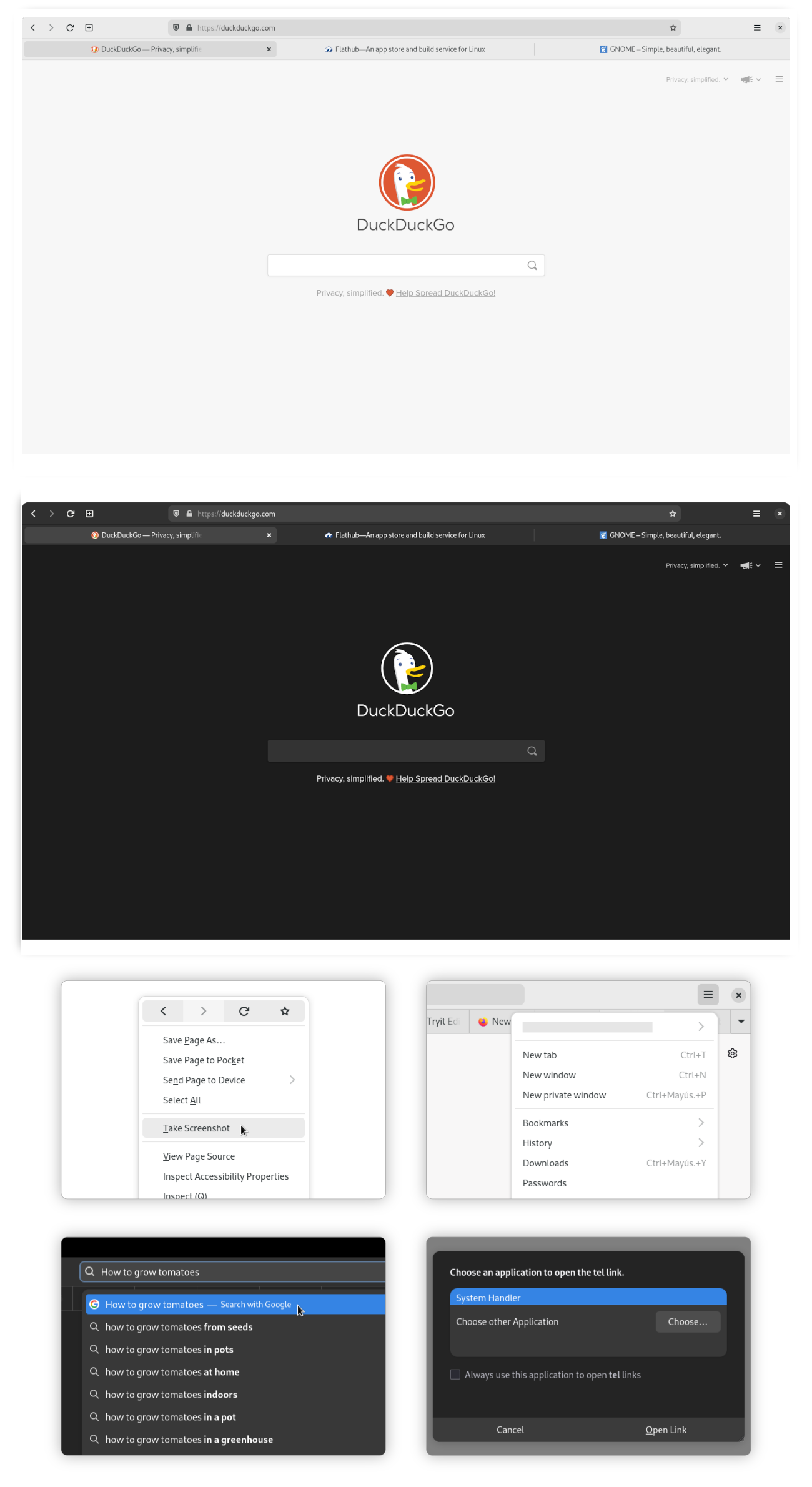
Firefox can be customized to look like a GNOME native application by applying a GNOME Theme to it.
The simplest way to apply the theme is by installing Add Water, an application that allows you to install/remove the Firefox GNOME theme with a single click. It also allows to customize the GNOME theme with several options. It can auto-detect different versions of Firefox (repo package, Flatpak, Snap) as well as Firefox forks (Floorp, Cachy, LibreWolf).
flatpak install dev.qwery.AddWater
NOTE: When Firefox receives an update the theme can break in some ways. When this happens you can uninstall the theme temporarily or hold off on updating Firefox until an updated version of the theme becomes available.
Steam
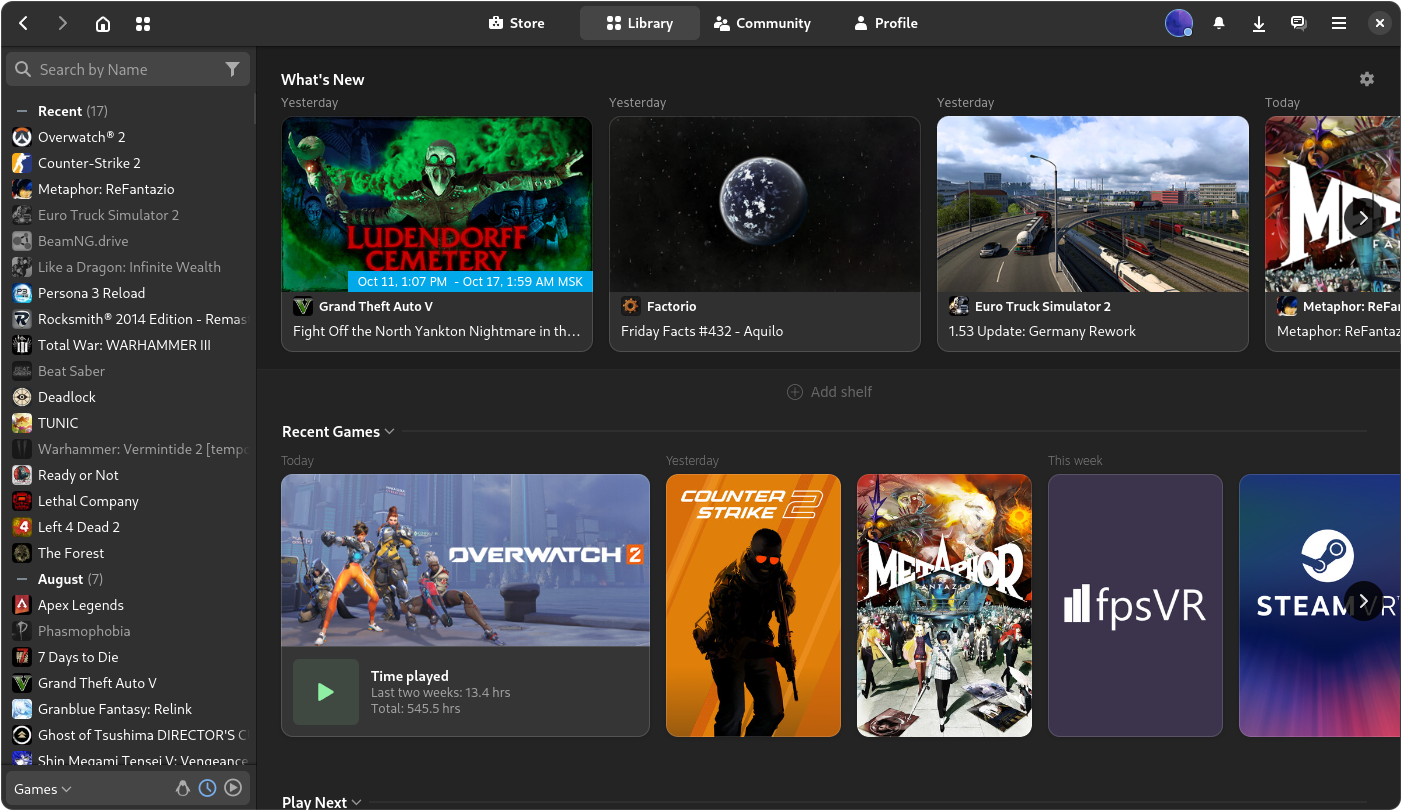
There is an Adwaita theme available for Steam to make it fit in with the rest of the GNOME desktop. An app is available that can install and manage the theme for you:
flatpak install io.github.Foldex.AdwSteamGtk
Remove potentially unwanted packages
GNOME Dev Tools
pacman -Rsc gnome-{builder,devel-docs,multi-writer,terminal} accerciser d-spy devhelp glade sysprof
User Software
pacman -Rsc gnome-{notes,recipes,sound-recorder} polari
Games
pacman -Rsc gnome-{2048,chess,games,klotski,mahjongg,mines,nibbles,sudoku,taquin,tetravex} hitori iagno lightsoff quadrapassel tali
Replace repo packages with Flatpaks
If you wish to use the Flatpak versions of packages that the GNOME desktop team maintains themselves, you can uninstall the packages that are available as Flatpak in GNOME Software.
Remove
TIP: Put substrings of package names between curly brackets { } so the shell substitutes the values, e.g. gnome-{calculator,calendar,characters,clocks} is interpreted as if you typed gnome-calculator gnome-calendar gnome-characters gnome-clocks. Nesting also works!
Packages part of the gnome package group:
pacman -Rn gnome-{calculator,calendar,characters,clocks,connections,contacts,font-viewer,logs,maps,music,text-editor,weather} \
epiphany evince loupe simple-scan snapshot sushi totem decibels
Packages part of the gnome-extra package group:
pacman -Rn chatty d-spy dconf-editor devhelp endeavour file-roller ghex gnome-{boxes,builder,calls,chess,mahjongg,mines,nibbles,robots,sound-recorder,sudoku,tweaks} lightsoff quadrapassel swell-foop sysprof
Reinstall
Install the core GNOME apps as Flatpaks:
NOTE: Some of the repo packages of the gnome-extra group have been discontinued by GNOME. The following Flatpak selections replaces these with actively developed alternatives.
flatpak install flathub org.gnome.{Calculator,Calendar,Calls,Snapshot,Characters,clocks,Connections,Contacts,SimpleScan,Evince,Extensions,font-viewer,Loupe,Decibels,Logs,Maps,Music,NautilusPreviewer,TextEditor,Showtime,Weather,Epiphany}
Selection of Flatpaks previously from the gnome-extra package group:
flatpak install flathub org.gnome.{Evolution,Geary,GHex,Glade,Boxes,seahorse.Application,World.Iotas} ca.desrt.dconf-editor io.github.alainm23.planify page.kramo.Cartridges page.tesk.Refine com.mattjakeman.ExtensionManager io.gitlab.adhami3310.Impression
For a list of additional packages, see GNOME Flatpaks.
KDE Plasma
KDE Plasma is a modern, highly customizable desktop environment that strikes a rare balance in the Linux ecosystem: it delivers a gorgeous, feature-rich visual experience without hogging your system resources. While it looks premium out of the box, its true power lies in its absolute modularity, allowing you to tweak everything from window rules to panel layouts.
The base KDE Plasma desktop can be installed by either the plasma group or the plasma-meta meta package. The group installs all packages in it once, while the meta package pulls in the packages via dependencies and installs new packages when the meta package gets updated to include new packages as dependencies. Which one you choose is personal preference how you'd like to manage your installation.
Install either plasma or plasma-meta:
# Plasma group
pacman -S plasma
# Plasma meta package
pacman -S plasma-meta
This will install only the desktop without barely any applications. Instead of installing the massive kde-applications bundle (which includes over 190 packages, many of which you may never use), Arch Linux splits the ecosystem further into modular, category-specific groups and meta-packages.
Use the table below to selectively install only the categories that you need:
NOTE: The same semantics as for the base plasma group/meta package apply. Append `-meta` to any group, if you prefer the meta package variants.
| Group Name | Category Focus | Key Included Applications |
|---|---|---|
kde-accessibility |
Accessibility | kmouth (speech synthesizer), kmousetool |
kde-education |
Education & Science | marble (virtual globe), kalzium (periodic table), cantor |
kde-games |
Gaming & Entertainment | kpat (solitaire), kshisen, granatier (bomberman clone) |
kde-graphics |
Graphics & Creativity | gwenview (image viewer), okular (document viewer), kolourpaint |
kde-multimedia |
Audio & Video | kdenlive (video editor), dragon (media player), juk (music player) |
kde-network |
Networking & Remote | kdeconnect (phone sync), kget (download manager), krdc (remote desktop) |
kde-office |
Productivity | calligra (office suite), krosspython |
kde-pim |
Personal Information Management | kmail (email), korganizer (calendar), kaddressbook |
kde-sdk |
Software Development | katedevel, cervisia, kompare (diff tool) |
kde-system |
System Administration | ksystemlog (log viewer), kdiskfree (storage space manager) |
kde-utilities |
Desktop Utilities | kate (advanced text editor), kcalc (calculator), filelight (disk analyzer) |
If you want the complete suite of KDE applications (over 190 packages), install kde-applications (group) or kde-applications-meta (meta package).
Setting up the display manager
By default, both the group and meta package install both SDDM and the new Plasma Login Manager. The default since KDE Plasma 6.6 is Plasma Login Manager, as it's specifically designed to better integrate with KDE Plasma.
Enable the display manager to start on boot and present a graphical login interface:
systemctl enable plasmalogin
The default keymap is set to US English. If your keyboard layout differs, change the default keymap with localectl:
NOTE: Executing this command while chrooted into the installation environment will produce an error that the locale could not be found. To set it, finish the installation, reboot into the installed system, press CTRL + ALT + F3 when Plasma Login Manager shows up (or any F-key between 2 and 7) to switch to a different console, log in via the command line and execute the command as root.
localectl set-x11-keymap de
KDE Wallet
KDE Wallet is the integrated password manager and secret store of KDE Plasma. It stores passwords to websites, WiFi networks, network shares, SSH keys and more.
Unlock Wallet automatically on login
To automatically unlock your wallet on login, the kwallet-pam package provides the necessary PAM modules (already part of the plasma package group).
There are several caveats to consider:
- Only
blowfishencryption is supported - Wallet can only be unlocked if the autologin method saves the password, e.g. when using
pam_autologin - Wallet cannot be unlocked when logging in with a fingerprint
- Wallet must be named
kdewallet(default name) - Disabling automatic closing of Wallet may be desired to keep it from asking for the password after every use
- When choosing to secure Wallet with a password it must match the user account password
Automatic unlocking can also be achieved by setting no password. Do keep in mind, however, that this could lead to potentially undesired read/write access to your secrets. Enabling Prompt when an application accesses a wallet under Access Control is highly recommended.
Using Plasma Login Manager (or SDDM) requires no further configuration steps.
Storing SSH key passphrases in Wallet
KDE Wallet can be used to store passphrases for SSH keys and have a KDE prompt appear asking for the password.
To also automatically unlock the SSH keys a SSH agent needs to be set up and running.
The openssh package (since version 9.4p1-3) comes with a systemd user unit to start the SSH agent on login regardless of a graphical session running:
NOTE: This needs to be run as the user you set up earlier, without sudo.
systemd --user enable ssh-agent
The user unit creates a Unix socket for other applications to communicate with the agent. For these applications to know this socket, the SSH_AUTH_SOCK environment variable needs to be set. This can be achieved via user-specific systemd environment variables.
On login, systemd parses *.conf files in ~/.config/environment.d/ and sets environment variables from these. Environment variables are set in a KEY=VALUE fashion.
Create a new file ~/.config/environment.d/ssh_agent.conf:
SSH_AUTH_SOCK=$XDG_RUNTIME_DIR/ssh-agent.socket
Additionally, to have a KDE dialog box appear in case the passphrase is not stored in your Wallet, point the SSH_ASKPASS environment variable to the ksshaskpass application (part of the plasma package group):
SSH_ASKPASS=/usr/bin/ksshaskpass
SSH_ASKPASS_REQUIRE=prefer
Chromium-based browsers
To make Chromium-based browsers (Google Chrome, Microsoft Edge, Brave, Opera, etc.) use Wallet as a password store launch it with --password-store=kwallet6 or --password-store=detect (preferred).
To make this launch argument persistent, add it to the "flags" file for the Chromium-based browser you want to use:
| Browser | Path |
|---|---|
| Chromium | ~/.config/chromium-flags.conf |
| Google Chrome | ~/.config/chrome-flags.conf |
| Google Chrome DEV | ~/.config/chrome-dev-flags.conf |
| Vivaldi | ~/.config/vivaldi-stable.conf |
See also: Making flags persistent on Arch Wiki.
Software
Tools to aid you
Spell checking
Hunspell is a spell checker and morphological analyzer library used by Firefox, Thunderbird, Chromium, LibreOffice and more.
Install the following packages to enable system-wide spell checking and hyphenation support (add languages for hunspell and hyphen at your discretion):
pacman -S hunspell hunspell-{de,en_US} hyphen hyphen-{de,en}
Fonts
For most desktop environments, a sufficient number of fonts is installed as dependencies. However, there's several additional packages for different styles and writing systems (latin vs. non-latin scripts). Arch Wiki has an extensive list of available fonts in both the repositories and the AUR. Installing the Noto font family also provides a vast coverage over a large array of scripts.
Configuration
Most applications read the font configuration provided by the fontconfig library. These configurations are written in XML and read from several different locations.
| Location | Description |
|---|---|
/etc/fonts/fonts.conf |
Master configuration file (not for editing!) |
/etc/fonts/conf.d |
System-wide additional drop-in configuration files, hand-written or as symbolic links |
$XDG_CONFIG_HOME/fontconfig/fonts.conf |
Per-user config file |
$XDG_CONFIG_HOME/fontconfig/conf.d |
Per-user additional drop-in configuration files, hand-written or as symbolic links |
Configuration files are read in and applied in lexical order. If you need rules applied in a specific order, make sure to prepend them with 2-digit numbers in the order you need.
A minimal fontconfig configuration file contains these headers:
<?xml version="1.0"?>
<!DOCTYPE fontconfig SYSTEM "urn:fontconfig:fonts.dtd">
<fontconfig>
<!-- settings go here -->
</fontconfig>
Some font packages come with pre-defined rule sets, which are installed to /usr/share/fontconfig/conf.avail/. To apply them, it's best to create symbolic links to them in their respective drop-in configuration directories.
To apply them system-wide, link them from the /etc/fonts/conf.d directory:
cd /etc/fonts/conf.d
sudo ln -s /usr/share/fontconfig/conf.avail/70-no-bitmaps-except-emoji.conf
To apply them only to the currently logged in user, link them in the $XDG_CONFIG_HOME/fontconfig/conf.d directory:
HINT: The environment variable $XDG_CONFIG_HOME should point to the .config sub-directory in your home directory. If it doesn't, use $HOME/.config instead for the examples or set it with export.
mkdir $XDG_CONFIG_HOME/fontconfig/conf.d
ln -s /usr/share/fontconfig/conf.avail/70-no-bitmaps-except-emoji.conf $XDG_CONFIG_HOME/fontconfig/conf.d
Emoji Fonts
There are a few emoji fonts available on Arch.
| Name | Package | Description |
|---|---|---|
| JoyPixels | ttf-joypixels |
formerly EmojiOne, part of Emoji as a Service, proprietary |
| Noto Color Emoji | noto-fonts-emoji |
Google open-source emoji font, color |
| Twemoji (Twitter Emoji) | ttf-twemoji (AUR) |
Emoji for everyone, originally created by Twitter |
Install your selected emoji font:
pacman -S noto-fonts-emoji
Applications requesting emoji to be displayed should pick up on the font after restarting them.
NOTE: KDE sometimes applies emoji fonts incorrectly, either not showing them at all or showing the outline symbol version from a different font. You can fix this by installing noto-color-emoji-fontconfig from the AUR and creating a symbolic link to the configuration file as shown above.
Polkit
polkit is an application-level toolkit for defining and handling the policy that allows unprivileged processes to speak to privileged processes: It is a framework for centralizing the decision making process with respect to granting access to privileged operations for unprivileged applications.
Custom rules
Mount disks as user
Edit/create /etc/polkit-1/rules.d/50-udisk.rules
// Original rules: https://github.com/coldfix/udiskie/wiki/Permissions
// Changes: Added org.freedesktop.udisks2.filesystem-mount-system, as this is used by Dolphin.
polkit.addRule(function(action, subject) {
var YES = polkit.Result.YES;
// NOTE: there must be a comma at the end of each line except for the last:
var permission = {
// required for udisks1:
"org.freedesktop.udisks.filesystem-mount": YES,
"org.freedesktop.udisks.luks-unlock": YES,
"org.freedesktop.udisks.drive-eject": YES,
"org.freedesktop.udisks.drive-detach": YES,
// required for udisks2:
"org.freedesktop.udisks2.filesystem-mount": YES,
"org.freedesktop.udisks2.encrypted-unlock": YES,
"org.freedesktop.udisks2.eject-media": YES,
"org.freedesktop.udisks2.power-off-drive": YES,
// Dolphin specific
"org.freedesktop.udisks2.filesystem-mount-system": YES,
// required for udisks2 if using udiskie from another seat (e.g. systemd):
"org.freedesktop.udisks2.filesystem-mount-other-seat": YES,
"org.freedesktop.udisks2.filesystem-unmount-others": YES,
"org.freedesktop.udisks2.encrypted-unlock-other-seat": YES,
"org.freedesktop.udisks2.eject-media-other-seat": YES,
"org.freedesktop.udisks2.power-off-drive-other-seat": YES
};
if (subject.isInGroup("storage")) {
return permission[action.id];
}
});
Firefox
Install Firefox via these packages (adjust for your desired locale):
pacman -S firefox firefox-i18n-de
Hardware Acceleration
Utilizing GPU hardware accelerated decoding of video content results in smoother playback of HD/4K content, while reducing CPU load and power draw (important to save on battery on laptops).
To ensure Firefox uses hardware decoding verify the following:
- The necessary VA-API drivers are installed (see: Graphics Cards)
- Navigate to
about:supportand verify that Compositing says WebRender (WebRender Software will not work)
Verify hardware video decoding
To verify Firefox is actually using VA-API to decode video you can launch it with the following command:
MOZ_LOG="FFmpegVideo:5" firefox 2>&1 | grep 'VA-API'
Start playing some video in Firefox and watch the logs on your terminal. If your log output reads something like the following video decoding via VA-API is working.
[RDD 97685: MediaPDecoder #1]: D/FFmpegVideo FFVPX: Initialising VA-API FFmpeg decoder
[RDD 97685: MediaPDecoder #2]: D/FFmpegVideo FFVPX: VA-API FFmpeg init successful
[RDD 97685: MediaPDecoder #2]: D/FFmpegVideo FFVPX: Choosing FFmpeg pixel format for VA-API video decoding.
[RDD 97685: MediaPDecoder #1]: D/FFmpegVideo FFVPX: VA-API FFmpeg init successful
[RDD 97685: MediaPDecoder #2]: D/FFmpegVideo FFVPX: VA-API Got one frame output with pts=0 dts=0 duration=40000 opaque=-9223372036854775808
[RDD 97685: MediaPDecoder #1]: D/FFmpegVideo FFVPX: Initialising VA-API FFmpeg decoder
[RDD 97685: MediaPDecoder #1]: D/FFmpegVideo FFVPX: VA-API FFmpeg init successful
[RDD 97685: MediaPDecoder #1]: D/FFmpegVideo FFVPX: VA-API Got one frame output with pts=40000 dts=40000 duration=40000 opaque=-9223372036854775808
[RDD 97685: MediaPDecoder #2]: D/FFmpegVideo FFVPX: VA-API Got one frame output with pts=80000 dts=80000 duration=40000 opaque=-9223372036854775808
[RDD 97685: MediaPDecoder #2]: D/FFmpegVideo FFVPX: VA-API Got one frame output with pts=120000 dts=120000 duration=40000 opaque=-9223372036854775808
Customization
ATTENTION: Firefox version 147 introduced support for the XDG Base Directory Specification. Firefox will not migrate old profiles to the new directory structure. If you've set up Firefox before version 147, the previous location for all things Firefox remains ~/.mozilla/. This article assumes a fresh install.
Most customizations can be done in about:config from the browser UI. Settings that deviate from defaults are saved to ~/.config/mozilla/firefox/<user-profile>/prefs.js.
It is possible to pre-set certain settings in a separate user.js file in the same directory to override defaults. Both files have the same syntax:
user_pref("setting.key.goes.here", value)
Autoplay in background
Firefox prevents autoplay for media of tabs that aren't currently active, which causes apps like Plex to take very long to skip to the next track after the current one has ended. The following setting in about:config can be used to disable this behavior:
| Setting key | Value | Description |
|---|---|---|
media.block-autoplay-until-in-foreground |
false |
Enable autoplay when tab is not currently active |
Or via user.js:
user_pref("media.block-autoplay-until-in-foreground", false)
KDE Plasma Integration
For better integration of Firefox into the KDE Plasma desktop, install the Plasma Integration add-on either via the Mozilla Add-on page. It enables rich notifications support and download progress integration into the notification area of KDE Plasma.
To prevent duplicate entries in the Media Player widget or tray icon, set media.hardwaremediakeys.enabled to false. This disables the media entry from Firefox itself and only uses the one from the Plasma integration add-on.
Or via user.js:
user_pref("media.hardwaremediakeys.enabled", false)
XDG Portal Integrations
By default, Firefox uses GTK file and print dialogs, even on KDE. To change this to KDE native dialogs navigate to about:config and change the appropriate widget.use-xdg-desktop-portal settings to 1 (default is 2 which equates to auto-detection).
The settings are as follows:
| Setting Key | Description |
|---|---|
widget.use-xdg-desktop-portal.file-picker |
Use file dialogs native to current desktop environment |
widget.use-xdg-desktop-portal.location |
Use GeoLocation services of current desktop environment |
widget.use-xdg-desktop-portal.mime-handler |
Use MIME handler of current desktop environment for opening files in external apps |
widget.use-xdg-desktop-portal.open-uri |
Use desktop environment for invoking local apps from websites |
widget.use-xdg-desktop-portal.settings |
Use desktop environment settings for dark/light mode among other things |
Or via user.js:
user_pref("widget.use-xdg-desktop-portal.file-picker", 1);
user_pref("widget.use-xdg-desktop-portal.location", 1);
user_pref("widget.use-xdg-desktop-portal.mime-handler", 1);
user_pref("widget.use-xdg-desktop-portal.open-uri", 1);
user_pref("widget.use-xdg-desktop-portal.settings", 1);
Disable AI Integrations
Mozilla introduced multiple AI integrations, despite user pushback. To disable these set the following settings in user.js:
user_pref("browser.ml.chat.enabled", false);
user_pref("browser.ml.chat.menu", false);
user_pref("browser.ml.chat.page.footerBadge", false);
user_pref("browser.ml.chat.page.menuBadge", false);
user_pref("browser.ml.chat.page", false);
user_pref("browser.ml.enable", false);
user_pref("browser.ml.linkPreview.enabled", false);
user_pref("browser.ml.pageAssist.enabled", false);
user_pref("browser.ml.smartAssist.enabled", false);
user_pref("browser.search.visualSearch.featureGate", false);
user_pref("browser.tabs.groups.smart.enabled", false);
user_pref("browser.tabs.groups.smart.userEnabled", false);
user_pref("browser.urlbar.quicksuggest.mlEnabled", false);
user_pref("extensions.ml.enabled", false);
user_pref("pdfjs.enableAltText", false);
user_pref("places.semanticHistory.featureGate", false);
user_pref("sidebar.revamp", false);
Google Chrome
Install Google Chrome from AUR:
yay -S google-chrome
Tweaks
To enable hardware accelerated video decoding (with open source drivers) create a file at ~/.config/chrome-flags.conf and add the following line in it:
--enable-features=VaapiVideoDecoder
Additionally, if you need to be able to share your screen wie WebRTC, you need to add the following line as well:
--enable-usermedia-screen-capturing
Furthermore, visit chrome://flags and set the following options to further tweak performance (use the search field to filter):
| Setting key | Value | Description |
|---|---|---|
#enable-webrtc-pipewire-capturer |
Enabled |
Uses PipeWire to capture the screen in Wayland sessions |
#enable-gpu-rasterization |
Enabled |
Uses GPU for rasterization, boosting performance |
#enable-zero-copy |
Enabled |
Accesses GPU memory directly, boosting performance |
#ozone-platform-hint |
Auto |
Auto-detects which windowing system is currently in use (X11, Wayland) |
Discord
Discord is a proprietary, cross-platform, all-in-one voice and text chat application.
Install Discord from the repositories:
pacman -S discord
Or the official Flatpak app:
flatpak install com.discordapp.Discord
Rich Presence with Flatpak
Discord provides a Unix socket file that games and applications use in order to show what game or media is currently being played.
The Flatpak version creates this socket in a different location than the repo package version. In order for games and apps to still be able to communicate with the Discord app, a symbolic link needs to be created in the usual place, pointing to the location of the socket file of the Flatpak version.
The most straightforward way is to create a symbolic link with a single command:
ln -sf $XDG_RUNTIME_DIR/{app/com.discordapp.Discord,}/discord-ipc-0
However, since $XDG_RUNTIME_DIR is a tmpfs in RAM, its contents will be discarded if the system is shut down or rebooted. To fix this, systemd-tmpfiles can be used to automatically re-create the link every time you log into your desktop session.
Create the directory user-tmpfiles.d in your user's .config directory:
mkdir -p ~/.config/user-tmpfiles.d
In the newly created directory, create a new config file:
nano ~/.config/user-tmpfiles.d/discord-ipc.conf
systemd-tmpfiles uses the information in the config file to create temporary files as long as the user is logged in and remove them once the user logs out.
The fields in this file are space separated. The fields are as follows:
| Field | Description |
|---|---|
| Type | The type of file to create. L = symbolic link, d = directory, f = regular file. |
| Path | Path where to create the object. %t = signifier for user-specific temporary directory (/run/user/[ID]). |
| Mode | File permissions in octal notation. - means keep the default. |
| Owner | User who will own the file. - means keep the default. |
| Group | Group who will own the file. - means keep the default. |
| Time | Expiration time of the file, e.g. 2h deletes the files after 2 hours. - means no expiration time. |
| Options | Parameters specific to the type used in the type field. When L, it's the target the link will point to. |
In order for the link to point to the Discord socket of the Flatpak version, the resulting config file should look have this line:
L %t/discord-ipc-0 - - - - app/com.discordapp.Discord/discord-ipc-0
This will create a symbolic link at /run/user/1000/discord-ipc-0 pointing to the actual socket file at /run/user/1000/app/com.discordapp.Discord/discord-ipc-0 where the Flatpak version of Discord is listening on incoming connections from other apps and games.
systemd-tmpfiles will not pick up on the new config file automatically, it will however read it upon next log-in. Alternatively, run systemd-tmpfiles --user --create manually to have systemd-tmpfiles create the link for you.
Blu-ray
Playback
In order play Blu-Rays install the following packages:
sudo pacman -S libbluray libaacs
Additionally, a KEYDB.cfg file is needed. Download it from the FindVUK Online Database
Extract the ZIP to ~/.config/aacs/:
keydb.cfg file to KEYDB.cfg (lower to upper case) for tooling to find it.unzip keydb_eng.zip -d ~/.config/aacs/
After that use any Blu-Ray capable playback software, e.g. vlc bluray:///dev/sr0 to play back Blu-Rays.
Ripping

In order to rip Blu-Rays install MakeMKV from the AUR:
yay -S makemkv
MakeMKV requires the sg (SCSI generic (sg) driver) kernel module to be loaded in order to recognize the drive. To load the module temporarily:
sudo modprobe sg
To have the kernel load the module on each boot:
echo sg | sudo tee > /etc/modules-load.d/sg.conf
Node.js (nvm)
Use the Node Version Manager (nvm) to install Node.js into your current user's path and switch Node.js versions on the fly.
Install nvm from the repositories:
pacman -S nvm
Include the init script /usr/share/nvm/init-nvm.sh into your shell configuration to load it each time you start your terminal:
# bash
echo 'source /usr/share/nvm/init-nvm.sh' >> ~/.bashrc
# zsh
echo 'source /usr/share/nvm/init-nvm.sh' >> ~/.zshrc
Restart your terminal to reload all init scripts and you should be able to use nvm to install a Node.js version of your choice:
nvm install 12
Migrating globally installed npm packages
When you install and switch to a different nvm managed version of Node.js (nvm install 14 or nvm use 16) you may find that your globally installed npm packages (e.g. svgo) are no longer available until you switch back to the specific version of Node.js you have been using before the upgrade or switch.
This is because globally installed npm packages are installed for the specific version of Node.js you happen to be using at the time of installation and placed in a directory i.e. ~/.nvm/versions/node/v16.14.0/lib/node_modules. When you install a different version, e.g. 17.2.0 the path to your Node.js installation changes to ~/.nvm/versions/node/v17.2.0/lib/node_modules.
Use the --reinstall-packages-from=<version> option to carry over globally installed packages to the new Node.js installation.
You can either pass a specific version you want to reinstall globally installed packages from or use bash string expansion to reinstall from the currently active one in use:
nvm install <new version> --reinstall-packages-from=<old version>
nvm install 17 --reinstall-packages-from=$(node -v)
Kernel‑based Virtual Machine (KVM)
Kernel‑based Virtual Machine (KVM) is a full virtualization solution built into the Linux kernel. User space tools such as libvirt provide a standardized way to interface with virtualization engines, not only KVM but also Xen, OpenVZ and VirtualBox. Graphical tools like virt‑manager allow for user-friendly management of virtual machines running on the local machine or on remote hosts running libvirt.
Preparation
KVM supports a wide range of guests, including Linux, BSD and even Windows. It's architecture allows for near-metal performance. To achieve this KVM utilizes hardware assisted virtualization technologies on the host machine's CPU (Intel VT, AMD-V).
On most desktop systems, these virtualization technologies are not enabled out of the box. To check if virtualization technologies are available on your system, use lscpu:
LC_ALL=C.UTF-8 lscpu | grep Virtualization
This will query the CPU's specifications and filter the output for the relevant virtualization feature section.
If the command produces no output, it indicates the system's CPU either does not support hardware assisted virtualization (unlikely if the machine's CPU was purchased in the last 10 years) or the feature is disabled in the machine's firmware options.
Hardware assisted virtualization technologies are a pre-requisite to being able to use KVM. Refer to your mainboard's user manual to learn how to enable the option.
NOTE: Settings related to CPU virtualization features can sometimes be found in the "Overclocking" section of your firmware settings.
Also consider enabling IOMMU (Intel VT-d, AMD-Vi) for direct device pass-through.
NOTE: On Intel-based systems, unless your kernel has the config option CONFIG_INTEL_IOMMU_DEFAULT_ON set (default is unset) you will also have to explicitly add intel_iommu=on to your kernel boot parameters.
Installation
The most common way to start using KVM is by installing QEMU, a generic and open source machine emulator and virtualizer. It utilizes KVM to achieve very good performance and can even emulate a different architecture from the one in the host machine. Though KVM is the most commonly used hypervisor for QEMU, it can also utilize other hypervisors, such as Xen, OpenVZ or VirtualBox.
Arch Linux offers several levels of completeness of the QEMU suite of emulators:
qemu-full: installs the entirety of QEMU tools and libraries, capable of emulating many different systems and architectures.qemu-desktop: installs the essentials for running a QEMU environment for emulating x86_64 systems to run virtual machines on a desktop computer.qemu-base: the most basic QEMU environment intended for use on servers and headless environments.
Install the package that applies best for your use-case, e.g. if you plan on running virtual machines on your desktop computer:
sudo pacman -S qemu-desktop
QEMU itself does not provide graphical tools to set up and manage virtual machines. This is where libvirt comes in: it provides APIs for user-facing applications to offer graphical front-ends to users. One such application is virt-manager available from Arch repositories:
sudo pacman -S virt-manager libvirt
By default, only root can interface with KVM and thus the full system emulator provided by QEMU and libvirt will require elevated privileges every time you intend to run virtualized environments.
To allow your user to use virtual machines powered by KVM and libvirt add it to the libvirt group:
sudo usermod -aG libvirt $USER
NOTE: The change will apply after logging out and back in again, or after a reboot. Feel free to continue the steps below until you actually start using QEMU.
Then, enable and start the libvirt daemon:
sudo systemctl enable --now libvirtd
Networking
For virtual machines to have network access, a network bridge needs to be created.
This is relatively easily achieved with nmcli, the CLI tool for NetworkManager:
# Create the new bridge interface
nmcli connection add \
type bridge \
ifname br0 \
con-name "Bridge" \
stp no
# Determine the current default route network adapter and add it to the bridge
DEFAULT_IF=$(ip r s default | awk '{print $5}')
nmcli connection add \
type bridge-slave \
ifname "$DEFAULT_IF" \
con-name "Ethernet" \
master br0
# Disable the old wired connection and bring up the bridge
nmcli connection down "Wired Connection 1"
nmcli connection up "Bridge"
To easily select the bridge network in a guest's network settings, create a small libvirt network XML definition file, e.g. as br0.xml:
<network>
<name>br0</name>
<forward mode='bridge'/>
<bridge name='br0'/>
</network>
Import the definition file and set the network to autostart:
sudo virsh -c qemu:///system net-define br0.xml
sudo virsh -c qemu:///system net-autostart br0
Storage
Storage under libvirt is defined as pools which can be any of the following:
- a local directory
- a dedicated disk
- a pre-formatted block device
- an iSCSI target
- an LVM group
- a multi-path device enumerator (RAID device)
- an exported network directory
- a ZFS pool
The default storage pool is defined as a local directory at /var/lib/libvirt/images. This is where libvirt will store disk images for guests.
ATTENTION: If your storage pool is on a copy-on-write file system, such as btrfs, it is recommended to disable CoW for that directory:
sudo chattr +C /var/lib/libvirt/imagesStorage pools can be created from within virt-manager or by writing custom XML definitions and importing them with virsh, in the case that the storage pool type is not exposed through the GUI or you need more fine-grained control over the specifications of the pool.
If you have a remote storage location that holds disk images, i.e. an exported NFS share with ISO images, it's possible to add it as a pool and mount it into the guest without the need to copy the images to your computer first.
The XML definition for a storage pool, named remote-iso.xml for example, could look something like this:
<pool type="netfs">
<name>iso</name> <!-- name of the pool -->
<source>
<host name="dragonhoard"/> <!-- hostname/IP of remote machine -->
<dir path="/mnt/user/downloads/ISOs"/> <!-- full path to images on remote machine -->
<format type="auto"/>
</source>
<target>
<path>/var/lib/libvirt/images/iso</path> <!-- mount point on local machine -->
</target>
</pool>
In order for libvirt to successfully mount the network share, the mount point must exist prior to activating the pool:
sudo mkdir -p /var/lib/libvirt/images/iso
Finally, import the pool definition and set it to autostart:
sudo virsh -c qemu:///system pool-define remote-iso.xml
sudo virsh -c qemu:///system pool-autostart iso
When creating new virtual machines, the contents of the remote location are now easily selectable from within virt-manager's creation wizard.
Folding@Home
Help scientists studying Alzheimer's, Huntington's, Parkinson's, and SARS-CoV-2 by simply running a piece of software on your computer. Add your computer to a network of millions of others around the world to form the world's largest distributed supercomputer.
Installlation
yay -S foldingathome opencl-amd
Configuration
Run FAHClient --configure as root to generate a configuration file at /etc/foldingathome/config.xml:
cd /etc/foldingathome
FAHClient --configure
Then start/enable the foldingathome.service systemd unit. NVIDIA users should also enable the foldingathome-nvidia.service systemd unit.
Example Configuration
<config>
<!-- Slot Control -->
<power v='FULL'/>
<!-- User Information -->
<passkey v='1234567890'/>
<team v='45032'/>
<user v='Registered_User_Name'/>
<!-- Folding Slots -->
<slot id='0' type='CPU'/>
<slot id='1' type='GPU'/>
</config>
Timeshift
IMPORTANT: Timeshift is not a backup tool! It only creates local snapshots of the system to roll back changes to the system. Do not rely on this mechanism to keep your data safe! Timeshift deletes the oldest snapshot when a new one is created and the maximum number of snapshots is reached. Furthermore, if the underlying file system is corrupted, the snapshots will be, too! Use a proper backup tool to keep your data safe on external data storage!
Timeshift helps create incremental snapshots of the file system at regular intervals, which can then be restored at a later date to undo all changes to the system.
It supports rsync snapshots for all filesystems, and uses the built-in snapshot features for Btrfs drives configured to use the @ and @home subvolume layout for root and home directories respectively.
Installation
Timeshift is available from the Arch repos. It uses cron to make regularly scheduled backups. Install Timeshift with a cron daemon, e.g. cronie:
pacman -S timeshift cronie
Start and enable the cron scheduler for Timeshift to take regular snapshots:
sudo systemctl enable --now cronie
Finally, start Timeshift and complete the first time setup.
Automatic snapshots on system changes
In addition to Timeshift's periodic spanshots, timeshift-autosnap provides a pacman hook to create a manual snapshot every time packages are installed, upgraded or removed.
Install timeshift-autosnap from the AUR:
yay -S timeshift-autosnap
By default timeshift-autosnap only keeps 3 snapshots. To change this, edit /etc/timeshift-autosnap.conf and either set deleteSnapshots to false to never delete any snapshots or increase the number of maxSnapshots:
skipAutosnap=false
deleteSnapshots=true
maxSnapshots=7
updateGrub=true
snapshotDescription={timeshift-autosnap} {created before upgrade}
Prevent excessive snapshotting when using yay
By default, when installing or updating multiple packages from the AUR, yay first builds a package and immediately calls pacman to install it, before building and installing the next one on its list. This also means that the timeshift-autosnap hook is triggered for each individual AUR package built by yay, including dependencies also installed from the AUR.
This can have undesireable side-effects:
yaywill causetimeshift-autosnapto reach themaxSnapshotslimit very quickly when installing multiple packages from the AUR, leaving you with snapshots with little to no meaningful changes between them- if
deleteSnapshotsis set tofalsethe amount of snapshots might quickly exhaust the usable space on the drive
To prevent this it is recommended to configure yay to:
- not remove make dependencies after successfully built packages are installed
- build all AUR packages first, install them all later
- install AUR packages together with regular repo packages
By calling yay with the --save parameter, any options passed to it will be saved in a configuration file, e.g.:
yay --noremovemake --batchinstall --combinedupgrade --save
Next time you use yay to install, upgrade or remove packages it will read the generated config file at ~/.config/yay/config.json and apply the options automatically without having to specify them during use.
GNOME Flatpaks
Core apps
| Name | ID | Description |
|---|---|---|
| Calculator | org.gnome.Calculator |
Perform arithmetic, scientific or financial calculations |
| Calendar | org.gnome.Calendar |
Manage your schedule |
| Calls | org.gnome.Calls |
Make phone and SIP calls |
| Camera | org.gnome.Snapshot |
Take pictures and videos |
| Characters | org.gnome.Characters |
Character map application |
| Clocks | org.gnome.clocks |
Keep track of time |
| Color Profile Viewer | org.gnome.ColorViewer |
Inspect and compare installed color profiles |
| Connections | org.gnome.Connections |
View and use other desktops |
| Contacts | org.gnome.Contacts |
Manage your contacts |
| Disk Usage Analyzer | org.gnome.baobab |
Check folder sizes and available disk space |
| Document Scanner | org.gnome.SimpleScan |
Make a digital copy of your photos and documents |
| Document Viewer | org.gnome.Evince |
Document viewer for popular document formats |
| Extensions | org.gnome.Extensions |
Manage your GNOME Extensions |
| Fonts | org.gnome.font-viewer |
View fonts on your system |
| Image Viewer | org.gnome.Loupe |
View images |
| Logs | org.gnome.Logs |
View detailed event logs for the system |
| Maps | org.gnome.Maps |
Find places around the world |
| Music | org.gnome.Music |
Play and organize your music collection |
| Text Editor | org.gnome.TextEditor |
Edit text files |
| Videos | org.gnome.Totem |
Play movies |
| Weather | org.gnome.Weather |
Show weather conditions and forecast |
| Web | org.gnome.Epiphany |
Browse the web |
Internet
| Name | ID | Description |
|---|---|---|
| Eolie | org.gnome.Eolie |
Web browser |
| Evolution | org.gnome.Evolution |
Manage your email, contacts and schedule |
| Fractal | org.gnome.Fractal |
Chat on Matrix |
| Geary | org.gnome.Geary |
Send and receive email |
| Polari | org.gnome.Polari |
Talk to people on IRC |
Multimedia
| Name | ID | Description |
|---|---|---|
| Cheese | org.gnome.Cheese |
Take photos and videos with your webcam, with fun graphical effects |
| Decibels | org.gnome.Decibels |
Play audio files |
| EasyTAG | org.gnome.EasyTAG |
Edit audio file metadata |
| Eye of GNOME | org.gnome.eog |
Browse and rotate images |
| gThumb Image Viewer | org.gnome.gThumb |
View and organize your images |
| Identity | org.gnome.gitlab.YaLTeR.Identity |
Compare images and videos |
| Lollypop | org.gnome.Lollypop |
Play and organize your music collection |
| Photos | org.gnome.Photos |
Access, organize and share your photos on GNOME |
| Podcasts | org.gnome.Podcasts |
Listen to your favorite shows |
| Rhythmbox | org.gnome.Rhythmbox3 |
Play and organize all your music |
| Shotwell | org.gnome.Shotwell |
Digital photo organizer |
| Showtime | org.gnome.Showtime |
Watch without distraction |
| Sound Juicer | org.gnome.SoundJuicer |
CD ripper with a clean interface and simple preferences |
| Sound Recorder | org.gnome.SoundRecorder |
A simple, modern sound recorder for GNOME |
| Video Trimmer | org.gnome.gitlab.YaLTeR.VideoTrimmer |
Trim videos quickly |
Productivity
| Name | ID | Description |
|---|---|---|
| Apostrophe | org.gnome.gitlab.somas.Apostrophe |
Edit Markdown in style |
| Bookup | org.gnome.gitlab.ilhooq.Bookup |
Streamline notes with Markdown! |
| Break Timer | org.gnome.BreakTimer |
Computer break reminders for GNOME |
| Citations | org.gnome.World.Citations |
Manage your bibliography |
| Endeavour | org.gnome.Todo |
Manage your tasks |
| Fava | org.gnome.gitlab.johannesjh.favagtk |
Do your finances using fava and beancount |
| Getting Things GNOME! | org.gnome.GTG |
Personal tasks and TODO-list items organizer |
| Gnote | org.gnome.Gnote |
A simple note-taking application |
| Hamster | org.gnome.Hamster |
Personal time keeping tool |
| Iotas | org.gnome.World.Iotas |
Simple note taking |
| Notes | org.gnome.Notes |
Notes for GNOME |
| Papers | org.gnome.Papers |
Read documents |
| Pinpoint | org.gnome.Pinpoint |
Excellent presentations for hackers |
| Pulp | org.gnome.gitlab.cheywood.Pulp |
Skim excessive feeds |
| Recipes | org.gnome.Recipes |
GNOME loves to cook |
| Solanum | org.gnome.Solanum |
Balance working time and break time |
| Translation Editor | org.gnome.Gtranslator |
Translate and localize applications and libraries |
Games
| Name | ID | Description |
|---|---|---|
| Aisleriot Solitaire | org.gnome.Aisleriot |
Play many different solitaire games |
| GNOME Chess | org.gnome.Chess |
Play the classic two-player board game of chess |
| Crossword Editor | org.gnome.Crosswords.Editor |
Create crossword puzzles |
| Crosswords | org.gnome.Crosswords |
Solve crossword puzzles |
| Four-in-a-row | org.gnome.Four-in-a-row |
Make lines of the same color to win |
| HexGL | org.gnome.HexGL |
Space racing game |
| Hitori | org.gnome.Hitori |
Play the Hitori puzzle game |
| GNOME Klotski | org.gnome.Klotski |
Slide blocks to solve the puzzle |
| Lights Off | org.gnome.LightsOff |
Turn off all the lights |
| Mahjongg | org.gnome.Mahjongg |
Match tiles and clear the board |
| GNOME Mines | org.gnome.Mines |
Clear hidden mines from a minefield |
| Nibbles | org.gnome.Nibbles |
Guide a worm around a maze |
| Quadrapassel | org.gnome.Quadrapassel |
Fit falling blocks together |
| Reversi | org.gnome.Reversi |
Dominate the board in a classic reversi game, or play the reversed variant |
| GNOME Robots | org.gnome.Robots |
Avoid the robots and make them crash into each other |
| GNOME Sudoku | org.gnome.Sudoku |
Test yourself in the classic puzzle |
| Swell Foop | org.gnome.SwellFoop |
Clear the screen by removing groups of colored and shaped tiles |
| Tali | org.gnome.Tali |
Roll dice and score points |
| GNOME Taquin | org.gnome.Taquin |
Slide tiles to their correct places |
| GNOME Tetravex | org.gnome.Tetravex |
Reorder tiles to fit a square |
| GNOME 2048 | org.gnome.TwentyFortyEight |
Obtain the 2048 tile |
| Atomix | org.gnome.atomix |
Build molecules out of single atoms |
| Five or More | org.gnome.five-or-more |
Remove colored balls from the board by forming lines |
| gbrainy | org.gnome.gbrainy |
gbrainy is a game to train memory, arithmetical, verbal and logical skills. |
| Convolution | org.gnome.gitlab.bazylevnik0.Convolution |
Maze escaping game |
Tools
| Name | ID | Description |
|---|---|---|
| Brasero | org.gnome.Brasero |
Create and copy CDs and DVDs |
| Buffer | org.gnome.gitlab.cheywood.Buffer |
Embrace ephemeral text |
| Cowsay | org.gnome.gitlab.Cowsay |
State of the art Cowsay generator |
| Déjà Dup Backups | org.gnome.DejaDup |
Protect yourself from data loss |
| File Roller | org.gnome.FileRoller |
Open, modify and create compressed archive files |
| Firmware | org.gnome.Firmware |
Install firmware on devices |
| gedit | org.gnome.gedit |
Text editor |
| GMetronome | org.gnome.gitlab.dqpb.GMetronome |
Maintain a steady tempo |
| GNOME Network Displays | org.gnome.NetworkDisplays |
Screencasting for GNOME |
| Keysign | org.gnome.Keysign |
OpenPGP Keysigning helper |
| Passwords and Keys | org.gnome.seahorse.Application |
Manage your passwords and encryption keys |
| Pika Backup | org.gnome.World.PikaBackup |
Keep your data safe |
| Secrets | org.gnome.World.Secrets |
Manage your passwords |
| Sushi | org.gnome.NautilusPreviewer |
Provide a facility for quickly viewing different kinds of files |
Software development
| Name | ID | Description |
|---|---|---|
| Boxes | org.gnome.Boxes |
Virtualization made simple |
| Builder | org.gnome.Builder |
Create applications for GNOME |
| D-Spy | org.gnome.dspy |
Analyze D-Bus connections |
| Devhelp | org.gnome.Devhelp |
A developer tool for browsing and searching API documentation |
| GHex | org.gnome.GHex |
Inspect and edit binary files |
| gitg | org.gnome.gitg |
Graphical user interface for git |
| Glade | org.gnome.Glade |
Create or open user interface designs for GTK+ applications |
| Meld | org.gnome.meld |
Compare and merge your files |
Games
Get your game on!
Wine
Wine is a compatibility layer which translates Windows system calls into comparable Linux equivalents. This allows (most) Windows applications to run on Linux, including many games.
Wine can be installed from the repositories. Recommended additional components:
wine-gecko: Components for displaying web contentwine-mono: Components for running .NET applicationswinetricks: Install various tools and libraries in a Wine prefix
sudo pacman -S wine wine-gecko wine-mono winetricks
DXVK
Game performance can be significantly improved by installing DXVK in a Wine prefix. DXVK translates Direct3D calls from the DirectX 8/9/10/11 API to Vulkan to achieve improved 3D performance compared to WineD3D.
DXVK can be installed relatively easily in a Wine prefix using winetricks:
NOTE: If you've set up Wine with a non-default prefix (i.e. your Wine "installation" does not reside under ~/.wine) you will need to supply the path in an environment variable:
WINEPREFIX=/path/to/your-prefix winetricks dxvkWARNING: DXVK overrides the DirectX 10 and 11 DLLs, which may be considered cheating in online multiplayer games, and may get your account banned. Use at your own risk!
winetricks dxvk
It's also possible to install a specific DXVK version, if needed:
winetricks dxvk1103
Alternatively, DXVK can also be installed via the AUR:
yay -S dxvk-bin
Install via the included helper program:
NOTE: The same conditions about non-default prefix locations still apply:
WINEPREFIX=/path/to/your-prefix setup_dxvk install --symlinksetup_dxvk install --symlink
This places symbolic links into the Wine prefix, which means when DXVK gets updated during system upgrades, all Wine prefixed are updated along with it.
VKD3D
VKD3D is the translation layer for Direct3D 12 to Vulkan. The latest version is installable through winetricks:
NOTE: The same conditions about non-default prefix locations still apply:
WINEPREFIX=/path/to/your-prefix winetricks vkd3dwinetricks vkd3d
VKD3D is also available from the AUR:
yay -S vkd3d-proton-bin
NOTE: The same conditions about non-default prefix locations still apply:
WINEPREFIX=/path/to/your-prefix setup_vkd3d_proton install --symlinksetup_vkd3d_proton install --symlink
This way when you upgrade to a new version of VKD3D, every prefix automatically gets updated as well.
Synchronization primitives
Games heavily rely on Windows synchronization primitives for multi-threaded workloads. Since Linux kernel version 6.14 the NTSync kernel module is available, which more closely resembles Windows synchronization primitives. Wine 10.16 and later automatically use NTSync when it is detected to improve performance in CPU-bound scenarios.
To load the kernel module at boot create a file in /etc/modules-load.d/ with the content ntsync:
echo ntsync | sudo tee /etc/modules-load.d/ntsync.conf
MIDI Playback
Some Windows games still use MIDI playback for music. In order for this to work in Wine, a sequencer has to be installed, e.g. fluidsynth:
NOTE: FluidSynth uses soundfonts to render MIDI music.
pacman -S fluidsynth soundfont-fluid
FluidSynth comes with a systemd user unit to run it in daemon mode. Edit the file /etc/conf.d/fluidsynth and uncomment the lines with the environment variables. Point the SOUND_FONT variable to a soundfont file in *.sf2 format (refer to DOSBox for a list of available soundfonts for installation). Furthermore, adjust the OTHER_OPTS variable to use the appropriate audio backend that you are using, e.g. set parameter -a pipewire if you're using PipeWire instead of PulseAudio:
# Mandatory parameters (uncomment and edit)
SOUND_FONT=/usr/share/soundfonts/FluidR3_GM.sf2
# Additional optional parameters (may be useful, see 'man fluidsynth' for further info)
OTHER_OPTS='-a pipewire -m alsa_seq -p FluidSynth\ GM -r 48000'
After you've set everything up, enable/start the systemd user unit with:
ATTENTION: Enable/start the unit as regular user, i.e. do not use sudo!
systemctl --user enable --now fluidsynth
Steam
The popular game distribution platform and library management client from Valve.
NOTE: activate the multilib repository in /etc/pacman.conf to install Steam/Proton.
pacman -S steam
Manage Steam compatibility tools
Apart from Valve's Proton distribution, there are other compatibility tools available with patches and performance improvements for games.
ProtonUp-Qt is a graphical utility to manage many different compatibility tools, not only for Steam but also other launchers like Heroic Games Launcher.
It's available from the AUR:
yay -S protonup-qt
Another management tool that integrates with the look & feel of the GNOME desktop is ProtonPlus, also available in the AUR:
yay -S protonplus
Where are my game saves for Proton-enabled games?
Games that are running via Steam Proton on Linux all use their own Wine prefix. The location of game data is here:
~/.steam/steam/steamapps/compatdata/[game ID]/pfx
You can look up a game's ID by accessing its properties in the steam client:
- Right-click on the game
- Select "Properties..."
- Go to "Updates"
- Note down the "App ID"
DOSBox
Install DOSBox Staging for a more enhanced DOS gaming experience:
yay -S dosbox-staging
General MIDI/Soundfonts
The integrated FluidSynth MIDI sequencer has issues with some soundfont files, resulting in minor to major music playback issues in games. Timidity++ does not have these issues.
To install simply:
pacman -S timidity++
A list of available soundfonts to install from the AUR, sorted by votes:
| AUR Package Name | Description |
|---|---|
soundfonts-aur-meta |
Installs all the soundfont packages in the AUR |
soundfont-unison |
A lean and clean GM/GS soundbank |
soundfont-sgm |
A balanced, good quality GM soundbank |
soundfont-titanic |
A public domain, high quality MIDI soundfont by Luke Sena |
soundfont-generaluser |
A small and well balanced GM/GS soundbank for many styles of music. |
soundfont-zeldamcsf2 |
Legend of Zelda: Minish Cap soundfont for MIDI playback |
soundfont-zelda3sf2 |
Legend of Zelda: Link to the Past soundfont for MIDI playback |
soundfont-fatboy |
A free GM/GS SoundFont for classic video game MIDI, emulation, and general usage |
soundfont-arachno |
GM/GS soundbank courtesy of Maxime Abbey. |
soundfont-sso-sf2 |
The Sonatina Symphonic Orchestra by Mattias Westlund. (SF2 format) |
soundfont-toh |
Don Allen's Timbres of Heaven soundfont |
soundfont-opl3-fm-128m |
A SoundFont designed to simulate the classic MIDI sound of the Sound Blaster 16 (and other YM262 enabled hardware). |
soundfont-sunshine-perc |
Five drum/percussion soundfonts from Sunshine Studios. Non-commercial use only. |
soundfont-realfont |
GM soundbank by Michel Villeneuve |
soundfont-personalcopy |
A large free SoundFont. |
soundfont-jeux |
Jeux organ soundfont |
Configure Timidity++ to use the soundfont of your choosing in its global config file /etc/timidity++/timidity.cfg:
soundfont /usr/share/soundfonts/FluidR3_GM.sf2
Set up timidity++ to run in daemon mode and start with user login:
systemctl --user enable --now timidity
You need to tell DOSBox which MIDI Port to send MIDI data to. Install the alsa-utils package and list the available MIDI ports with aconnect:
pacman -S alsa-utils
aconnect -o
The output might look something like this:
client 14: 'Midi Through' [type=Kernel]
0 'Midi Through Port-0'
client 128: 'TiMidity' [type=User,pid=89573]
0 'TiMidity port 0 '
1 'TiMidity port 1 '
2 'TiMidity port 2 '
3 'TiMidity port 3 '
In the configuration file for DOSBox, pass the client ID of the sequencer and the port to use on the midiconfig setting. The mididevice needs to be default. The syntax is [client]:[port]:
[midi]
mpu401 = intelligent
mididevice = default
midiconfig = 128:0
Gravis UltraSound (GUS)
The Gravis UltraSound cards were technically advanced soundcards with sample-based music synthesis ("wavetable") and hardware-mixing. DOSBox can emulate a Gravis UltraSound card for games that support it.
To enable GUS emulation, set the following options in your DOSBox configuration file:
IMPORTANT: The ultradir references a directory within DOSBox, not your local filesystem!
gus = true
gusbase = 240
gusirq = 5
gusdma = 3
ultradir = C:\ULTRASND
Depending on where you mount your C: drive (e.g. ~/DOS), the ULTRASND directory needs to be placed inside it.
Installing GUS drivers
NOTE: Assumptions being made in this guide:
- The
C:drive is mounted from~/DOS - The
X:drive is mounted from~/Downloads/GUS Installand contains the GUS setup files
IMPORTANT: Make sure you turn on GUS emulation in DOSBox before starting the setup procedure!
Preparations
GUS emulation needs the original install disks for the Gravis UltraSound, which can be downloaded here.
Create an autoexec.bat at the root of DOSBox's C: drive:
touch ~/DOS/autoexec.bat
In DOSBox
Extract the contents into a directory and mount it as drive X: in DOSBox:
mount x ~/Downloads/GUS Install
Change directory to the GUS410 directory and start the installer:
X:
cd X:\GUS410
INSTALL.EXE
Setup procedure:
- Choose
Restore, NOTInstall - When asked what to restore, provide the glob pattern
*.* - Keep the default target drive letter
- Keep the default target directory
- Start the installation process
Back at the main menu:
- Choose
Install(since it is restored, the installation should be quick) - Keep the defaults for the drive and directory
- If it can't find Windows, provide
C:\ULTRASND\WINDOWS
- If it can't find Windows, provide
- When the installation completes successfully exit out
- Don't run Express or Custom Setup
Change directory to the GUS411 directory and start the installer:
cd X:\GUS411
INSTALL.EXE
Repeat the installation steps above.
Testing
To test if setup was successful restart DOSBox, change into C:\ULTRASND and start MIDIDEMO.BAT.
If you hear music being played, the installation was successful.
Games with CD Audio
You can use CBAE to save some space with games that use CD audio tracks by compressing them.
cbae is a NodeJS package that is installed via npm. If you don't have NodeJS already installed:
pacman -S nodejs
Then install the cbae package globally:
npm i cbae --location=global
cbae takes .bin/.cue images as input and uses the information of the .cue file to determine what the CD audio tracks are.
To convert a .bin/.cue image:
cbae e KEEPER.cue -o ./ -enc OPUS:64 -p $(nproc)
This achives the following:
-
e KEEPER.cue: encodes CD audio tracks of the imageKEEPER.cue -
-o ./: outputs the resulting files into a sub-directory of the current directory, e.g.:KEEPER.bin KEEPER.cue <-- input file KEEPER [e] <-- sub-directory ├── KEEPER.cue <-- new .cue file by cbae ├── KEEPER - Track 01.bin <-- binary game data ├── KEEPER - Track 02.opus <-- CD audio track ├── KEEPER - Track 03.opus ├── KEEPER - Track 04.opus ├── KEEPER - Track 05.opus ├── KEEPER - Track 06.opus └── KEEPER - Track 07.opus -
-enc OPUS:64: encodes audio tracks with Opus at 64 kbps (seecbae --helpfor available codecs) -
-p $(nproc): specifies how many CPU cores are used for encoding ($(nproc)assigns the maximum number of cores available)
Mount the newly created .cue file with DOSBox's imgmount command, e.g. as the D: drive:
imgmount d ~/DOSGAMES/KEEPER [e]/KEEPER.cue -t cdrom
ScummVM
Dabble in some adventure games of yore with ScummVM:
pacman -S scummvm
OpenRCT2

ATTENTION: A legitimate copy of the game is required to play!
OpenRCT2 is an open-source re-implementation of RollerCoaster Tycoon 2 (RCT2), expanding the game with new features, fixing bugs and raising game limits.
NOTE: OpenRCT2 also supports RollerCoaster Tycoon 1 game files.
pacman -S openrct2 innoextract
For the development version install the AUR package:
yay -S openrct2-git
If you have the Steam version install RollerCoaster Tycoon 2 before launching OpenRCT2. OpenRCT2 will automatically search your Steam library for any existing installation of RollerCoaster Tycoon 2, Deluxe (RCT1) or "Classic" and start right up.
If you have the GOG version, go to your library, hover over the RollerCoaster Tycoon 2 entry and click on the arrow that appears. Select Download offline backup game installers and download the installer EXE. Upon first start, OpenRCT2 will prompt you to tell it where to find the GOG installer and it will install game files for you.
For other installation methods refer to the OpenRCT2 docs.
OpenTTD

OpenTTD is an open source simulation game based upon the popular Microprose game "Transport Tycoon Deluxe", written by Chris Sawyer. It attempts to mimic the original game as closely as possible while extending it with new features.
OpenTTD is available from the repositories:
pacman -S openttd
While a retail version of the game is not necessary to play, OpenTTD can make use of original game files for graphics, sound and music. Simply place the game files into the ~/.local/share/openttd/baseset directory and the game will pick them up.
Additionally, there's open source graphics, sounds and music available from the repositories and the AUR:
yay -S openttd-open{gfx,sfx,msx}
Music
OpenTTD's music is in MIDI format, which requires a software synthesizer to listen to it. By default, OpenTTD will use FluidSynth with the FluidR3 soundfont. Since this soundfont is neither required explicitly nor optionally by either OpenTTD or FluidSynth it needs to be installed manually:
pacman -S soundfont-fluid
If you want to use a different soundfont you can set up the OpenTTD music driver in the config file to use a non-default one, e.g. a soundfont that mimics the sound of the popular OPL3 chip from the 90s:
yay -S soundfont-opl3-fm-128m
Open ~/.config/openttd/openttd.cfg and modify the musicdriver setting in the [misc] section:
[misc]
...
musicdriver = "fluidsynth:soundfont=/usr/share/soundfonts/OPL-3_FM_128M.sf2"
High Resolution Graphics
OpenTTD has support for high resolution graphic packs. One such pack is OpenGFX2, which comes in both standard and high resolution variants. The high resolution pack is still a work in progress but already shows nice improvements at 4x zoom.
The high resolution pack needs to be downloaded manually from the GitHub releases page. Copy the downloaded OpenGFX2_HighDef-x.y.z.tar file to ~/.local/share/openttd/content_download/baseset and select the pack from the in-game options.
Recommended Settings
There are some game settings that make OpenTTD a more enjoyable experience. Go to the game options, select the "Advanced" tab and change the following:
- Graphics
- Thickness of lines in graphs: 5
- Interface
- Construction
- Link landscape toolsbar to rail/road/water/airport toolbars: On
- Default rail type (after new game/game load): Last available
- Automatically remove signals during rail construction: On
- Show the cargoes the vehicles can carry in the list windows: On
- Construction
- News/Advisors
- Changes to cargo acceptance: Off
- Arrival of first vehicle at player's station: Off
- Arrival of first vehicle at competitor's station: Off
- Show finances windows at the end of the year: Off
- Closing of industries: Off
- Limitations
- Allow level crossings with roads or rails owned by competitors: Off
- Environment
- Time
- Automatically pause when starting a new game: On
- Towns
- Towns are allowed to build level crossings: Off
- Road layout for new towns: 3x3 grid
- Industries
- Manual primary industry construction method: Prospecting
- Time
CorsixTH

ATTENTION: A legitimate copy of the game is required to play!
CorsixTH aims to re-implement the game engine of Theme Hospital with support for modern operating systems and several bug fixes and quality of life improvements to the game.
yay -S corsix-th innoextract
If you have the original retail CD version, copy the HOSP folder to your hard drive. Upon first start, CorsixTH will prompt you to point it to the data file directory
If you have the GOG version, go to your library, hover over the Theme Hospital entry, click the arrow that appears and choose Download offline backup game installers. Extract the installer with innoextract:
innoextract setup_theme_hospital_v3_\(28027\).exe \
-d ~/Games/HOSP \
-I ANIMS \
-I DATA \
-I DATAM \
-I INTRO \
-I LEVELS \
-I QDATA \
-I QDATAM \
-I SOUND \
-I CONNECT.BAT \
-I DOS4GW.EXE \
-I HOSPITAL.CFG \
-I HOSPITAL.EXE \
-I manual.pdf \
-I MODEM.INI \
-I NETPLAY.TXT \
-I README.TXT \
This will extract only necessary files (excluding the extra GOG files) to ~/Games/HOSP. Either point the game to this path or move it to somewhere else that's more to your liking.
For more detailed instructions see the CorsixTH Github Wiki.
Music
CorsixTH allows for external high quality music files to play instead of the MIDI soundtrack.
There is a remixed version of the Theme Hospital soundtrack on YouTube by Krytie2X4B with a link to the soundtrack in OGG format on Dropbox.
Extract the files to a location of your choosing and point the game to it from the in-game settings.
ioquake3

ATTENTION: A legitimate copy of the game is required to play!
ioquake3 is a free and open source first person shooter engine based on the Quake III: Arena and Quake III: Team Arena source code.
ioquake3 is available from the AUR:
yay -S ioquake3
If you don't want to compile the game every time there's an update, the Flatpak version is available:
flatpak install org.ioquake3.ioquake3
Game assets
ioquake3 requires the original Quake III: Arena game files in order to function, mainly the file pak0.pk3 from Steam, GOG or the retail CD release.
| Install method | Directory |
|---|---|
| Single user | ~/.q3a/baseq3/ |
| System-wide | /opt/quake3/baseq3/ |
| Flatpak | ~/.var/app/org.ioquake3.ioquake3/data/q3a/baseq3 |
Next, grab the patch data from the ioquake3 website and copy the contents into the baseq3 directory as well, so it has pak0.pk3 through pak8.pk3.
Settings
Once the game files are installed, start the game once, accept an empty CD key and exit out again. This will make the game create a config file in your home directory that you can edit to enable higher resolutions.
Open baseq3/q3config.cfg and edit the following values:
seta cg_fov "120" // Field of view
seta com_maxfps "125" // Optimal `125`, `200` or `333`
seta cl_maxpackets "125" // Same as `com_maxfps` or half
seta r_mode "-1" // Resolution mode, `-1` = custom
seta r_customwidth "2560" // Custom resolution width
seta r_customheight "1440" // Custom resolution height
A lot more configuration options are explained here (optional).
High resolution textures & widescreen fix (optional, but recommended)
There exist mods to enhance a few aspects of the game:
Put the .pk3 files from these downloads next to the others in your baseq3 directory.
These will make the game play nicely with modern graphics and updates the settings menu to allow you to set proper resolutions for HD displays.
DXX-Rebirth
Legitimate copies of the games are required to play, either bought from
Further info can be found on the DXX-Rebirth Website (innoextract is needed for extraction).
DXX-Rebirth is a source port of the Descent and Descent 2 Engines so you won’t need DOSBox to play the games. Additionally, it offers OpenGL graphics and effects, advanced Multiplayer, many improvements and new features.
yay -S d1x-rebirth d2x-rebirth innoextract
Copy the Descent 1 game files:
# single user
cp descent.(hog|pig) ~/.d1x-rebirth/
# system-wide
cp descent.(hog|pig) /usr/share/d1x-rebirth/
Copy the Descent 2 game files:
# single user
cp *.(ham|hog|pig|s11|s22) ~/.d2x-rebirth/
# system-wide
cp *.(ham|hog|pig|s11|s22) /usr/share/d2x-rebirth/
Minecraft
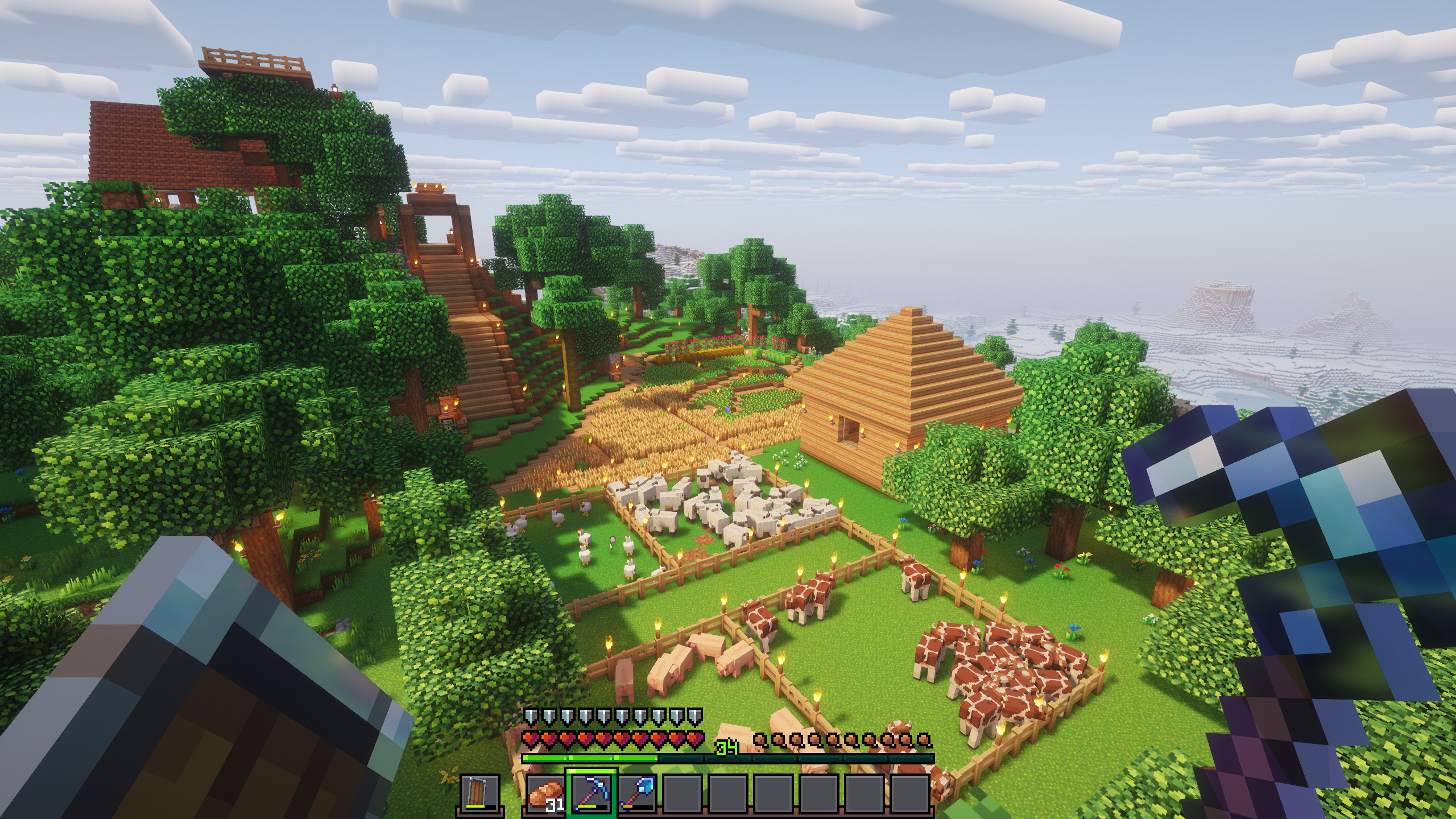
Minecraft is a sandbox game originally released by Mojang. It lets players explore, build, and survive in a procedurally generated world made up of blocks. The game is open ended with no set goals. It can be played in single player or enjoyed with friends in online multiplayer mode.
The most straightforward way to install Minecraft is to use the official launcher from the AUR:
yay -S minecraft-launcher
You will need a Microsoft Account to log into the launcher. Game updates will be handled automatically throught the launcher.
Modding
A vibrant community has formed around Minecraft, developing mods and enhancements for the game. However, installing these mods manually can sometimes be a tedious process. That’s why there are special launchers designed to greatly simplify this process.

One of these is Prism Launcher. It has native integration with Modrinth and CurseForge to install and keep individual mods or entire modpacks up to date alongside the game itself. Prism Launcher also allows you to run multiple instances of Minecraft simultaneously, for example, to use different modpacks at the same time for online multiplayer servers that require this.
Prism Launcher is available from the repositories:
sudo pacman -S prismlauncher
WARNING: There have been malware reports in the past involving certain mods and modpacks. The Flatpak version of Prism Launcher can prevent some (but not all) malware exploits through the Flatpak sandbox:
flatpak install org.prismlauncher.PrismLauncherClick "Add Instance" in the toolbar to get started. Choose a vanilla version of Minecraft or install a pre-defined modpack from the mod provider of your choice. Instances can be further customized after installation.

In the edit window of an instance you can add mods, resource and shader packs, pre-populate the server list, manage screenshots and override global settings, such as game configuration, Java runtime and other advanced settings.
SimCity 3000 Unlimited
Widescreen hack
SimCity 3000 does only support a set amount of resolutions, widescreen resolutions are not natively supported. You can work around that by editing the main executable file in a hex editor.
Open the main executable file SC3U.exe in a hex editor and search for the following byte sequence:
8b 4c 24 04 8b 44 24 08 53
Overwrite the first four bytes with:
c2 08 00 90
Next search for the byte sequence:
8b 4c 24 04 8b 54 24 08 81 f9
Overwrite the first four bytes with:
c2 08 00 90
The game will now allow much higher resolutions. Keep in mind, however, that the interface will not scale with the resolution and on really high resolutions the UI of the game might be displayed really small and might get hard to read.
Scrolling speed fix
On modern systems, SimCity 3000 exhibits a scrolling bug in which the game scrolls way too fast.
To fix this, a mod can be installed, called cnc-ddraw. It limits the game's tickrate and adds a couple more neat features.
Download cnc-ddraw from the project's GitHub releases page. Drop the files ddraw.dll and ddraw.ini into the installation directory of the game, next to the SC3U.exe file. Then, start the game with the environment variable WINEDLLOVERRIDES=ddraw=n,b. If you have the game on Steam, this can be easily achieved by opening the game's settings and adding the following line to the launch options:
WINEDLLOVERRIDES=ddraw=n,b %command%
Shaders for upscaling
cnc-ddraw supports scaling with GLSL shaders. Download them from the libretro GitHub (Code → Download ZIP) and extract it into a sub-directory in the same folder as the ddraw.dll file you copied earlier, e.g. ~/.steam/steam/steamapps/common/SimCity 3000 Unlimited/Apps/Shaders.
Then edit ddraw.ini and set the following options (shortened, Ctrl-F the setting keys):
[ddraw]
shader=Shaders/interpolation/pixellate.glsl
renderer=opengl
UT2004 (Atari DVD Release Version)
Install from the DVD. Navigate to the location the DVD was mounted at and run:
sudo sh ./linux-installer.sh
Follow the installation steps.
After installation completes do not run the game immediately after install. Patch first!
Patch to latest version
The patch can be downloaded here: ⬇️ UT2004 Mega Pack Linux + LinuxPatch 3369.2 - utzone.de
Extract contents from the archive and copy them to the install location, overwriting all the files:
NOTE: If cp is asking for confirmation on every file, it is likely there is an alias to cp -i. Prepend a \ before the cp command to temporarily ignore this alias. Alternatively, unalias cp to undefine the alias.
tar -xf ut2004megapack-linux -C /tmp/
cp -R /tmp/UT2004MegaPack/* /usr/local/games/ut2004
Launch in 64-bit
By default, the ut2004 command will launch the 32-bit version of the game. To make it launch the 64-bit version, edit the start script /usr/local/games/ut2004/ut2004 and change line 49 from
exec "./ut2004-bin" $*
to
exec "./ut2004-bin-linux-amd64" $*
Missing libraries
The game tries to load quite some old libraries, e.g. it will complain about libSDL-1.2.so.0 or libstdc++.so.5 missing.
In the case of libSDL-1.2.so.0 simply install the SDL 1.2 compatability package:
pacman -S sdl12-compat
Then, remove the libSDL-1.2.so.0 the game came with and put a symbolic link to your system's libSDL-1.2.so.0
sudo rm /usr/local/games/ut2004/System/libSDL-1.2.so.0
sudo ln -sf /usr/lib/libSDL-1.2.so.0 /usr/local/games/ut2004/System/libSDL-1.2.so.0
To fix the error about libstdc++.so.5, an AUR package with the files is available:
yay -S libstdc++5
No sound
UT2004 expects there to be a /dev/dsp sound device to access the sound card directly. This goes back to OSS (Open Sound System) which has long been deprecated in favor of ALSA and contemporaries.
This can easily be fixed in one of two ways:
- Further edit the start script of
ut2004, prepending the execution of the game binary withpadspto route all audio through PulseAudio:exec padsp "./ut2004-bin-linux-amd64" $* - Edit your user's UT2004 config file
~/.ut2004/System/UT2004.ini, go to the section[ALAudio.ALAudioSubsystem]and change the value ofUseDefaultDriver=TruetoUseDefaultDriver=False
Screen resolution
Some higher resolutions might not show up in the game's configuration screen. To set a resolution manually, edit your user's UT2004 config file, go to section [SDLDrv.SDLClient] and set the following parameters, e.g.:
ATTENTION: The config file contains two sections for various graphical settings, one for Windows and one for Linux. The one for Linux comes after the one for Windows.
[SDLDrv.SDLClient]
FullscreenViewportX=2560
FullscreenViewportY=1440
Proper wide-screen support
A mod is available that expands UT2004's wide-screen support: foxWSFix-UT2k4
Customization & Tweaks
Make it yours
DBus
dbus-broker is a drop-in replacement for the libdbus reference implementation, which aims "to provide high performance and reliability, while keeping compatibility to the D-Bus reference implementation".
Install dbus-broker:
pacman -S dbus-broker
Disable dbus.service and enable dbus-broker.service globally:
systemctl disable dbus
systemctl enable dbus-broker
Reboot for the changes to take effect.
KDE Plasma Themes
Akava
https://akava-design.github.io/
yay -S breeze-blurred-git akava-kde-git akava-konsole-git kvantum-theme-akava-git
Layan
yay -S kvantum-theme-layan-git layan-cursor-theme-git layan-gtk-theme-git layan-kde-git tela-icon-theme-git
Aritim
Install Konsole theme with "Get new stuff" Feature from Konsole.
yay -S aritim-dark-gtk-git aritim-light-kde-git aritim-dark-kde-git aritim-light-gtk-git lightly-qt kora-icon-theme
Additional Packages
Additional packages one might find useful to have installed on their system
File System Utilities
| File system | Package | Creation command | Description |
|---|---|---|---|
| Btrfs | btrfs-progs |
mkfs.btrfs |
Btrfs filesystem utilities |
| VFAT | dosfstools |
mkfs.fat |
DOS filesystem utilities |
| exFAT | exfatprogs |
mkfs.exfat |
exFAT filesystem userspace utilities for the Linux Kernel exfat driver |
| F2FS | f2fs-tools |
mkfs.f2fs |
Tools for Flash-Friendly File System (F2FS) |
| ext4 | e2fsprogs |
mkfs.ext4 |
Ext2/3/4 filesystem utilities |
| HFS/HFS+ | hfsprogs (AUR) |
mkfs.hfsplus |
User space utils to create and check Apple HFS/HFS+ filesystem |
| JFS | jfsutils |
mkfs.jfs |
JFS filesystem utilities |
| NILFS2 | nilfs-utils |
mkfs.nilfs2 |
A log-structured file system supporting continuous snapshotting |
| NTFS | ntfs-3g |
mkfs.ntfs |
NTFS filesystem driver and utilities |
| ReiserFS | reiserfsprogs |
mkfs.reiserfs |
Reiserfs utilities |
| UDF | udftools |
mkfs.udf |
Linux tools for UDF filesystems and DVD/CD-R(W) drives |
| XFS | xfsprogs |
mkfs.xfs |
XFS filesystem utilities |
System Tools
| Package | Description |
|---|---|
fwupd |
Simple daemon to allow session software to update firmware |
htop |
Interactive process viewer |
impression |
A straight-forward modern application to create bootable drives. |
libimobiledevice |
Library to communicate with services on iOS devices using native protocols |
lshw |
A small tool to provide detailed information on the hardware configuration of the machine |
man-db |
A utility for reading man pages |
power-profiles-daemon |
Makes power profiles handling available over D-Bus |
radeontop |
View AMD GPU utilization for total activity percent and individual blocks |
Multimedia
| Package | Description |
|---|---|
aegisub |
A general-purpose subtitle editor with ASS/SSA support |
amberol |
Plays music, and nothing else |
blanket |
Improve focus and increase your productivity by listening to different sounds |
eartag |
Simple music tag editor |
handbrake |
Multithreaded video transcoder |
identity |
Compare multiple versions of an image or video |
makemkv |
DVD and Blu-ray to MKV converter |
mediainfo-gui |
Supplies technical and tag information about media files |
mousai |
Simple application for identifying songs |
paleta |
Extract the dominant colors from any image |
soundconverter |
A simple sound converter application for GNOME |
tube-converter |
An easy-to-use video downloader |
video-trimmer |
Trim videos quickly |
Productivity
| Package | Description |
|---|---|
apostrophe |
A distraction free Markdown editor for GNU/Linux made with GTK+ |
Developer Tools
| Package | Description |
|---|---|
devtoolbox |
Development tools at your fingertips |
escambo |
An HTTP-based APIs test application for GNOME |
gitg |
GNOME GUI client to view git repositories |
ohmysvg |
SVG optimizer |
playhouse |
A Playground for HTML/CSS/JavaScript |
share-preview |
Preview and debug websites metadata tags for social media share |
textpieces |
Transform text without using random websites |
visual-studio-code-bin |
Editor for building and debugging modern web and cloud applications |
webfontkitgenerator |
Create @font-face kits easily |
Misc Tools
| Package | Description |
|---|---|
extension-manager |
A native tool for browsing, installing, and managing GNOME Shell Extensions |
gnome-obfuscate |
Censor private information |
newsflash |
Desktop application designed to complement an already existing web-based RSS reader account |
p7zip |
Command-line file archiver with high compression ratio |
teamviewer |
All-In-One Software for Remote Support and Online Meetings |
zsh configuration
zsh configuration as provided on a standard Manjaro install with some additions
General settings
## Options section
setopt correct # Auto correct mistakes
setopt extendedglob # Extended globbing. Allows using regular expressions with *
setopt nocaseglob # Case insensitive globbing
setopt rcexpandparam # Array expension with parameters
setopt nocheckjobs # Don't warn about running processes when exiting
setopt numericglobsort # Sort filenames numerically when it makes sense
setopt nobeep # No beep
setopt appendhistory # Immediately append history instead of overwriting
setopt histignorealldups # If a new command is a duplicate, remove the older one
setopt autocd # if only directory path is entered, cd there.
setopt inc_append_history # save commands are added to the history immediately, otherwise only when shell exits.
zstyle ':completion:*' matcher-list 'm:{a-zA-Z}={A-Za-z}' # Case insensitive tab completion
zstyle ':completion:*' list-colors "${(s.:.)LS_COLORS}" # Colored completion (different colors for dirs/files/etc)
zstyle ':completion:*' rehash true # automatically find new executables in path
# Speed up completions
zstyle ':completion:*' accept-exact '*(N)'
zstyle ':completion:*' use-cache on
zstyle ':completion:*' cache-path ~/.zsh/cache
HISTFILE=~/.zhistory
HISTSIZE=10000
SAVEHIST=10000
#export EDITOR=/usr/bin/nano
#export VISUAL=/usr/bin/nano
WORDCHARS=${WORDCHARS//\/[&.;]} # Don't consider certain characters part of the word
Key Bindings
## Keybindings section
bindkey -e
bindkey '^[[7~' beginning-of-line # Home key
bindkey '^[[H' beginning-of-line # Home key
if [[ "${terminfo[khome]}" != "" ]]; then
bindkey "${terminfo[khome]}" beginning-of-line # [Home] - Go to beginning of line
fi
bindkey '^[[8~' end-of-line # End key
bindkey '^[[F' end-of-line # End key
if [[ "${terminfo[kend]}" != "" ]]; then
bindkey "${terminfo[kend]}" end-of-line # [End] - Go to end of line
fi
bindkey '^[[2~' overwrite-mode # Insert key
bindkey '^[[3~' delete-char # Delete key
bindkey '^[[C' forward-char # Right key
bindkey '^[[D' backward-char # Left key
bindkey '^[[5~' history-beginning-search-backward # Page up key
bindkey '^[[6~' history-beginning-search-forward # Page down key
# Navigate words with ctrl+arrow keys
bindkey '^[Oc' forward-word #
bindkey '^[Od' backward-word #
bindkey '^[[1;5D' backward-word #
bindkey '^[[1;5C' forward-word #
bindkey '^H' backward-kill-word # delete previous word with ctrl+backspace
bindkey '^[[3;5~' kill-word # delete next word with ctrl+del
bindkey '^[[Z' undo # Shift+tab undo last action
Aliases
## Alias section
alias ls='ls --color=auto'
alias ll='ls -lahF'
alias cp='cp -i' # Confirm before overwriting something
alias df='df -h' # Human-readable sizes
alias free='free -m' # Show sizes in MB
alias gitu='git add . && git commit && git push'
Theming
# Theming section
autoload -U compinit colors zcalc
compinit -d
colors
# Color man pages
export LESS_TERMCAP_mb=$'\E[01;32m'
export LESS_TERMCAP_md=$'\E[01;32m'
export LESS_TERMCAP_me=$'\E[0m'
export LESS_TERMCAP_se=$'\E[0m'
export LESS_TERMCAP_so=$'\E[01;47;34m'
export LESS_TERMCAP_ue=$'\E[0m'
export LESS_TERMCAP_us=$'\E[01;36m'
export LESS=-R
Plugins
## Plugins section: Enable fish style features
# Use syntax highlighting
source /usr/share/zsh/plugins/zsh-syntax-highlighting/zsh-syntax-highlighting.zsh
# Use history substring search
source /usr/share/zsh/plugins/zsh-history-substring-search/zsh-history-substring-search.zsh
# bind UP and DOWN arrow keys to history substring search
zmodload zsh/terminfo
bindkey "$terminfo[kcuu1]" history-substring-search-up
bindkey "$terminfo[kcud1]" history-substring-search-down
bindkey '^[[A' history-substring-search-up
bindkey '^[[B' history-substring-search-down
source /usr/share/zsh/plugins/zsh-autosuggestions/zsh-autosuggestions.zsh
ZSH_AUTOSUGGEST_BUFFER_MAX_SIZE=20
ZSH_AUTOSUGGEST_HIGHLIGHT_STYLE='fg=8'
Terminal Window Title
# Set terminal window and tab/icon title
#
# usage: title short_tab_title [long_window_title]
#
# See: http://www.faqs.org/docs/Linux-mini/Xterm-Title.html#ss3.1
# Fully supports screen and probably most modern xterm and rxvt
# (In screen, only short_tab_title is used)
function title {
emulate -L zsh
setopt prompt_subst
[[ "$EMACS" == *term* ]] && return
# if $2 is unset use $1 as default
# if it is set and empty, leave it as is
: ${2=$1}
case "$TERM" in
xterm*|putty*|rxvt*|konsole*|ansi|mlterm*|alacritty|st*)
print -Pn "\e]2;${2:q}\a" # set window name
print -Pn "\e]1;${1:q}\a" # set tab name
;;
screen*|tmux*)
print -Pn "\ek${1:q}\e\\" # set screen hardstatus
;;
*)
# Try to use terminfo to set the title
# If the feature is available set title
if [[ -n "$terminfo[fsl]" ]] && [[ -n "$terminfo[tsl]" ]]; then
echoti tsl
print -Pn "$1"
echoti fsl
fi
;;
esac
}
ZSH_THEME_TERM_TAB_TITLE_IDLE="%15<..<%~%<<" #15 char left truncated PWD
ZSH_THEME_TERM_TITLE_IDLE="%n@%m:%~"
# Runs before showing the prompt
function mzc_termsupport_precmd {
[[ "${DISABLE_AUTO_TITLE:-}" == true ]] && return
title $ZSH_THEME_TERM_TAB_TITLE_IDLE $ZSH_THEME_TERM_TITLE_IDLE
}
# Runs before executing the command
function mzc_termsupport_preexec {
[[ "${DISABLE_AUTO_TITLE:-}" == true ]] && return
emulate -L zsh
# split command into array of arguments
local -a cmdargs
cmdargs=("${(z)2}")
# if running fg, extract the command from the job description
if [[ "${cmdargs[1]}" = fg ]]; then
# get the job id from the first argument passed to the fg command
local job_id jobspec="${cmdargs[2]#%}"
# logic based on jobs arguments:
# http://zsh.sourceforge.net/Doc/Release/Jobs-_0026-Signals.html#Jobs
# https://www.zsh.org/mla/users/2007/msg00704.html
case "$jobspec" in
<->) # %number argument:
# use the same <number> passed as an argument
job_id=${jobspec} ;;
""|%|+) # empty, %% or %+ argument:
# use the current job, which appears with a + in $jobstates:
# suspended:+:5071=suspended (tty output)
job_id=${(k)jobstates[(r)*:+:*]} ;;
-) # %- argument:
# use the previous job, which appears with a - in $jobstates:
# suspended:-:6493=suspended (signal)
job_id=${(k)jobstates[(r)*:-:*]} ;;
[?]*) # %?string argument:
# use $jobtexts to match for a job whose command *contains* <string>
job_id=${(k)jobtexts[(r)*${(Q)jobspec}*]} ;;
*) # %string argument:
# use $jobtexts to match for a job whose command *starts with* <string>
job_id=${(k)jobtexts[(r)${(Q)jobspec}*]} ;;
esac
# override preexec function arguments with job command
if [[ -n "${jobtexts[$job_id]}" ]]; then
1="${jobtexts[$job_id]}"
2="${jobtexts[$job_id]}"
fi
fi
# cmd name only, or if this is sudo or ssh, the next cmd
local CMD=${1[(wr)^(*=*|sudo|ssh|mosh|rake|-*)]:gs/%/%%}
local LINE="${2:gs/%/%%}"
title '$CMD' '%100>...>$LINE%<<'
}
autoload -U add-zsh-hook
add-zsh-hook precmd mzc_termsupport_precmd
add-zsh-hook preexec mzc_termsupport_preexec
.nvmrc detection
# place this after nvm initialization!
autoload -U add-zsh-hook
load-nvmrc() {
local node_version="$(nvm version)"
local nvmrc_path="$(nvm_find_nvmrc)"
if [ -n "$nvmrc_path" ]; then
local nvmrc_node_version=$(nvm version "$(cat "${nvmrc_path}")")
if [ "$nvmrc_node_version" = "N/A" ]; then
nvm install
elif [ "$nvmrc_node_version" != "$node_version" ]; then
nvm use
fi
elif [ "$node_version" != "$(nvm version default)" ]; then
echo "Reverting to nvm default version"
nvm use default
fi
}
add-zsh-hook chpwd load-nvmrc
load-nvmrc
npm completions
_zbnc_npm_command() {
echo "${words[2]}"
}
_zbnc_npm_command_arg() {
echo "${words[3]}"
}
_zbnc_no_of_npm_args() {
echo "$#words"
}
_zbnc_list_cached_modules() {
ls ~/.npm 2>/dev/null
}
_zbnc_recursively_look_for() {
local filename="$1"
local dir=$PWD
while [ ! -e "$dir/$filename" ]; do
dir=${dir%/*}
[[ "$dir" = "" ]] && break
done
[[ ! "$dir" = "" ]] && echo "$dir/$filename"
}
_zbnc_get_package_json_property_object() {
local package_json="$1"
local property="$2"
cat "$package_json" |
sed -nE "/^ \"$property\": \{$/,/^ \},?$/p" | # Grab scripts object
sed '1d;$d' | # Remove first/last lines
sed -E 's/ "([^"]+)": "(.+)",?/\1=>\2/' # Parse into key=>value
}
_zbnc_get_package_json_property_object_keys() {
local package_json="$1"
local property="$2"
_zbnc_get_package_json_property_object "$package_json" "$property" | cut -f 1 -d "="
}
_zbnc_parse_package_json_for_script_suggestions() {
local package_json="$1"
_zbnc_get_package_json_property_object "$package_json" scripts |
sed -E 's/(.+)=>(.+)/\1:$ \2/' | # Parse commands into suggestions
sed 's/\(:\)[^$]/\\&/g' | # Escape ":" in commands
sed 's/\(:\)$[^ ]/\\&/g' # Escape ":$" without a space in commands
}
_zbnc_parse_package_json_for_deps() {
local package_json="$1"
_zbnc_get_package_json_property_object_keys "$package_json" dependencies
_zbnc_get_package_json_property_object_keys "$package_json" devDependencies
}
_zbnc_npm_install_completion() {
# Only run on `npm install ?`
[[ ! "$(_zbnc_no_of_npm_args)" = "3" ]] && return
# Return if we don't have any cached modules
[[ "$(_zbnc_list_cached_modules)" = "" ]] && return
# If we do, recommend them
_values $(_zbnc_list_cached_modules)
# Make sure we don't run default completion
custom_completion=true
}
_zbnc_npm_uninstall_completion() {
# Use default npm completion to recommend global modules
[[ "$(_zbnc_npm_command_arg)" = "-g" ]] || [[ "$(_zbnc_npm_command_arg)" = "--global" ]] && return
# Look for a package.json file
local package_json="$(_zbnc_recursively_look_for package.json)"
# Return if we can't find package.json
[[ "$package_json" = "" ]] && return
_values $(_zbnc_parse_package_json_for_deps "$package_json")
# Make sure we don't run default completion
custom_completion=true
}
_zbnc_npm_run_completion() {
# Only run on `npm run ?`
[[ ! "$(_zbnc_no_of_npm_args)" = "3" ]] && return
# Look for a package.json file
local package_json="$(_zbnc_recursively_look_for package.json)"
# Return if we can't find package.json
[[ "$package_json" = "" ]] && return
# Parse scripts in package.json
local -a options
options=(${(f)"$(_zbnc_parse_package_json_for_script_suggestions $package_json)"})
# Return if we can't parse it
[[ "$#options" = 0 ]] && return
# Load the completions
_describe 'values' options
# Make sure we don't run default completion
custom_completion=true
}
_zbnc_default_npm_completion() {
compadd -- $(COMP_CWORD=$((CURRENT-1)) \
COMP_LINE=$BUFFER \
COMP_POINT=0 \
npm completion -- "${words[@]}" \
2>/dev/null)
}
_zbnc_zsh_better_npm_completion() {
# Store custom completion status
local custom_completion=false
# Load custom completion commands
case "$(_zbnc_npm_command)" in
i|install)
_zbnc_npm_install_completion
;;
r|uninstall)
_zbnc_npm_uninstall_completion
;;
run)
_zbnc_npm_run_completion
;;
esac
# Fall back to default completion if we haven't done a custom one
[[ $custom_completion = false ]] && _zbnc_default_npm_completion
}
compdef _zbnc_zsh_better_npm_completion npm
Command not found handler
function command_not_found_handler {
local purple='\e[1;35m' bright='\e[0;1m' green='\e[1;32m' reset='\e[0m'
printf 'zsh: command not found: %s\n' "$1"
local entries=(
${(f)"$(/usr/bin/pacman -F --machinereadable -- "/usr/bin/$1")"}
)
if (( ${#entries[@]} ))
then
printf "${bright}$1${reset} may be found in the following packages:\n"
local pkg
for entry in "${entries[@]}"
do
# (repo package version file)
local fields=(
${(0)entry}
)
if [[ "$pkg" != "${fields[2]}" ]]
then
printf "${purple}%s/${bright}%s ${green}%s${reset}\n" "${fields[1]}" "${fields[2]}" "${fields[3]}"
fi
printf ' /%s\n' "${fields[4]}"
pkg="${fields[2]}"
done
fi
return 127
}
Final .zshrc
source /usr/share/nvm/init-nvm.sh
source ~/.zsh/1_general.zsh
source ~/.zsh/2_keybindings.zsh
source ~/.zsh/3_aliases.zsh
source ~/.zsh/4_theming.zsh
source ~/.zsh/5_plugins.zsh
source ~/.zsh/6_termwin_func.zsh
source ~/.zsh/7_nvmrc.zsh
source ~/.zsh/8_npm_completion.zsh
source ~/.zsh/9_command_not_found.zsh
powerlevel10k prompt theme
yay -S zsh-theme-powerlevel10k-git nerd-fonts-jetbrains-mono
echo 'source /usr/share/zsh-theme-powerlevel10k/powerlevel10k.zsh-theme' >> ~/.zshrc
Plymouth
Plymouth replaces boot messages with a pretty splash screen.
Installation
yay -S plymouth ttf-dejavu
Configuration
Enabling Plymouth requires editing the HOOKS array in /etc/mkinitcpio.conf. Depending on what your initramfs is based on the hooks slightly differ.
Busybox
If your initramfs is busybox-based (default in Arch Linux), add the plymouth hook after the base and udev hooks:
ATTENTION: When using the encrypt hook to unlock encrypted devices during boot, place it after the plymouth hook in order to receive a passphrase prompt, e.g.:
HOOKS=(base udev plymouth autodetect keyboard keymap consolefont modconf block encrypt lvm2 filesystems fsck)HOOKS=(base udev plymouth ...)
Systemd
If your initramfs is systemd-based (i.e. to make use of systemd-cryptenroll), add the plymouth hook after the base and systemd hooks:
ATTENTION: When using the sd-encrypt hook to unlock encrypted devices during boot, place it after the plymouth hook in order to receive a passphrase prompt, e.g.:
HOOKS=(base systemd plymouth autodetect keyboard sd-vconsole modconf block sd-encrypt lvm2 filesystems fsck)HOOKS=(base systemd plymouth ...)
Theming
A great selection of Plymouth themes can be found on the AUR.
To list available Plymouth themes (alternatively ls /usr/share/plymouth/themes):
plymouth-set-default-theme -l
Set the Plymouth theme and rebuild (-R) the initramfs, e.g. BGRT (keeps firmware logo and displays a spinner in a similar fashion to Windows):
TIP: When unlocking a LUKS encrypted root file system during boot the passphrase prompt replaces the firmware logo. To prevent this install and set the following theme instead:
yay -S plymouth-theme-bgrt-better-luks
sudo plymouth-set-default-theme -R bgrt-better-lukssudo plymouth-set-default-theme -R bgrt
Reboot and enjoy!
Reinstall preparation
Backup
Folders in /home
.dosbox(DOSBox configs).local/bin(local scripts).mozilla(Firefox profile).ssh(SSH keys and configs)DOS(DOSBox root)DOSGAMES(ISO images)- Downloads
- Run Sync NAS script to save Documents, Pictures, Music and Video
- Possible Windows game saves beneath
.wineprefix
Configs
Folding@Home
Folding@Home config: /etc/foldingathome/config.xml
HandBrake
Export Configs via GUI
VS Code
Use Cloud Sync extension with GitHub
Qt Wayland
Display server
To utilize Wayland for Qt-based applications install the qt5-wayland and qt6-wayland packages. Optionally, also install qt5ct and qt6ct if you're on a non-KDE desktop environment.
Then set the QT_QPA_PLATFORM environment variable to:
-
waylandfor the wayland plugin -
xcbfor the X11 plugin -
qt6ctfor running Qt6-based applications on non-KDE desktop environments -
qt5ctfor running Qt5-based applications on non-KDE desktop environments
TIP: It may prove useful to set multiple values separated by ;. In case one is not available, the next one is used.
QT_QPA_PLATFORM="wayland;qt5ct;xcb"
Use KDE dialogs
If some applications (e.g. Telegram) don't use default KDE dialogs, set the following environment variable:
QT_QPA_PLATFORMTHEME="flatpak"
Removing unused packages (orphans)
Orphans can accumulate as packages are removed via pacman -R instead of pacman -Rs, makedepends or packages removing dependencies in subsequent versions. These can accumulate over time and waste space
To recursively remove packages that are not required by other packages (including their configuration files) installed on the systems use the following command:
| Parameter | Description |
|---|---|
-Q |
Query the local database |
-t |
List packages not required by any other installed package ( -tt to also list packages installed as optional dependencies) |
-d |
List packages installed as dependencies |
-q |
Show less information (e.g. only package names, useful for piping) |
-R |
Remove packages |
-n |
Also remove configuration files |
-s |
Remove unneeded packages recursively |
pacman -Qtdq | pacman -Rns -
Troubleshooting
Things will break. Start here when they do.
Restore Secure Boot Keys, Bootloader, LUKS TPM Key after Firmware update
After a firmware upgrade the firmware settings might get reset to their default values, including bootloater entries and custom secure boot keys.
Restore secure boot keys
First, you should restore any custom secure boot keys that might have been lost.
If you already had secure boot keys before the update you should be able to simply restore them by pushing them into the firmware again like you did on initial setup. Keep in mind that you still need to put the secure boot state into setup mode (e.g. by deleting all keys from storage) or else the keys will not be writable and restore will fail.
Boot the Arch Linux install media, mount your drives (especially the EFI system partition) and arch-chroot into it.
If you only boot Arch Linux:
sbctl enroll-keys
If you dual-boot Windows:
sbctl enroll-keys --microsoft
Restore boot loader
Depending on which boot loader you use you can probably restore it by just installing it again.
See the Boot Loader section for install instructions.
After restoring the boot loader, make sure to sign it with your keys and regenerate and re-sign the initrd as well!
sbctl sign-all
Regenerate TPM-based LUKS key
Since the firmware code changed the PIN you set up for a TPM-based LUKS key will probably stop validating (e.g. if you sealed against PCR 0).
You will need to re-enroll the TPM-based key into a free LUKS key slot in order to restore TPM-based PIN unlocking.
First, clear any TPM-based key from the LUKS device:
systemd-cryptenroll --wipe-slot=tpm2
Then, enroll a new key as described on Trusted Platform Module.
WARNING: Possibly missing firmware for module during initrd generation
During initrd generation mkinitcpio might output the following messages:
==> Starting build: '6.2.8-arch1-1'
-> Running build hook: [base]
-> Running build hook: [systemd]
-> Running build hook: [sd-plymouth]
-> Running build hook: [keyboard]
==> WARNING: Possibly missing firmware for module: 'xhci_pci'
-> Running build hook: [sd-vconsole]
-> Running build hook: [modconf]
-> Running build hook: [block]
==> WARNING: Possibly missing firmware for module: 'aic94xx'
==> WARNING: Possibly missing firmware for module: 'bfa'
==> WARNING: Possibly missing firmware for module: 'qed'
==> WARNING: Possibly missing firmware for module: 'qla1280'
==> WARNING: Possibly missing firmware for module: 'qla2xxx'
==> WARNING: Possibly missing firmware for module: 'wd719x'
-> Running build hook: [sd-encrypt]
==> WARNING: Possibly missing firmware for module: 'qat_4xxx'
-> Running build hook: [lvm2]
-> Running build hook: [filesystems]
-> Running build hook: [fsck]
These messages indicate that the firmware the mentioned kernel modules use are likely not installed, so the hardware these modules are intended for might not be functioning properly.
You can check which firmware files a module expects with modinfo:
modinfo xhci_pci
Which prints the following:
filename: /lib/modules/6.2.8-arch1-1/kernel/drivers/usb/host/xhci-pci.ko.zst
license: GPL
description: xHCI PCI Host Controller Driver
firmware: renesas_usb_fw.mem
srcversion: 2136F2C840FEFEEBE2620AB
alias: pci:v*d*sv*sd*bc0Csc03i30*
alias: pci:v00001912d00000015sv*sd*bc*sc*i*
alias: pci:v00001912d00000014sv*sd*bc*sc*i*
depends: xhci-pci-renesas
retpoline: Y
intree: Y
name: xhci_pci
vermagic: 6.2.8-arch1-1 SMP preempt mod_unload
sig_id: PKCS#7
signer: Build time autogenerated kernel key
sig_key: 32:CA:80:C4:B5:BA:12:59:45:12:81:28:04:EF:9C:56:42:A8:A1:65
sig_hashalgo: sha512
signature: 30:65:02:30:30:C2:EB:28:BB:C1:F4:09:1B:F8:94:7D:D6:6D:42:89:
2B:8C:74:4C:89:2C:F9:4F:6A:0C:92:64:B5:1C:97:76:15:DC:96:D6:
59:3B:6F:C9:E3:8F:89:16:2C:D9:36:AC:02:31:00:83:C4:FE:BF:75:
C5:8D:A7:82:01:08:79:3D:FF:8D:3C:54:41:95:6D:2C:5E:8B:C9:3B:
76:B0:1E:FE:5C:BA:23:66:30:A4:EA:D3:11:FF:7B:E4:93:67:DA:66:
02:16:6D
You can check to see whether the module gives any indication of whether intervention is required. If it lists hardware that is not present on the system, it can be safely ignored.
Getting rid of the warnings anyway
NOTE: Also see the Arch Wiki article for mkinitcpio on the topic. At the time of writing, the firmware files for the qat_4xxx kernel module have not been made publicly available yet, so you will still receive a warning about this module in particular.
If you wish to not be warned about missing firmware files you can install the mkinitcpio-firmware meta package from the AUR:
yay -S mkinitcpio-firmware
This will install additional firmware files on your system to suppress these warnings.
Python Applications Stop Working
After a new minor release of Python (e.g. 3.9 -> 3.10) some Python packages from the AUR might stop working. This can be fixed by rebuilding the packages.
To get a list of the Python packages installed on your system you can run:
pacman -Qoq /usr/lib/python3.*
This gives you a list of packages that have files installed under the given directory (/usr/lib/python3.{x..y}). Since the directory changes when a new version of Python is released you will need to rebuild some or all of these packages.
To initiate a rebuild take your AUR Helper, e.g. with yay, issue the following command:
yay -S $(pacman -Qoq /usr/lib/python3.*) --answerclean All
This will pass all of the packages from the previous list as an argument to yay's install command (-S) and rebuild the packages from scratch (--answerclean All). This will move them to the new directory structure.
However, if any of the packages needing to be rebuilt are not yet compatible with the new version of Python, the rebuild might still fail. Should this happen, pass a list of remaining package names by hand or use the --ignore option and pass it the package names that failed to rebuild (comma-separated, glob patterns are supported).
Discover does not offer system package updates
Sometimes Discover fails to delete the lockfile for PackageKit. In this case, delete the lockfile yourself.
sudo rm /var/lib/PackageKit/alpm/db.lck
Fonts in GNOME Flatpak apps are not anti-aliased on non-GTK desktops
Under Wayland GNOME apps get their anti-aliasing settings from XDG Portals. To make fonts look nice in GNOME apps on Wayland and a non-GTK desktop (e.g. KDE Plasma) you need the appropriate portal installed:
pacman -S xdg-desktop-portal-gtk
Then, restart the xdg-desktop-portal and xdg-desktop-portal-gtk user unit:
systemctl --user restart xdg-desktop-portal xdg-desktop-portal-gtk
After that restart your GNOME flatpak app and fonts should now be anti-aliased.