# Desktop Environemt
Pick your poison
# GNOME
Base GNOME packages for the full GNOME experience. Bundle with other packages to prevent package conflicts providing the same functionality.
TIP: Include any and all packages you want installed in a list to pacman. That way pacman will resolve package dependencies correctly and not install packages that would cause conflicts with other packages later on in the setup; e.g. the gnome group installs pulseaudio, but pulseaudio and pipewire (see below) are conflicting packages, meaning they can't both be installed at the same time prompting you to remove one or the other. Explicitly selected packages take precedence over packages auto-selected via dependencies.
The most basic installation of a GNOME desktop environment is easily done by installing the following package groups:
~~~bash
pacman -S gnome gnome-circle gnome-extra
~~~
`gnome` contians all the packages to run a basic GNOME desktop. `gnome-circle` contains additional applications from the "GNOME Circle" developer community. `gnome-extra` contains developer tools for GNOME applications and a few games.
## Setting up display manager
### Start GDM on boot
Start the GNOME Display Manager (GDM) on boot to be presented with a graphical login screen.
~~~bash
systemctl enable gdm
~~~
#### When using NVIDIA proprietary drivers
For the longest time NVIDIA only supported their EGLStreams interface for Wayland sessions. Despite GNOME having support for both EGLStreams and the more popular GBM interface, the GNOME Display Manager disables the Wayland session via a `udev` rule, if it detects the proprietary driver is in use, to prevent problems with the login screen not showing.
To force enable GNOME's Wayland session even with the proprietary NVIDIA driver installed, check the following files:
* `/etc/gdm/custom.conf`: Make sure the line `WaylandEnable=false` is **commented out** (should be by default)
* `/usr/lib/udev/rules.d/61-gdm.rules`: Rename the file and create a symbolic link to `/dev/null`
~~~bash
ln -s /dev/null /usr/lib/udev/rules.d/61-gdm.rules
~~~
Keep in mind that Wayland depends on Kernel Mode Setting to function properly, so it is necessary to include the appropriate kernel modules in the initramfs and setting the kernel commandline parameter to enable KMS support for the proprietary NVIDIA driver!
See [Graphics Cards](/books/arch-linux/page/graphics-cards) on how to set up early KMS with the proprietary NVIDIA driver.
### Set Keymap for GDM
NOTE: Executing this command while chrooted into an installation will produce an error that the locale could not be found. Set after rebooting the system, press CTRL + ALT + F3 when GDM shows up (or any F-key between 2 and 7) to switch tty, log in via the command line and execute the command as root.
~~~bash
localectl set-x11-keymap de
~~~
See instructions at [Plymouth page](/books/arch-linux/page/plymouth) on how to set up Plymouth.
## Misc additional packages
Additional packages you might want:
| Name | Description |
|------------------------------------|-------------------------------------------------------------------------------------------------|
| `gthumb` | Image viewer with simple editing capabilities |
| `lollypop` | Music player for GNOME |
| `seahorse` | Secrets manager (login credentials, SSH keys, GPG keys) |
| `fwupd` | Firmware update manager; allows UEFI capsule updates in GNOME Software if supported by firmware |
~~~bash
pacman -S gthumb lollypop seahorse fwupd
~~~
## GNOME Keyring
Gnome Keyring is a useful tool for securely storing and managing passwords, SSH keys, and other sensitive information.
As `gnome-keyring` is already a member of the `gnome` package group, it should already be installed.
To manage the contents of `gnome-keyring` install `seahorse`:
~~~bash
pacman -S seahorse
~~~
### SSH Keys
GNOME comes with GNOME Keyring as the component to store passwords and other secrets. It can act as a wrapper around `ssh-agent` and displays a GUI password entry dialog when you need to unlock an SSH key. This dialog also has a checkbox to remember the password, and will unlock the key automatically when you login to your GNOME session via your regular user password.
To utilize GNOME Keyring for storing SSH passphrases, install the `gcr-4` package:
~~~bash
pacman -S gcr-4
~~~
Then, enable the `gcr-ssh-agent.socket` user unit:
~~~bash
systemctl --user enable --now gcr-ssh-agent.socker
~~~
This will create a socket file under `$XDG_RUNTIME_DIR/gcr/ssh` and set the `$SSH_AUTH_SOCK` environment variable, which `ssh-agent` uses to look for unlocked SSH keys and use them for authentication.
## Uniform application styles
### Qt applications
To make Qt/KDE applications fit in with the GNOME desktop you can install an Adwaita Qt theme and window decorations:
~~~
yay -S adwaita-qt{5,6}-git qadwaitadecorations-qt{5,6}
~~~
Then set the following environment variables in `~/.config/evironment.d/qt.conf`:
~~~bash
QT_WAYLAND_DECORATION=adwaita
QT_STYLE_OVERRIDE=Adwaita-Dark
~~~
### GTK3 applications
There is an Adwaita theme that brings GTK3 apps in line with the current LibAdwaita theme:
~~~bash
pacman -S adw-gtk-theme
~~~
Then open GNOME Tweaks and set the application theme for legacy applications to `adw-gtk3` (or explicitly to `adw-gtk3-dark` if you notice apps that are not dark mode aware).
### Flatpak apps
To apply Adwaita themes to Flatpak apps, install the following packages:
~~~bash
flatpak install org.gtk.Gtk3theme.adw-gtk3 org.gtk.Gtk3theme.adw-gtk3-dark
~~~
If you set the theme for legacy applications in GNOME Tweaks they will also be applied to Flatpak apps.
### Firefox
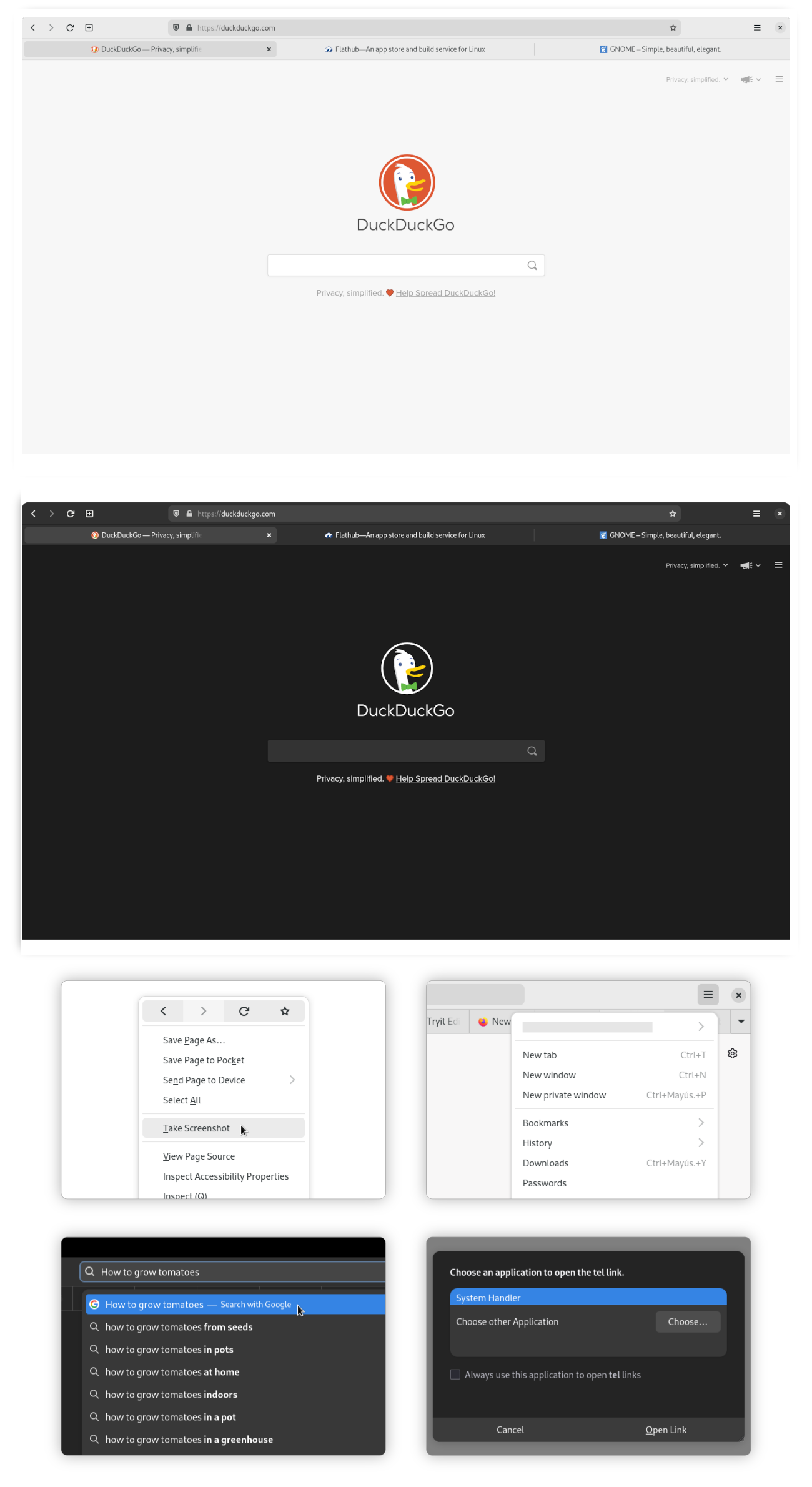
Firefox can be customized to look like a GNOME native application by applying a [GNOME Theme](https://github.com/rafaelmardojai/firefox-gnome-theme) to it.
The simplest way to apply the theme is by installing *Add Water*, an application that allows you to install/remove the Firefox GNOME theme with a single click. It also allows to customize the GNOME theme with several options. It can auto-detect different versions of Firefox (repo package, Flatpak, Snap) as well as Firefox forks (Floorp, Cachy, LibreWolf).
~~~bash
flatpak install dev.qwery.AddWater
~~~
NOTE: When Firefox receives an update the theme can break in some ways. When this happens you can uninstall the theme temporarily or hold off on updating Firefox until an updated version of the theme becomes available.
### Steam
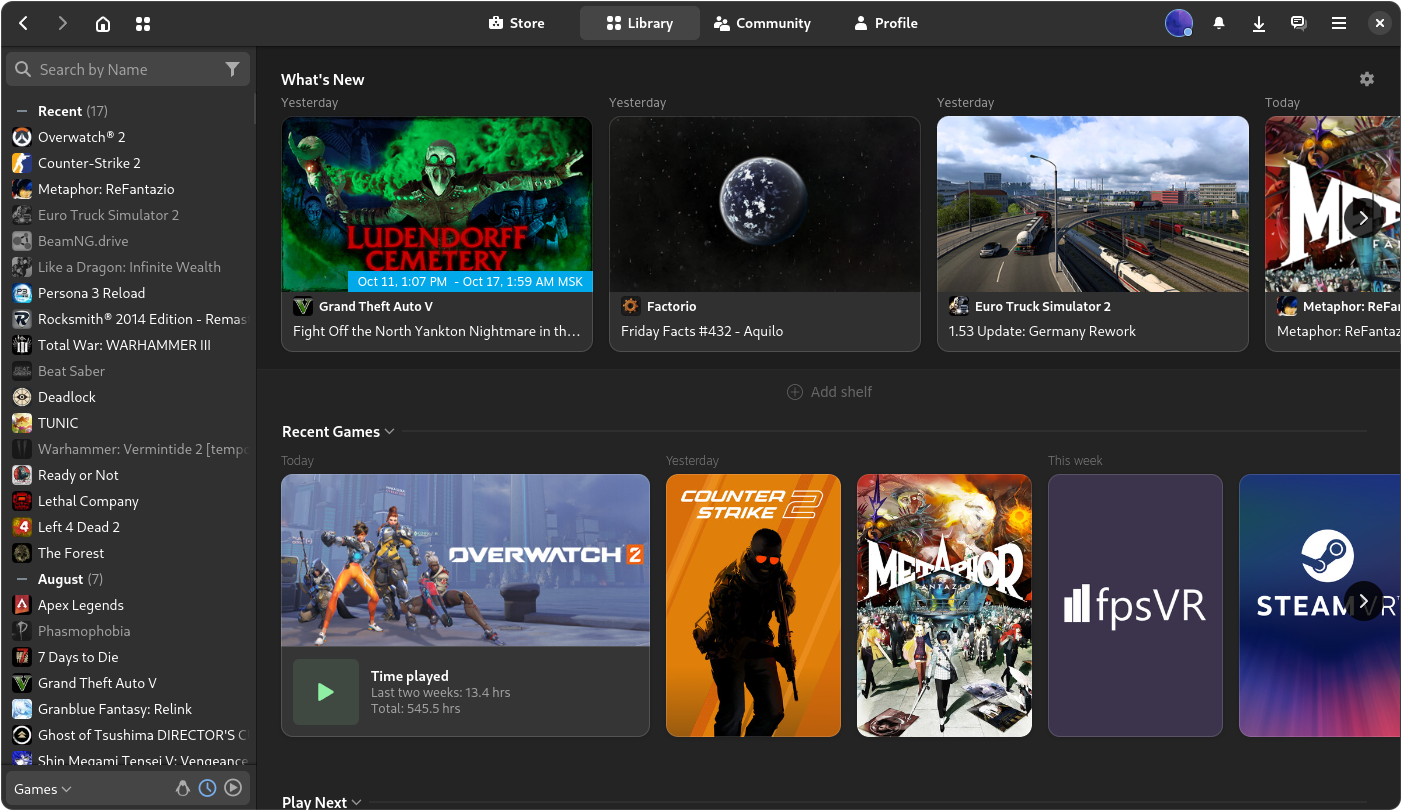
There is an Adwaita theme available for Steam to make it fit in with the rest of the GNOME desktop. An app is available that can install and manage the theme for you:
~~~bash
flatpak install io.github.Foldex.AdwSteamGtk
~~~
## Remove potentially unwanted packages
### GNOME Dev Tools
~~~bash
pacman -Rsc gnome-{builder,devel-docs,multi-writer,terminal} accerciser d-spy devhelp glade sysprof
~~~
### User Software
~~~bash
pacman -Rsc gnome-{notes,recipes,sound-recorder} polari
~~~
### Games
~~~bash
pacman -Rsc gnome-{2048,chess,games,klotski,mahjongg,mines,nibbles,sudoku,taquin,tetravex} hitori iagno lightsoff quadrapassel tali
~~~
## Replace repo packages with Flatpaks
If you wish to use the Flatpak versions of packages that the GNOME desktop team maintains themselves, you can uninstall the packages that are available as Flatpak in GNOME Software.
### Remove
TIP: Put substrings of package names between curly brackets { } so the shell substitutes the values, e.g. gnome-{calculator,calendar,characters,clocks} is interpreted as if you typed gnome-calculator gnome-calendar gnome-characters gnome-clocks. Nesting also works!
Packages part of the `gnome` package group:
~~~bash
pacman -Rn gnome-{calculator,calendar,characters,clocks,connections,contacts,font-viewer,logs,maps,music,text-editor,weather} \
epiphany evince loupe simple-scan snapshot sushi totem decibels
~~~
Packages part of the `gnome-extra` package group:
~~~bash
pacman -Rn chatty d-spy dconf-editor devhelp endeavour file-roller ghex gnome-{boxes,builder,calls,chess,mahjongg,mines,nibbles,robots,sound-recorder,sudoku,tweaks} lightsoff quadrapassel swell-foop sysprof
~~~
### Reinstall
Install the core GNOME apps as Flatpaks:
NOTE: Some of the repo packages of the gnome-extra group have been discontinued by GNOME. The following Flatpak selections replaces these with actively developed alternatives.
~~~bash
flatpak install flathub org.gnome.{Calculator,Calendar,Calls,Snapshot,Characters,clocks,Connections,Contacts,SimpleScan,Evince,Extensions,font-viewer,Loupe,Decibels,Logs,Maps,Music,NautilusPreviewer,TextEditor,Showtime,Weather,Epiphany}
~~~
Selection of Flatpaks previously from the `gnome-extra` package group:
~~~bash
flatpak install flathub org.gnome.{Evolution,Geary,GHex,Glade,Boxes,seahorse.Application,World.Iotas} ca.desrt.dconf-editor io.github.alainm23.planify page.kramo.Cartridges page.tesk.Refine com.mattjakeman.ExtensionManager io.gitlab.adhami3310.Impression
~~~
For a list of additional packages, see [GNOME Flatpaks](https://wiki.sebin-nyshkim.net/books/arch-linux/page/gnome-flatpaks).
# KDE Plasma
KDE Plasma is a modern, highly customizable desktop environment that strikes a rare balance in the Linux ecosystem: it delivers a gorgeous, feature-rich visual experience without hogging your system resources. While it looks premium out of the box, its true power lies in its absolute modularity, allowing you to tweak everything from window rules to panel layouts.
The base KDE Plasma desktop can be installed by either the `plasma` **group** or the `plasma-meta` **meta package**. The group installs all packages in it once, while the meta package pulls in the packages via dependencies and installs new packages when the meta package gets updated to include new packages as dependencies. Which one you choose is personal preference how you'd like to manage your installation.
Install either `plasma` **or** `plasma-meta`:
~~~bash
# Plasma group
pacman -S plasma
# Plasma meta package
pacman -S plasma-meta
~~~
This will install only the desktop without barely any applications. Instead of installing the massive `kde-applications` bundle (which includes over 190 packages, many of which you may never use), Arch Linux splits the ecosystem further into modular, category-specific **groups** and **meta-packages**.
Use the table below to selectively install only the categories that you need:
NOTE: The same semantics as for the base plasma group/meta package apply. Append `-meta` to any group, if you prefer the meta package variants.
| Group Name | Category Focus | Key Included Applications |
| ------------------- | ------------------------------- | -------------------------------------------------------------------------------- |
| `kde-accessibility` | Accessibility | `kmouth` (speech synthesizer), `kmousetool` |
| `kde-education` | Education & Science | `marble` (virtual globe), `kalzium` (periodic table), `cantor` |
| `kde-games` | Gaming & Entertainment | `kpat` (solitaire), `kshisen`, `granatier` (bomberman clone) |
| `kde-graphics` | Graphics & Creativity | `gwenview` (image viewer), `okular` (document viewer), `kolourpaint` |
| `kde-multimedia` | Audio & Video | `kdenlive` (video editor), `dragon` (media player), `juk` (music player) |
| `kde-network` | Networking & Remote | `kdeconnect` (phone sync), `kget` (download manager), `krdc` (remote desktop) |
| `kde-office` | Productivity | `calligra` (office suite), `krosspython` |
| `kde-pim` | Personal Information Management | `kmail` (email), `korganizer` (calendar), `kaddressbook` |
| `kde-sdk` | Software Development | `katedevel`, `cervisia`, `kompare` (diff tool) |
| `kde-system` | System Administration | `ksystemlog` (log viewer), `kdiskfree` (storage space manager) |
| `kde-utilities` | Desktop Utilities | `kate` (advanced text editor), `kcalc` (calculator), `filelight` (disk analyzer) |
If you want the **complete** suite of KDE applications (over 190 packages), install `kde-applications` (group) or `kde-applications-meta` (meta package).
## Setting up the display manager
By default, both the group and meta package install both SDDM and the new Plasma Login Manager. The default since KDE Plasma 6.6 is Plasma Login Manager, as it's specifically designed to better integrate with KDE Plasma.
Enable the display manager to start on boot and present a graphical login interface:
~~~bash
systemctl enable plasmalogin
~~~
The default keymap is set to US English. If your keyboard layout differs, change the default keymap with `localectl`:
NOTE: Executing this command while chrooted into the installation environment will produce an error that the locale could not be found. To set it, finish the installation, reboot into the installed system, press CTRL + ALT + F3 when Plasma Login Manager shows up (or any F-key between 2 and 7) to switch to a different console, log in via the command line and execute the command as root.
~~~bash
localectl set-x11-keymap de
~~~
## KDE Wallet
KDE Wallet is the integrated password manager and secret store of KDE Plasma. It stores passwords to websites, WiFi networks, network shares, SSH keys and more.
### Unlock Wallet automatically on login
To automatically unlock your wallet on login, the `kwallet-pam` package provides the necessary PAM modules (already part of the `plasma` package group).
There are several caveats to consider:
* Only `blowfish` encryption is supported
* Wallet can only be unlocked if the autologin method saves the password, e.g. when using `pam_autologin`
* Wallet cannot be unlocked when logging in with a fingerprint
* Wallet must be named `kdewallet` (default name)
* Disabling automatic closing of Wallet may be desired to keep it from asking for the password after every use
* When choosing to secure Wallet with a password it must match the user account password
Automatic unlocking can also be achieved by setting no password. Do keep in mind, however, that this could lead to potentially undesired read/write access to your secrets. Enabling _Prompt when an application accesses a wallet_ under _Access Control_ is highly recommended.
Using Plasma Login Manager (or SDDM) requires no further configuration steps.
### Storing SSH key passphrases in Wallet
KDE Wallet can be used to store passphrases for SSH keys and have a KDE prompt appear asking for the password.
To also automatically unlock the SSH keys a SSH agent needs to be set up and running.
The `openssh` package (since version 9.4p1-3) comes with a systemd **user unit** to start the SSH agent on login regardless of a graphical session running:
NOTE: This needs to be run as the user you set up earlier, without sudo.
~~~bash
systemd --user enable ssh-agent
~~~
The user unit creates a Unix socket for other applications to communicate with the agent. For these applications to know this socket, the `SSH_AUTH_SOCK` environment variable needs to be set. This can be achieved via user-specific systemd environment variables.
On login, systemd parses `*.conf` files in `~/.config/environment.d/` and sets environment variables from these. Environment variables are set in a `KEY=VALUE` fashion.
Create a new file `~/.config/environment.d/ssh_agent.conf`:
~~~
SSH_AUTH_SOCK=$XDG_RUNTIME_DIR/ssh-agent.socket
~~~
Additionally, to have a KDE dialog box appear in case the passphrase is not stored in your Wallet, point the `SSH_ASKPASS` environment variable to the `ksshaskpass` application (part of the `plasma` package group):
~~~
SSH_ASKPASS=/usr/bin/ksshaskpass
SSH_ASKPASS_REQUIRE=prefer
~~~
### Chromium-based browsers
To make Chromium-based browsers (Google Chrome, Microsoft Edge, Brave, Opera, etc.) use Wallet as a password store launch it with `--password-store=kwallet6` or `--password-store=detect` (preferred).
To make this launch argument persistent, add it to the "flags" file for the Chromium-based browser you want to use:
| Browser | Path |
| ----------------- | --------------------------------- |
| Chromium | `~/.config/chromium-flags.conf` |
| Google Chrome | `~/.config/chrome-flags.conf` |
| Google Chrome DEV | `~/.config/chrome-dev-flags.conf` |
| Vivaldi | `~/.config/vivaldi-stable.conf` |
See also: Making flags persistent on Arch Wiki.